As a tech professional with years of experience streamlining digital workflows for teams and individuals, I've seen firsthand how disorganized files lead to frustration and lost productivity. That sinking feeling when you can't locate a crucial document? It's avoidable. With smart organization, your computer becomes a powerful asset rather than a cluttered nightmare. Here are 9 battle-tested strategies to transform chaos into efficiency.
"This seems overwhelming; I'll tackle it later." Push that thought aside. Organization requires minimal skill—just consistent action. The real investment is awareness: place files in their proper spot immediately. Would you scatter papers across your living room floor? Treat your computer like your home: keep it tidy for everything from work to entertainment.
Picture a USB drive crammed with hundreds of loose files—no folders in sight. Chaos. Folders form the foundation of organization, but mislabeled or misplaced ones are as useless as none at all.
Your My Documents folder is the ideal hub for categorized subfolders—not a dumping ground. Think of it as your digital home: files live inside folders, just as binders belong in cabinets indoors.
Group by purpose: school docs in a School folder, work files in Work, music in Music. Avoid sorting solely by file type (e.g., all PDFs together)—it's a quick fix but lacks precision. Instead, prioritize relevance: a school report goes in School, not a generic Docs pile.
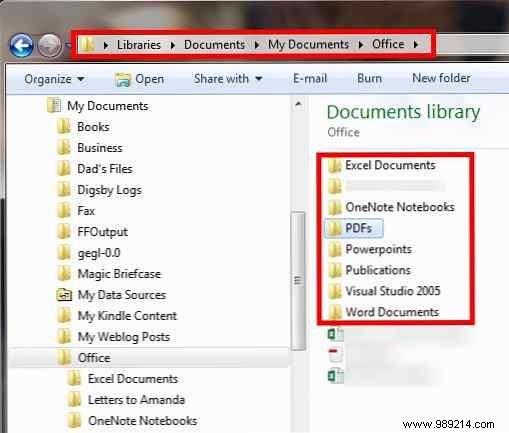
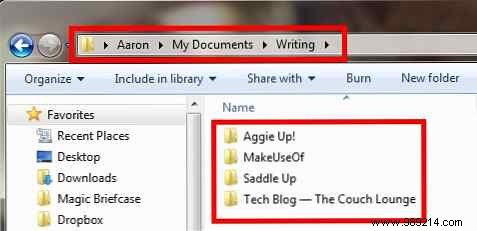
Date-based sorting helps but shouldn't stand alone—you'll hunt through "04-11-2006" folders mixed with unrelated files. For frequently updated items like resumes, append dates to descriptive names: "Resume_JohnDoe_2023-10-01.docx".
Subfolders enable deep organization, like Work > Projects > "ProjectName_2023". But limit depth: keep frequent files 1-2 levels deep for quick access. Balance structure with practicality.

Be concise but clear: "School_Stuff" becomes "College". Capitalize properly for readability. Under School, use subfolders like "[SchoolName]" or abbreviations you recognize. Clarity ensures you (and sharers) instantly understand contents—vital for collaboration.
Prevent deep-buried files by optimizing access. This sustains your system, making new saves effortless.
In Windows Explorer, use icon sizes, preview panes, and sorting (by name/date) for efficiency. Pin frequent folders to Favorites for one-click access—drag until you see "Create link in Favorites".
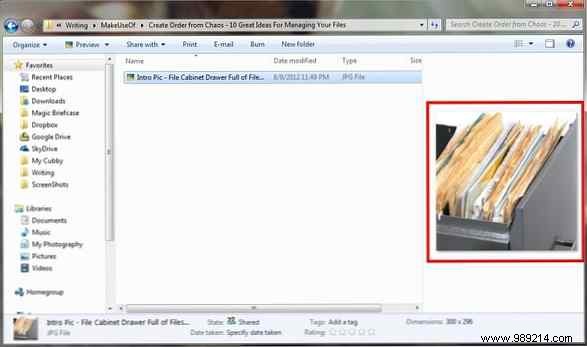
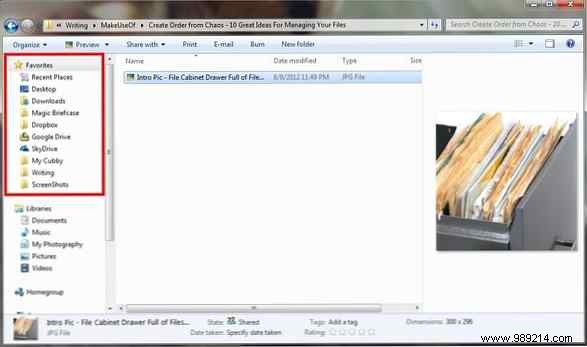
Windows 7+ Jump Lists pin folders to the taskbar Explorer icon. Right-click, drag folders here, and reorder as needed.
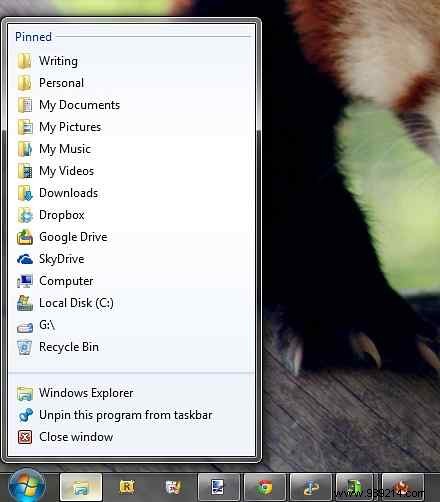
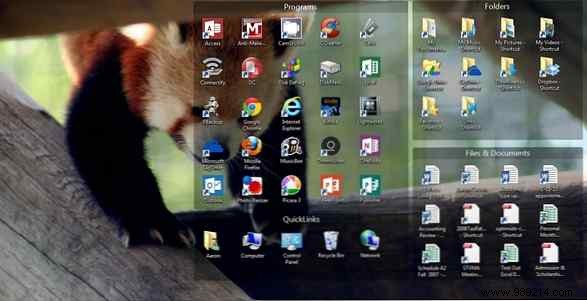
For essential desktop folders, use Fences (as detailed in our guide on cleaning your Windows desktop). Double-click to hide/show icons, keeping only high-priority items like resumes.
Archiving means moving whole folders to an "Archive" or "z.Archive" (to push it to the list bottom) in My Documents—not dumping loose files. This clears active space without permanent deletion.
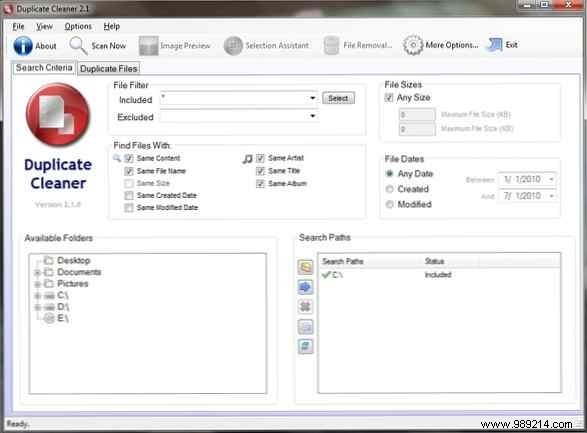
Duplicates creep in via accidental copies. Use free tools like Duplicate Cleaner—reliable, user-friendly, and regularly updated—for scans across file types.
Right-click > "Create shortcut" for links to originals (they save space). Send to Desktop via right-click > Send to > Desktop.
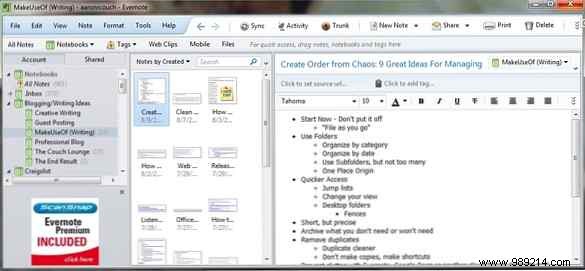
Skip local notes that pile up—use cloud tools like Evernote (with desktop app) or Google Docs for seamless search and organization. Alternatives: OneNote, Simplenote. They keep your drive clean.
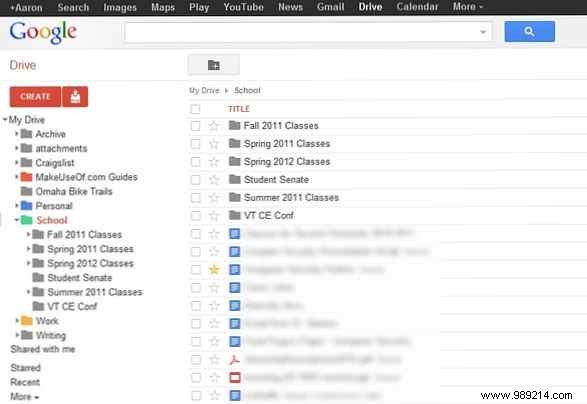
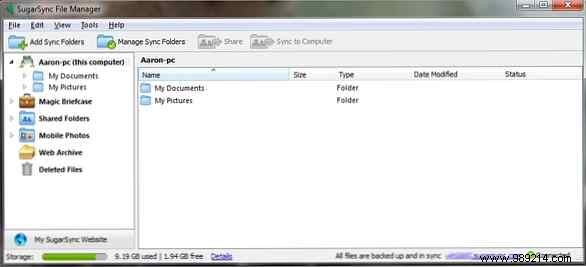
Once organized locally, sync with Dropbox, Google Drive, OneDrive, or SugarSync (my go-to for full-folder backups). Match your ecosystem: Google Drive for Docs fans, OneDrive for Microsoft users.
Diligence is key: file immediately, create spots as needed, apply all rules. Inconsistency breeds semi-organized mess.
Don't wait for "more time"—it never comes. Create core folders today and sort new files on the fly. Expand gradually. Need mobile tips? Check our Android file management or iOS Files app guides.
