You're probably familiar with Windows Safe Mode, a troubleshooting powerhouse that loads only essential drivers and services to isolate issues. How to Boot into Windows Safe Mode — it's invaluable for diagnosing boot problems. Similarly, if you're facing Microsoft Office crashes, its built-in Safe Mode offers a reliable fix.
Microsoft Office Safe Mode is completely independent of Windows Safe Mode. It launches a minimal version of Office apps, disabling potential culprits like add-ins, custom toolbars, and auto-retrieved documents. As IT professionals with extensive experience resolving Office issues for thousands of users, we've seen Safe Mode pinpoint and resolve crashes that plague everyday workflows.
Just like Windows Safe Mode, Office Safe Mode strips away non-essential features to create a clean environment. This prevents third-party add-ins, extensions, toolbar customizations, and recovered documents from interfering—common triggers for crashes in Word, Excel, PowerPoint, or Outlook.
For instance, if Word freezes on startup due to a faulty add-in, Safe Mode lets it open cleanly so you can disable the problem. It's also perfect for recovering unsaved work after a crash: Word's quick recovery options combined with Safe Mode get you back on track fast.
By isolating variables, Safe Mode empowers you to identify and fix root causes, restoring full functionality.
There are two straightforward methods:
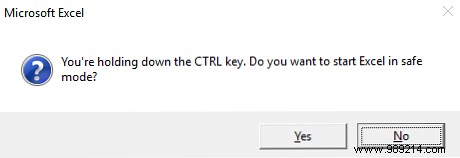
Hold Ctrl While Launching: Press and hold Ctrl as you double-click the app shortcut (e.g., Word). Confirm the prompt with Yes to enter Safe Mode.
Use the Run Dialog: Press Win + R, then enter these commands and hit Enter:

Have you tried Office Safe Mode? Did it resolve your crashes? Share your experience in the comments below—your insights help the community!
