OneNote and Evernote are powerhouse note-taking apps, each with standout features the other lacks. But as a seasoned user of both, I've found one OneNote capability that truly elevates productivity: its docking feature.
OneNote's docking lets you snap the app to any screen edge, keeping it visible without overlap from other windows. Simple yet transformative—once you try it, it's indispensable.
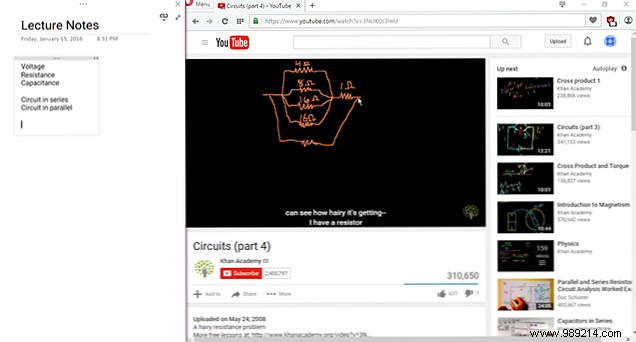
This shines when capturing notes from secondary sources like online videos, PDF lectures, or PowerPoint slides. For classroom tips, check out How to Use OneNote in School: 10 Tips for Students and Teachers.
To activate, head to the View tab and select Dock to Desktop (shortcut: Ctrl + Alt + D). It defaults to the right side; drag to reposition as needed.
In docked mode, pair it with Linked Notes to auto-link your page to the viewed content—app or website. Details on Microsoft's Office support page.
These tools unlock creative workflows. Explore more in 10 Unique Ways to Use Microsoft OneNote. Give docking a spin today!
Do docking and Linked Notes boost your workflow? OneNote or Evernote—which wins for you? Share in the comments!
