As a seasoned Trello user with years of experience managing projects and teams, I've uncovered features that transform this versatile tool into a productivity powerhouse. From streamlining card creation to keyboard navigation, these five tips will help you work smarter, not harder.
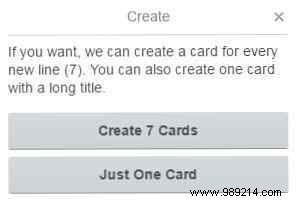
You can import lists from elsewhere and generate multiple cards effortlessly using keyboard shortcuts. Copy your list with Ctrl + C (Cmd + C on Mac), then in Trello, click Add a card in your desired list and hit the green Add button. Trello will prompt you to create a card for each line or just one.
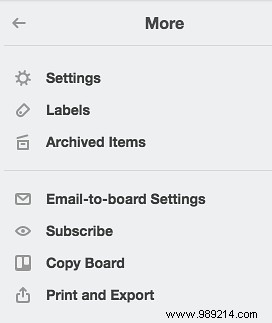
Turn emails or calendar invites into actionable cards instantly. Find your board's custom email address via Menu > More > Email-to-Board Settings—it's unique to your username and a code. Generate a new one anytime if needed.
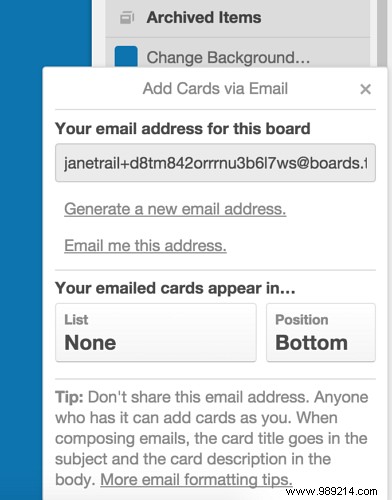
Follow this guide for rich cards with labels, attachments (under 10 MB), and members:
For comments, grab the card-specific email from Share and more.
Drag any URL directly onto a Trello list to auto-create a card. Select the address bar URL, drag it to your Trello tab—it adds as an attachment with a preview image and page text as description.
Avoid repetitive setup by cloning boards, lists, or cards for similar projects. From a board, select Show menu > Copy board. Apply the same to lists and cards for efficiency.
Trello's shortcuts speed up navigation. Quick card moves: "," (comma) to left list bottom, "." (period) to right bottom, "<" to left top, ">>" to right top. Explore the full list in Trello's docs for more.
What are your favorite Trello tips? Share in the comments below.
