As a long-time Dropbox power user who's managed team projects and freelanced across platforms, I've seen how this cloud service evolves beyond simple storage. It's now a full collaboration ecosystem for documents, projects, and secure sharing. Yet, its straightforward folder system can complicate file access. These 10 battle-tested tips, drawn from years of daily use, will streamline your workflow.
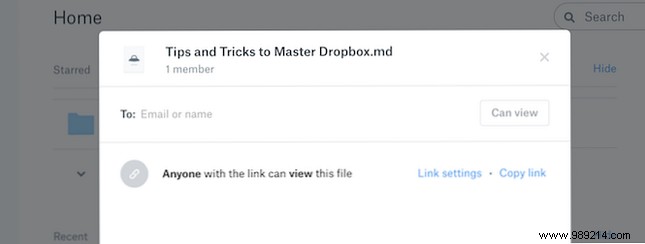
Dropbox has streamlined sharing—no more relying solely on a public folder. From any file view, hit the Share section to generate a link. Anyone with it can access the file. For true collaboration, invite team members directly for real-time edits.
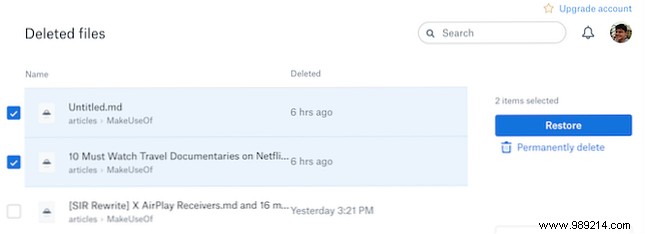
Deleted something by mistake? Recover it within 30 days via the web: Navigate to Files > Recently Deleted. Select files and click Restore—just like your computer's Recycle Bin. For 120-day retention, upgrade to Dropbox Professional.
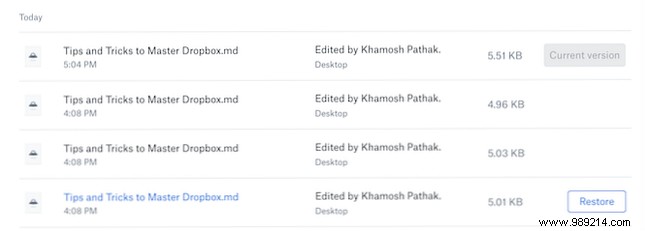
Revision history is a lifesaver for writers and editors. Right-click the file, select Version history, preview changes with timestamps and authors, then Restore the desired version. I've saved countless hours this way.
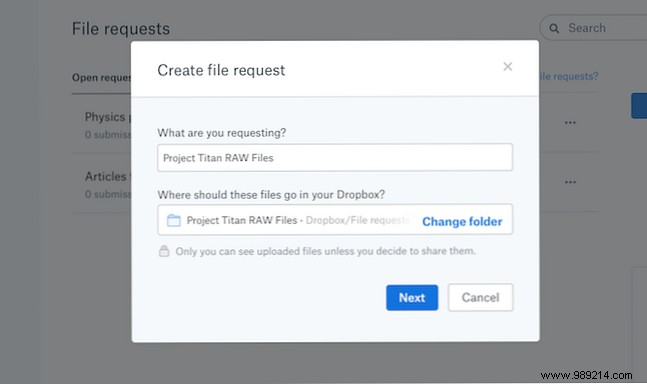
Collecting files from non-Dropbox users? Use File Requests in the sidebar: Create a dedicated folder, set a deadline, and share the link. Contributors upload directly—no account needed. Perfect for streamlined intake.
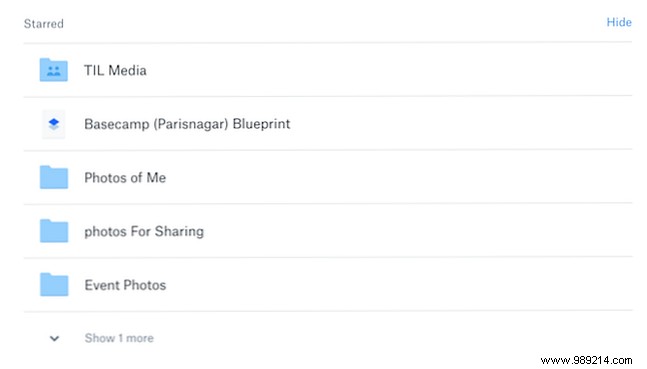
With Dropbox holding work files, archives, photos, and more, navigation can slow you down. Star frequently used folders—they'll appear at the top of the web or app interface for instant access.
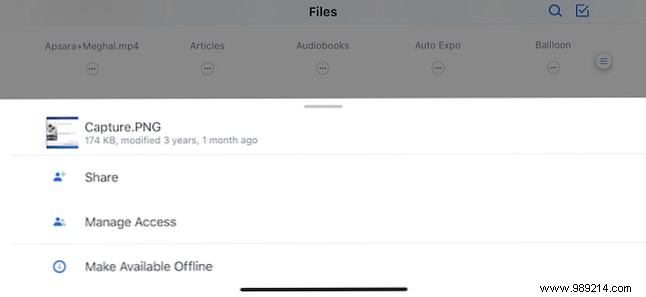
Prep for travel: In the mobile app, tap the menu on a file and select Make available offline. Basic accounts handle individual files; Professional unlocks folders. Essential for on-the-go productivity.
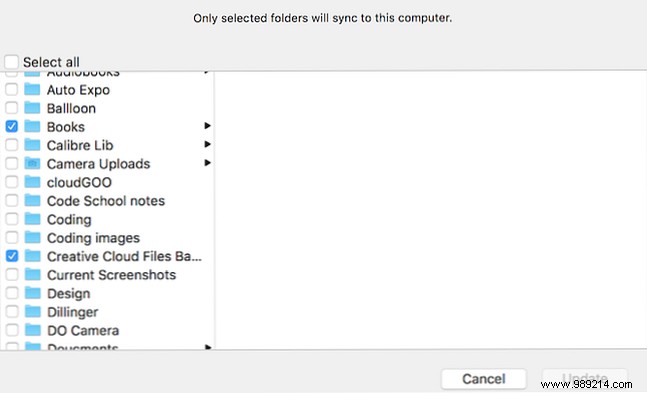
On desktop, go to Settings > Selective Sync to choose specific folders only. Keep massive backups like photos in the cloud without clogging your hard drive—a tip I swear by for limited storage.
Force instant downloads on shared links: Swap ?dl=0 with ?dl=1 at the URL's end. Bypasses previews and login prompts for frictionless sharing.
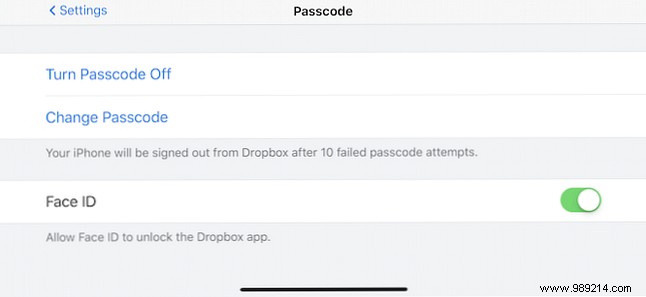
Protect sensitive data like passwords: In Personal settings > Security, enable Two-Step Verification (SMS or authenticator app). On mobile, add PIN, fingerprint, or Face ID in app Settings. Multi-layered security is non-negotiable.
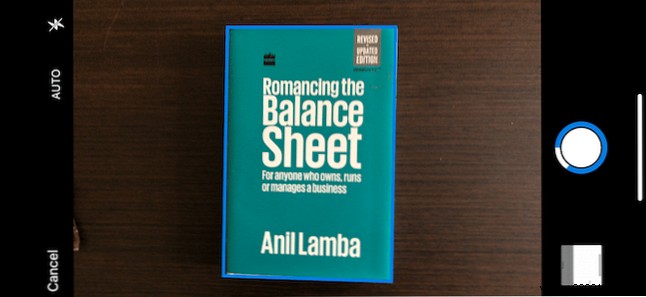
Ditch third-party apps: Tap + > Scan Document in the mobile app. Capture, process, and save directly to your folders. Transforms your phone into a portable scanner.
With core Dropbox down, explore Paper—our superior alternative to Google Docs, featuring sleek layouts, @mentions, and task management. 15 Things You Didn't Know You Could Do With Dropbox | 11 Reasons to Try Dropbox Paper
