Microsoft Excel is an indispensable tool for data analysis and management. While add-ins unlock advanced features—like processing, analyzing, and visualizing data—vanilla Excel shines with simple, permanent tweaks. These adjustments eliminate annoyances and align the software with your unique needs, drawing from years of professional spreadsheet expertise.
The Start screen offers quick access to recent files but forces you to select "Blank Workbook" every time. Disable it easily: Go to File > Options > General and uncheck Show the Start screen when this app starts. Now, Excel opens directly to a blank sheet—no registry edits required.
By default, Enter moves down, Tab right. Prefer Enter to move right for faster data entry? In File > Options > Advanced, under After pressing Enter, move selection, select Right. This pairs perfectly with keyboard-only navigation.
Recent Excel versions start with one sheet to avoid clutter. Need more? Under File > Options > General > When creating new workbooks, set Include this number of sheets to your preference. Pair with powerful lookup functions like VLOOKUP or INDEX-MATCH for efficient data handling in large sheets.
Printing spreadsheets often requires fitting content to one page. Preview breaks without printing: In File > Options > Advanced > Display options for this worksheet, check Show page breaks. Dotted lines reveal exactly where Excel will split pages.
Excel's built-in lists (days, months) speed up filling via drag-fill. Build your own for teams, products, or sequences: File > Options > Advanced > General > Edit Custom Lists. Type items or import from your sheet. Drag to auto-populate—saves hours on repetitive tasks.
Excel's AutoCorrect acts as a lightweight text expander. Access via File > Options > Proofing > AutoCorrect Options. Add shortcuts like "t" expanding to "Total:" or "tbd" to "To Be Determined." Automate frequent phrases without third-party tools.
Large datasets can slow older systems. Get warnings before lag: File > Options > Advanced > Editing options, check Alert before undoing more than this many cells (default 33,554—lower for caution). Prevents freezes during bulk edits or complex formulas.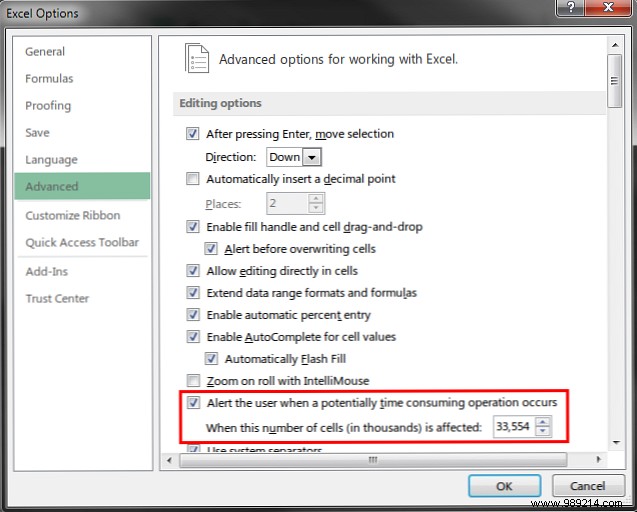
The Ribbon groups commands logically, but tailor it: Right-click the Ribbon > Customize the Ribbon. Add tabs, rearrange groups, or hide unused ones. Focus on your most-used tools for streamlined access.
The QAT sits above the Ribbon for one-click favorites. Customize: Click the QAT dropdown > More Commands. Select Commands Not in the Ribbon, add gems like the Calculator. Ideal for quick math without cluttering cells.
These tweaks make Excel intuitive and efficient. Explore templates for budgets or projects, or compare Excel vs. Google Sheets to find your fit. What's your go-to customization? Share in the comments.
