Default settings in Microsoft Office 2016 rarely suit every user's workflow. As a long-time Office power user, I've customized it extensively to boost efficiency and reduce eye strain. With an Office 365 subscription, you can upgrade for free. Below, I'll share proven steps to tailor the interface to your needs.
Start by switching themes to refresh the entire suite's appearance, making it easier on the eyes and more personal. Navigate to File > Account, where you'll find "Office Background" and "Office Theme" options.
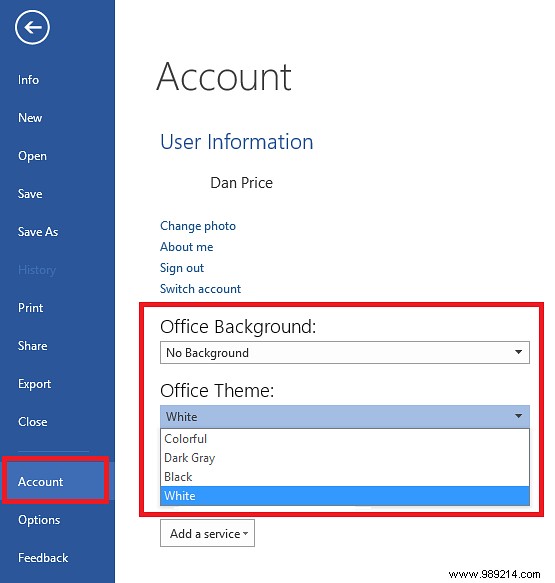
The Office Background updates the title and tab bars with subtle, decorative patterns.
The Office Theme transforms the full interface with four choices: White, Colorful (app-specific colors), Dark Gray (high contrast), and Black (minimal eye strain).
Selections sync across devices linked to your Microsoft account, but for per-computer tweaks, go to File > Options > General > Personalize your copy of Microsoft Office.
The Ribbon—Office's top toolbar since 2007—holds core tools, but you can adapt it for your tasks. Access this via File > Options > Customize Ribbon to view and edit tabs, groups, and commands.
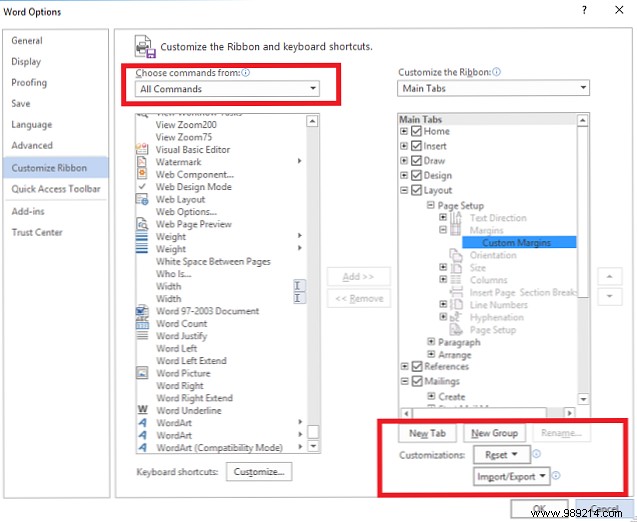
Create custom tabs or groups using the bottom-right options. Tabs add new top-level sections (red in previews), while groups organize within tabs (blue).

For full access, select All Commands from the top-left dropdown.
This compact toolbar in the top-right corner provides one-click access to favorites. Position it below the Ribbon by clicking its dropdown arrow and selecting Show Below the Ribbon.
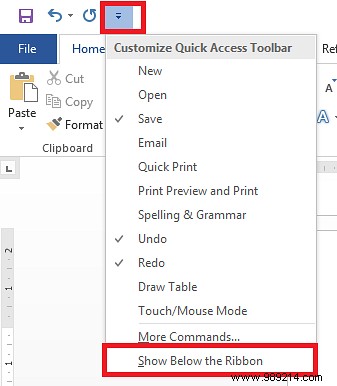
Add commands three ways:
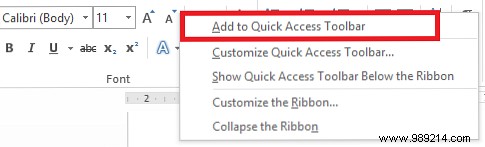
1. Right-click Ribbon items or groups and choose Add to Quick Access Toolbar.
2. Use File > Options > Quick Access Toolbar, select from the left list, and click Add >.
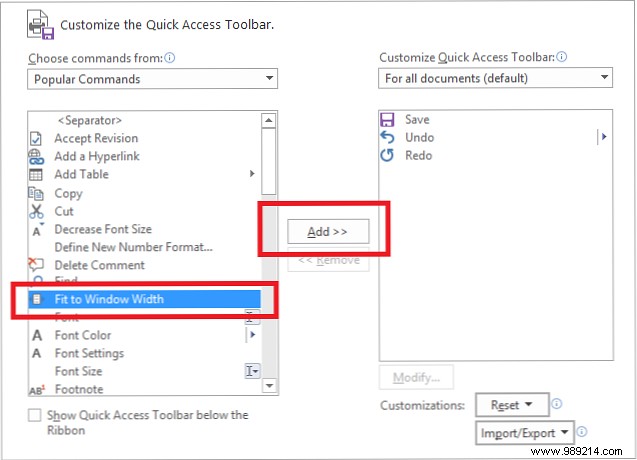
3. Select More Commands from the toolbar dropdown.
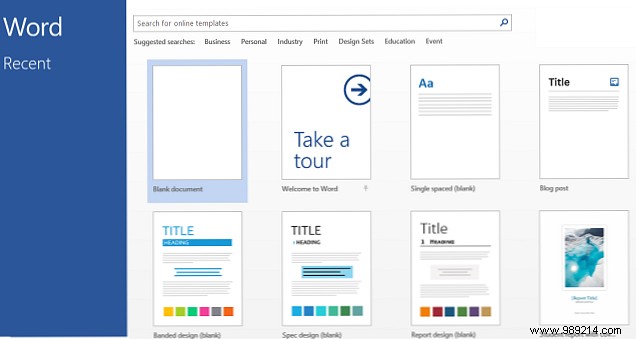
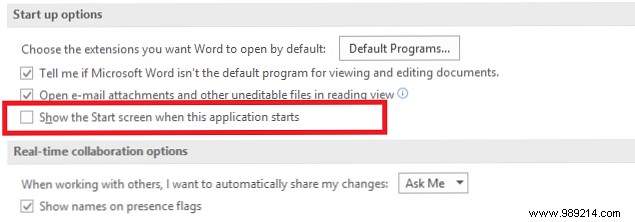
Bypass the startup template list for instant blank documents. In each app, go to File > Options > Start Up Options and uncheck Show the Start screen when this application starts. Repeat per app.
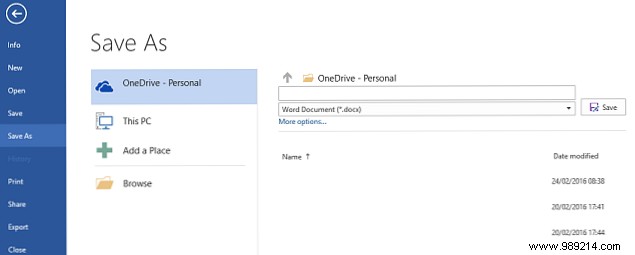
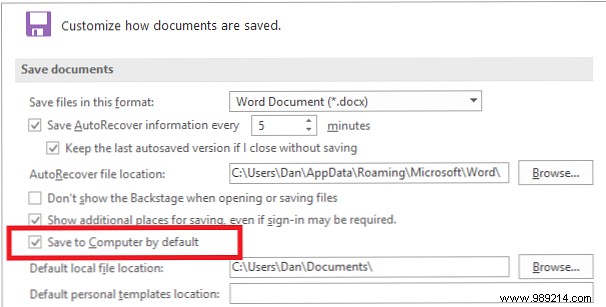
Prefer local saves over OneDrive? Go to File > Options > Save and check Save to Computer by default.
These tweaks streamline your setup and personalize Office 2016. Explore the Options menu for endless refinements based on years of professional use.
What's your top customization tip? Share in the comments—we'd love to hear!
