LibreOffice Writer is a powerful, free alternative to Microsoft Word that's gained a strong following for its features and flexibility. As someone who's relied on it for years in professional workflows, I can attest it's ideal for everyday document creation. If you're new or feel it's sluggish or unfamiliar, these 9 battle-tested tips will help you work faster and smarter.
Download now: LibreOffice (Free)
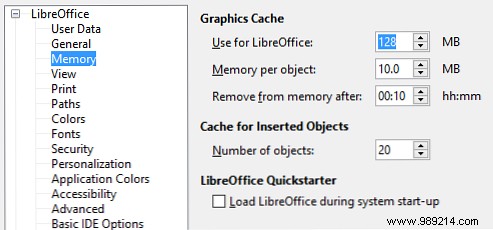
If LibreOffice feels slow to launch or laggy, allocate more RAM—especially on systems with plenty available. (RAM powers quick access to data; more means smoother multitasking.)
Shortcuts slash mouse dependency, speeding up your flow. Here's a core set from my daily use:
For more, explore 25 essential shortcuts to elevate your skills.
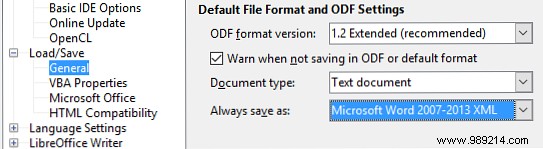
OpenDocument (.odt) is standard, but for Microsoft Office collaboration, default to DOCX:
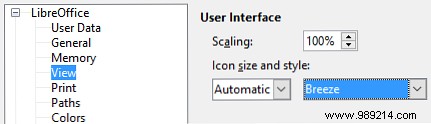
The default icons can distract; opt for subtle Breeze:
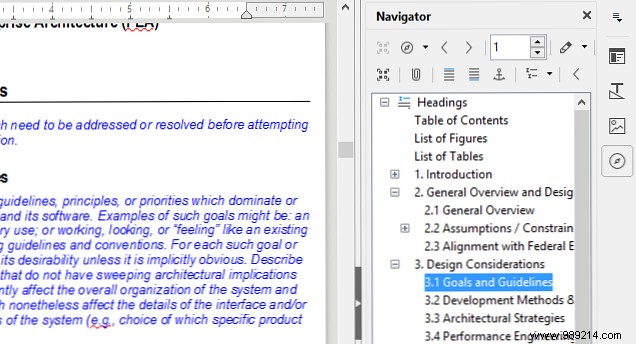
For long documents like reports, the Navigator provides instant navigation to sections, headings, tables, and more.
Styles streamline formatting: define once, apply everywhere. Key types:
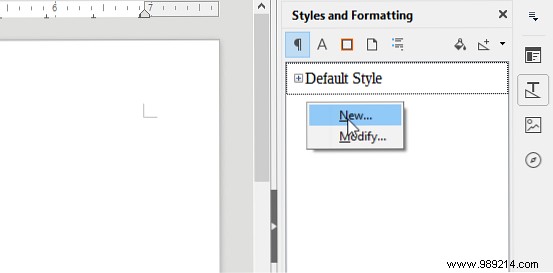
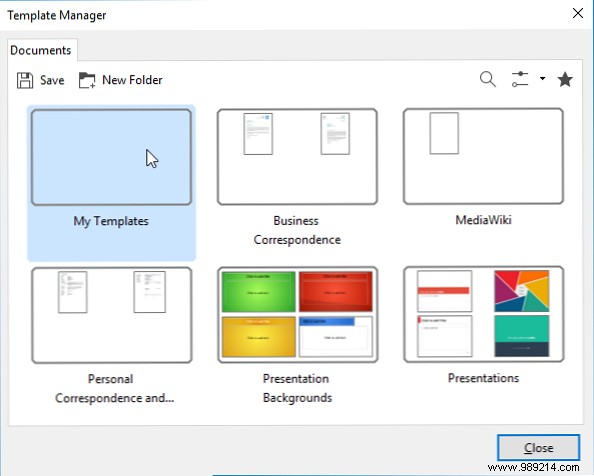
Styles handle intra-document consistency; templates ensure it across files.
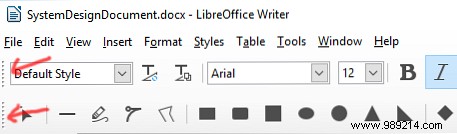
Customize your workspace flexibly, unlike rigid ribbons elsewhere.
Drag to reposition or stack. Hide unused: View > Toolbars.
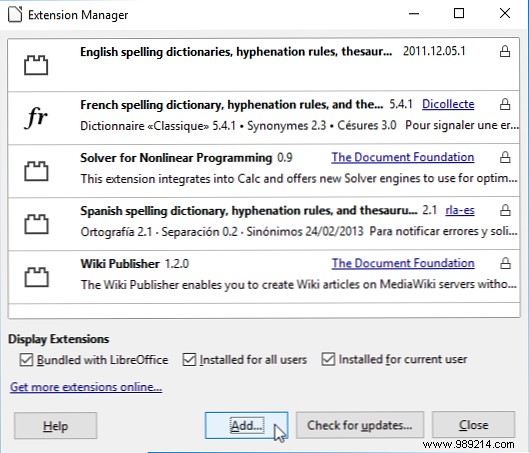
Extend functionality via the Extension Manager, like browser add-ons.
Browse more at LibreOffice Extensions site.
LibreOffice has evolved into a pro-grade tool since 2010. What do you use it for? Share tips, tricks, or comparisons in the comments!
