We've previously compared dedicated PDF apps against browser-based viewers to determine the best options for viewing and managing PDF files. Check out that full analysis for details. The TL;DR: Dedicated readers edged out browsers for robustness.
Since then, Microsoft has significantly enhanced Edge's PDF tools. Now, you can fill text fields, rotate pages, add sticky notes, and more—all within the browser.
Can Edge now rival Adobe Acrobat Reader, the gold standard? How does it stack up against Google Chrome? As experienced tech reviewers, let's dive in with hands-on comparisons.
These upgrades arrived with the Windows 10 Fall Creators Update (build 1709 or later). Previously, Edge offered basic navigation, zoom, print, and search—but only for text-searchable PDFs.
That's changed dramatically.
Microsoft's updates position Edge's PDF engine alongside Firefox's highly regarded in-browser tools, surpassing Chrome and closing the gap with dedicated apps like Adobe.
New features include fillable forms, rotation, notes, viewing options, digital pen annotations, signatures via Windows Ink, and read-aloud functionality. We'll benchmark each against Chrome and Adobe.
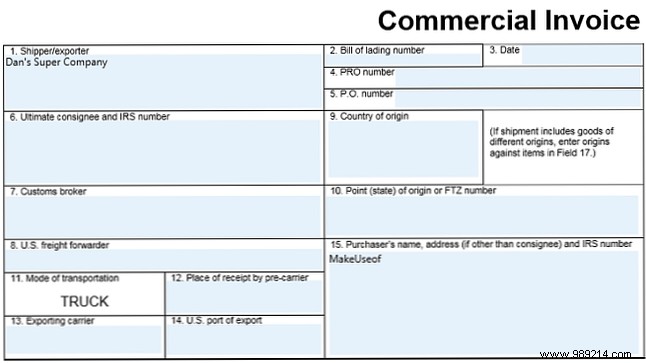
Fillable forms save hours—no printing, handwriting, or scanning required.
Chrome and Adobe have supported this for years, but Edge excels in usability: It offers a standard Save dialog, letting you edit later. Chrome forces "Print to PDF," baking changes permanently.
Annotations streamline collaboration, feedback, and ideation—digitally.
Edge provides highlighters in multiple colors and sticky notes. Highlight text to access the toolbar with highlight, note, Copy, and Cortana options.
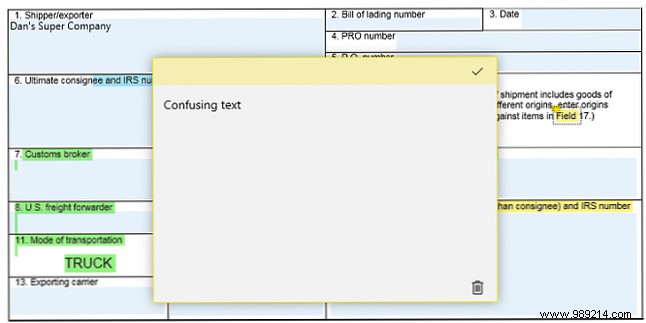
Chrome lacks native annotations. Adobe's are comparable: highlight, strikethrough, notes on selection.
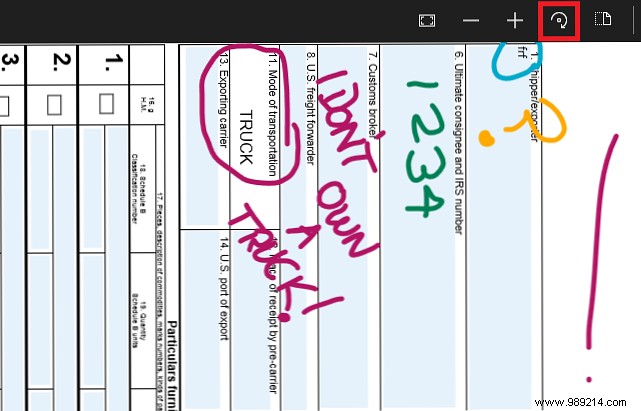
Edge uniquely integrates Windows Ink for freehand drawing—unmatched by Chrome or Adobe.
Click the pencil icon in Edge's toolbar for pencil, marker, eraser, or touch input. Add legally binding digital signatures (under the E-SIGN and UETA acts) without subscriptions—even via mouse.
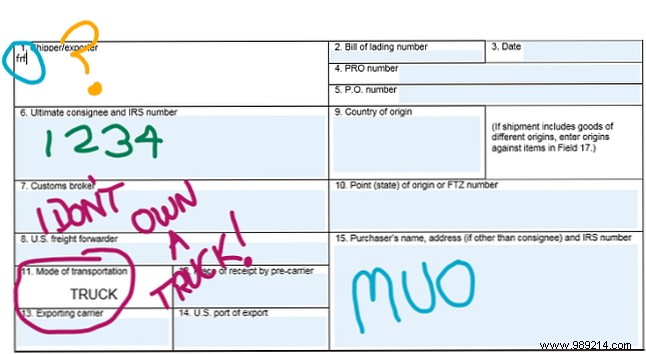
Note: Touchscreens or tablets unlock the full potential; mouse drawing is less precise, as shown above.
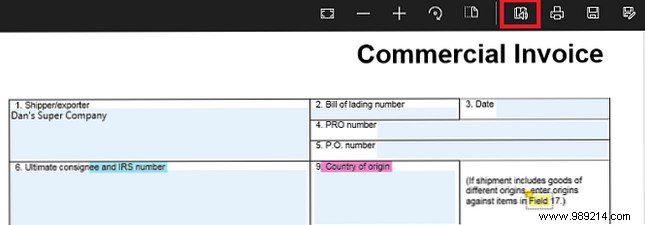
Text-to-speech catches errors and aids accessibility.
Edge's toolbar Read Aloud button offers play, pause, and navigation controls—matching Adobe (View > Read Out Loud) and topping Chrome's extension reliance.
Edge now rivals competitors with rotation (90° clockwise, repeatable) and layouts: single/dual page or continuous scroll.
Adobe defaults to continuous scroll with similar options. Chrome offers scroll and rotate but no dual-page view.
Edge delivers the richest browser-based PDF experience, outpacing Chrome handily. For everyday users, it's a solid Adobe alternative with essential tools.
Power users may still prefer dedicated apps for advanced editing.
