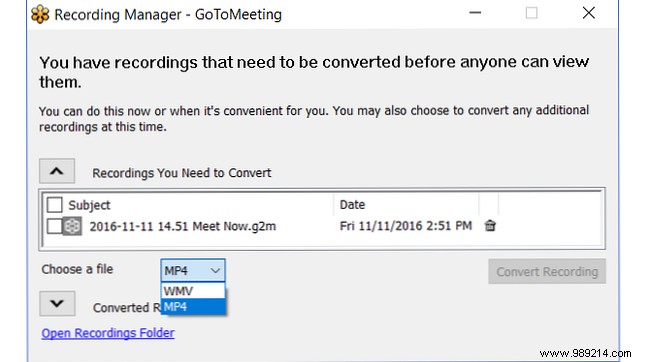
Whether collaborating with a global team or local colleagues, GoToMeeting delivers robust features for effective online meetings. Accessible via web and mobile devices, it's the go-to tool for busy professionals who need reliability on the move.
If you're new to GoToMeeting, these proven steps—drawn from years of facilitating remote sessions—will ensure your meetings run smoothly and professionally.
The first step is creating an account. Start with a free account featuring limited options to test the platform. For larger groups, upgrade to one of three paid plans starting at $19 per month.
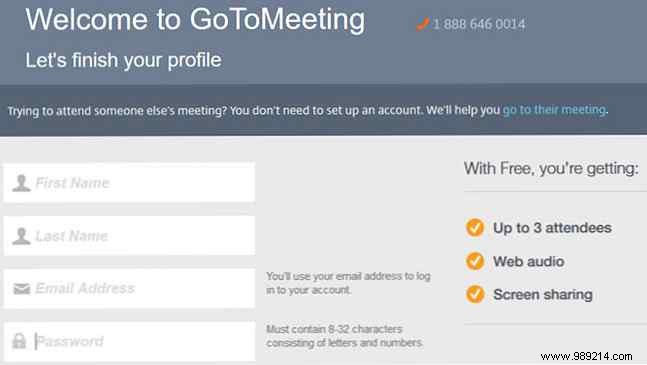
Registration is straightforward: sign up quickly and begin web audio and screen sharing for up to three attendees right away.
Setup is effortless post-registration. You'll receive a confirmation email with your login link, then create a personal meeting room—a customizable link to share with participants.
Save this link for easy access. It's always readily available in your account.
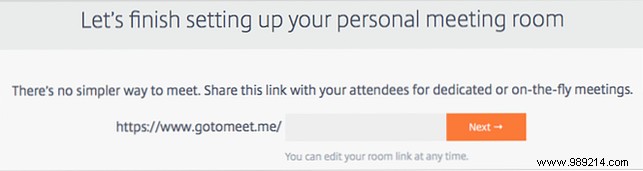
Launch instantly or schedule ahead. Use the Share button for invite details. For best results, run a solo test meeting to familiarize yourself with the interface.

For your first meeting, download the Citrix Online Launcher—a quick, one-time install for Windows or Mac. Follow the on-screen prompts.
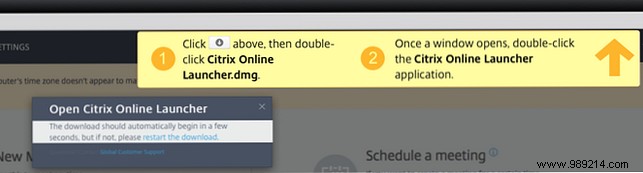
Post-install, start via website or desktop app. On the web, click Start your meeting and select audio: computer or phone dial-in.
Opt for computer audio? Test mic and speakers first—a crucial step to prevent glitches.
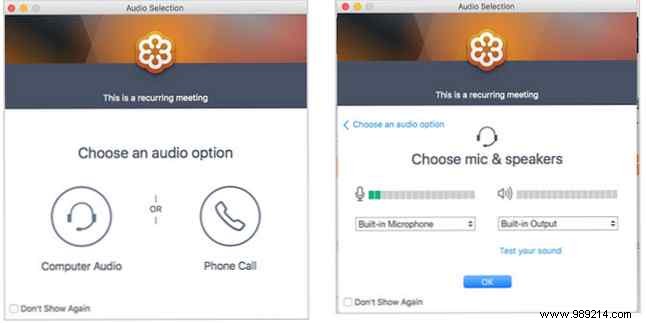
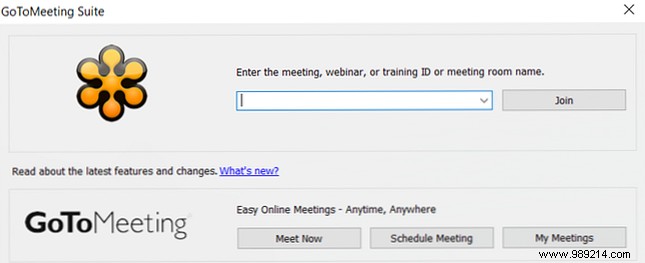
From the desktop app, open and hit Meeting Now for the same seamless audio options.
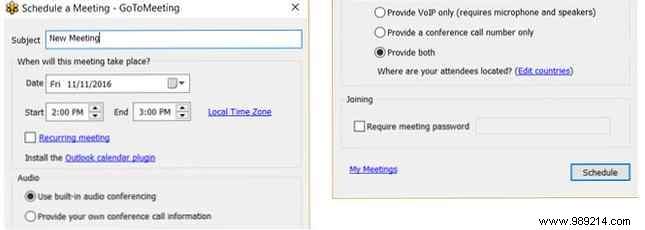
Plan ahead via web (sign in, select Schedule) or desktop app (Scheduled Meeting). Customize recurring events, audio, co-organizers, and passwords.
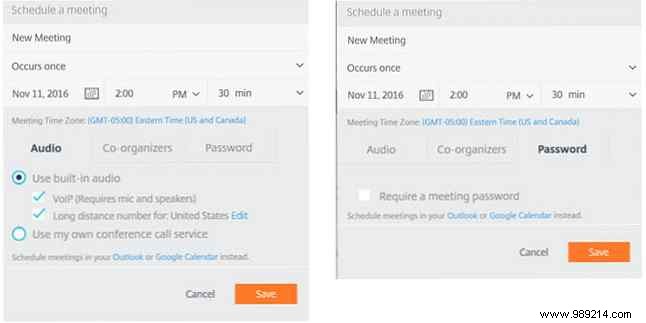
The app method shines—no browser needed—for efficient scheduling.
GoToMeeting packs essential tools for productive sessions:

Navigate effortlessly with the sidebar: manage audio, screen, or webcam via top icons. Expandable panels cover Audience View, Attendees, and Chat.
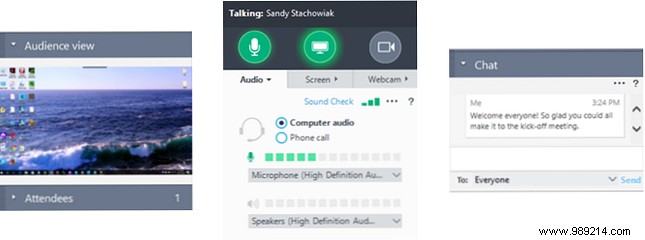
Audience View previews exactly what attendees see—eliminating guesswork.
Attendees lists participants, showing audio and webcam status.
Chat enables welcomes, private messages, or audio fallback communication.
Leverage these for polish, and practice beforehand for confidence.
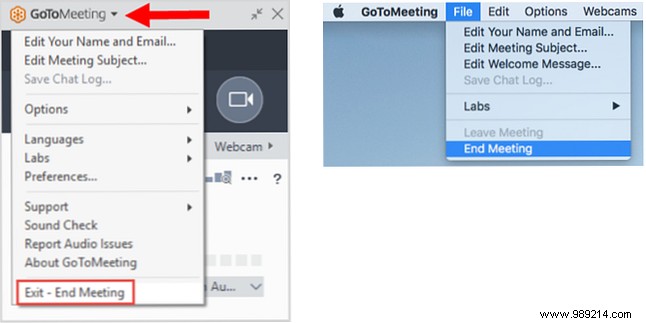
On Windows: Click the arrow by GoToMeeting > Exit - End Meeting. On Mac: GoToMeeting menu > File > End Meeting, then confirm.
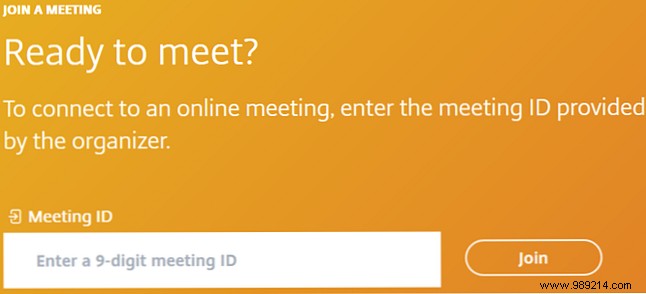
As a participant, no account needed. Use the host's link or visit the site, click Join a meeting, and enter the ID.
For paid plans, key tips: