Family Encyclopedia >> Work

How to Embed YouTube Videos in PowerPoint: Step-by-Step Guide for All Versions

Embedding YouTube videos in PowerPoint presentations enhances your slideshows with dynamic content. As a seasoned presentation expert, I've helped countless professionals integrate multimedia seamlessly. With modern versions like PowerPoint 2013, 2016, and later, the process is straightforward. For older editions, we'll cover reliable workarounds too.

To get started, obtain the embed code from YouTube: Click Share under the video, then select Embed to copy the HTML code.
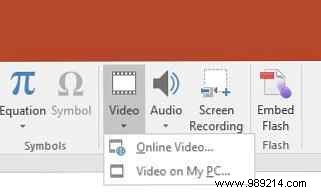
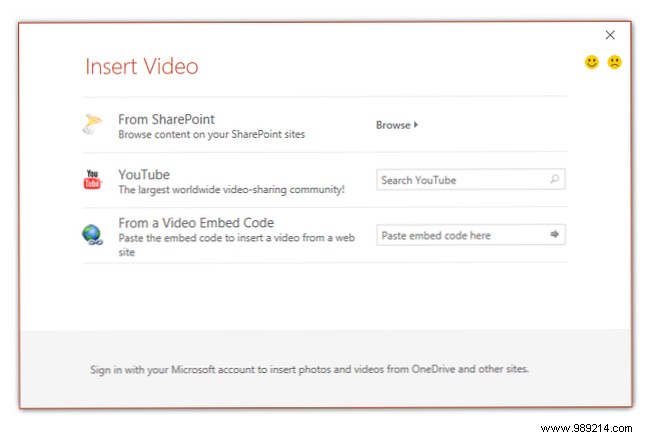
Step 1: Insert the Video

  • In PowerPoint 2013 or 2016, go to the Insert tab, click Video > Online Video.
  • In PowerPoint 2010, go to the Insert tab, click Video > Video from Website.

How to Embed YouTube Videos in PowerPoint: Step-by-Step Guide for All Versions

Step 2: Paste the Embed Code

  • In PowerPoint 2013 or 2016, use the dialog to search YouTube or paste the embed code from any video site.
  • In PowerPoint 2010, paste the embed code into the dialog and click Insert.

Step 3: Customize and Play

How to Embed YouTube Videos in PowerPoint: Step-by-Step Guide for All Versions

Resize and position the video as needed. It appears as a screenshot in edit mode, but plays in preview (Shift + F5). Right-click the video, select Start, and choose Automatically or On Click for playback options.

How to Embed YouTube Videos in PowerPoint: Step-by-Step Guide for All Versions

Embedding in PowerPoint 2007

For PowerPoint 2007, enable the Developer tab first (File > Options > Customize Ribbon). Then:

  1. Click More Controls > Shockwave Flash Object > OK.
  2. Draw a rectangle on the slide where you want the video.
  3. Right-click the object, select Properties.
  4. In the Movie field, paste the YouTube video URL. Remove "watch?" and replace "=" with "/" (e.g., youtube.com/v/VIDEO_ID).
  5. For autoplay, set Playing to True; otherwise, False. Set Loop to False to prevent looping.

Watch this process in action via the tutorial video below (note: Flash support is deprecated in modern systems).

Pro Tip: Always test in presentation mode and ensure internet connectivity for online videos.

Do you embed videos in your PowerPoint decks? Share your tips in the comments below!
