Traditional PowerPoint presentations often rely on static text and generic backgrounds, making them less engaging. Microsoft recognizes this, which is why they introduced alternatives like Sway for cloud-based creations. However, recent PowerPoint updates, especially in versions 2013 and Office 365, have revitalized the classic tool with robust media embedding features, including seamless YouTube video integration.
In today's fast-paced world, effective presentations demand multimedia. While 'Death by PowerPoint' persists, embedding videos, images, and audio breathes new life into slides. Start with images, evolve to transitions, and now integrate online videos from YouTube, files from OneDrive or your PC, and even embed codes from various services. This dynamic approach captivates audiences and elevates your delivery.
YouTube embedding isn't new but was refined after fixes in PowerPoint 2010. Updates to Office 2013 and 365 ensure ongoing compatibility. Videos work in PowerPoint 2013 and viewable in 2010/2013 versions.
Capture attention effortlessly with YouTube clips. Prepare your slide, then go to Insert > Video > Online Video and search YouTube directly. Select your video to embed it, then position and resize as needed.
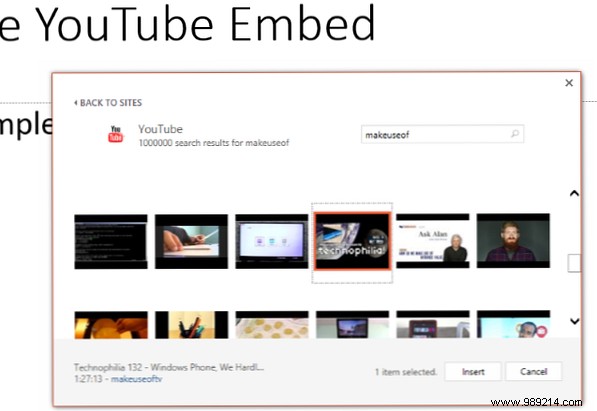
Right-click the video for playback options: set to Automatically (plays on slide load) or On Click. Style options affect only the thumbnail preview.
During playback, an internet connection is required—offline shows only the preview. Allow load time before clicking Play.
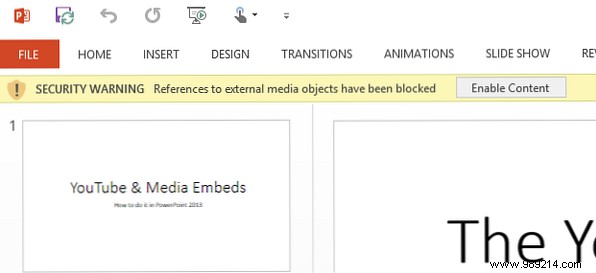
Enable Enable Content in the security bar if prompted, and mark as a Trusted Document for future use.
Use the same menu for local files (AVI, MP4, MOV, MPG, SWF, WMV, ASF) from your PC, network, NAS, or OneDrive. Note: Vimeo embeds may not work reliably.
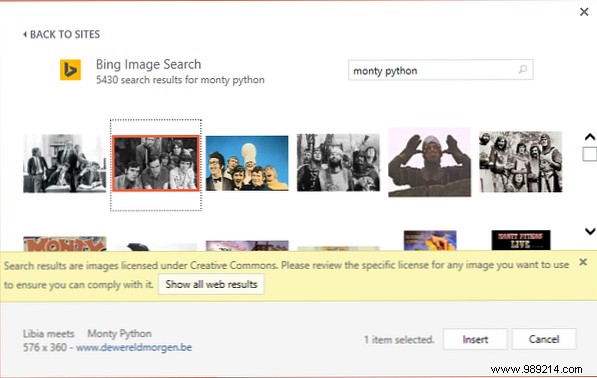
Local images are simple via Insert > Pictures. For online: Insert > Pictures > Online Pictures accesses Office.com, OneDrive, Bing Images, Facebook, or Flickr (if linked).
Capture screenshots via Insert > Screenshot. Create photo albums with Insert > Photo Album for new slideshows packed with images.
Audio adds polish. For online: Insert > Audio > Online Audio from Office.com—no preview, but files are lightweight.
Add PC audio (Insert > Audio > Audio on My PC) in MP3, WAV, etc.—keep files small. Record narration directly via Record Audio.
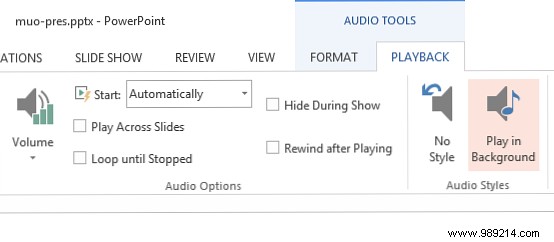
For background play across slides: Use Audio Tools > Playback, select Play Across Slides, and set Start Automatically. Trim, fade, and layer carefully.
Embed webpages or diverse media to innovate. Always respect copyright laws. With these techniques, honed from years of presentation expertise, your slides will stand out.
Encountered issues with PowerPoint media? Share in the comments!
