In an era of information overload, Microsoft OneNote stands out as your versatile digital notebook. As a productivity expert with years of experience using OneNote to organize research, ideas, and clippings, I've found it invaluable for everything from creative brainstorming to archiving receipts and learning notes.
Selective capture is key to effective learning, as Napoleon Hill emphasized in his timeless advice on focused accumulation of knowledge. Start by creating a dedicated notebook for your topic in OneNote.
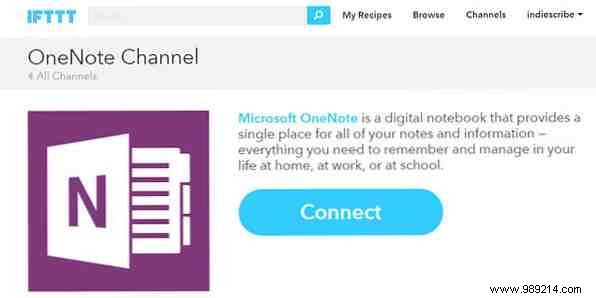
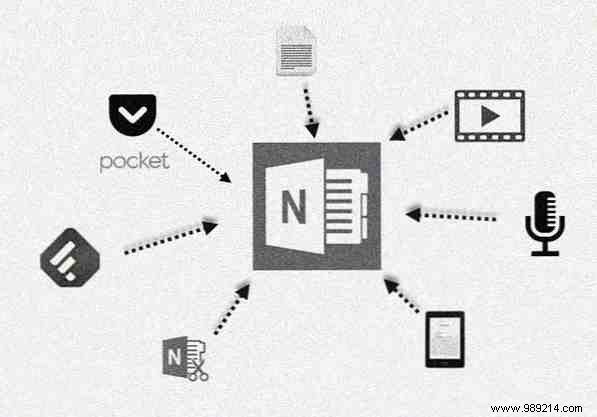
Read-it-later apps like Pocket excel at one-click saves via browser or mobile extensions. While there's no direct Pocket-to-OneNote integration, use a reliable IFTTT recipe to forward tagged articles automatically.
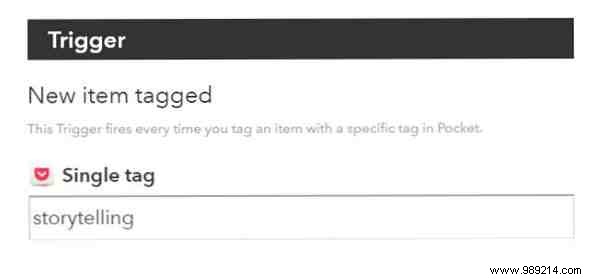
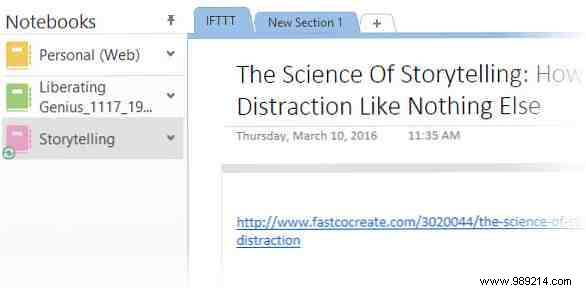
Customize the tag (e.g., "storytelling") and specify the OneNote page for delivery. This setup streamlines web collection.
Alternative: Zapier offers powerful multi-step automations for even more flexibility.
RSS feeds via Feedly help tame information overload by letting you save standout articles directly to OneNote with one click. It lands in your "Sticky Notes" notebook, which you can relocate, edit, or annotate.
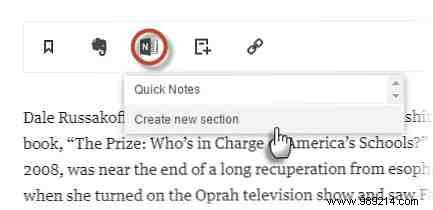
This works seamlessly on mobile too, though sync delays and notebook selection limits are minor drawbacks.
The OneNote Web Clipper Chrome extension eliminates note-taking friction. Sign in once, then clip full pages, selections, or full-page screenshots to a chosen notebook and section—avoiding clutter by specifying locations upfront.
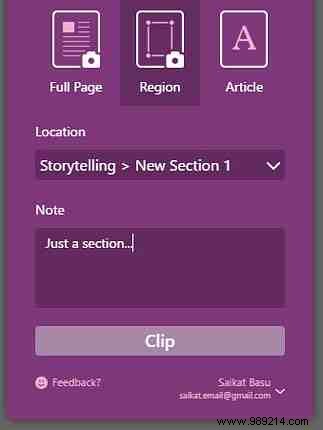
It remembers your last location for efficiency and handles scrolling pages perfectly.
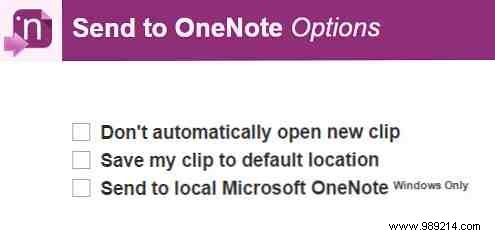
Alternative: The third-party Send to OneNote extension offers right-click clipping options.
Don't overlook the desktop app's powerhouse: Press Windows Key + Shift + S to select any screen area. Choose a OneNote destination or clipboard—ideal paired with built-in OCR for searchable clips.
In Windows 10 apps, tap the share icon or Windows Key + H to send screenshots directly to the OneNote app (not desktop version), which syncs across devices.
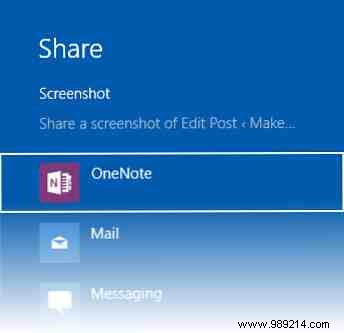
Refer to Microsoft's support page for app vs. desktop distinctions.
OneNote's native tools handle diverse content types effortlessly.
Via Insert > Audio Recording, capture lectures or ideas. Works in OneNote Online on Edge, Chrome, and Firefox.
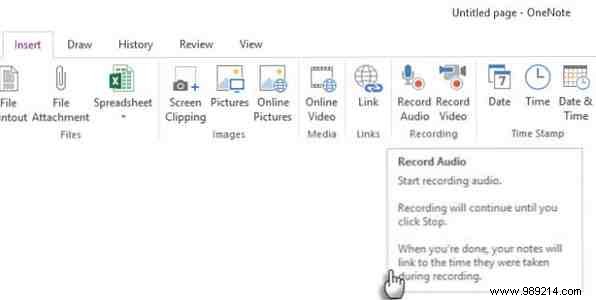
Insert YouTube, Vimeo, or Office Mix videos via Insert > Online Video for note-taking alongside playback.

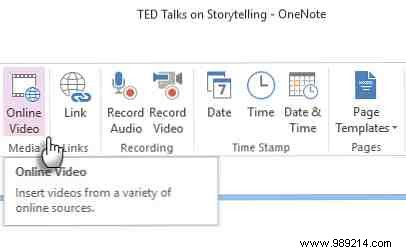
Note: Online version support is forthcoming.
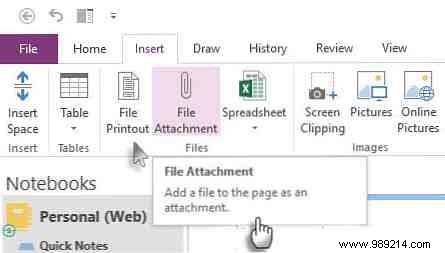
Embed PDFs, PowerPoints, and more via Insert > File Printout for image-based views or full files—everything travels with your notebook.
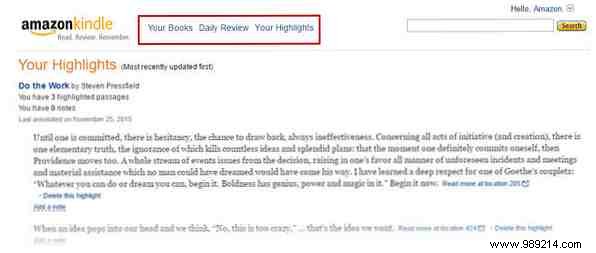
Export Kindle notes from Amazon's "Your Highlights" page: Copy-paste, screen clip, or print to OneNote. One extra step, but invaluable for book-based research.
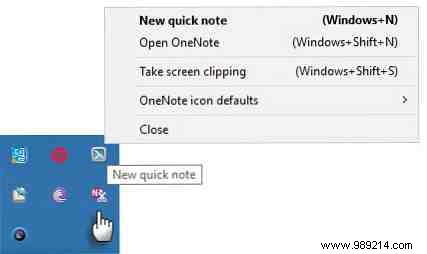
Press Windows Key + N for instant notes, even with OneNote closed. Access via your notebook's Sticky Notes section and relocate as needed. Additional notes: Windows Key + Alt + N.
For physical content like books or whiteboards, Office Lens (on iOS, Android, Windows Phone) scans and OCRs directly to OneNote—one-click organization on the go.
Combine these methods with OneNote's notebooks, sections, pages, and templates for a robust system. Use tags, audio/video embeds, and techniques like the Feynman method for deeper learning.
Channel disciplined habits like Charles Darwin's for masterful note-taking. What's your go-to OneNote capture method?
