Whether you're new to Slack or a long-time user, these expert tips on customization, organization, and formatting will help you streamline your workflow and maximize the platform's potential. As seasoned Slack administrators and power users, we've refined these strategies across teams of all sizes.
Busy Slack workspaces can quickly become overwhelming. Simple tweaks to settings make it far more manageable.
Here are four effective ways to eliminate link previews in Slack:
Note: Slack doesn't support hyperlinking text yet, which would further reduce clutter.
Tracking unread messages across channels is easier in one spot.
Enable via Preferences > Sidebar > Show #all-unreads.
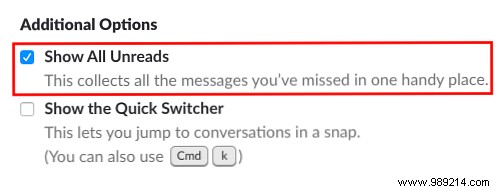
This adds an "All unreads" section below your profile in the sidebar.
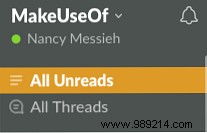
You'll also see Highlights—Slack's curated most relevant messages based on your interactions with people, channels, files, and apps. View up to 10 in the All unreads tab or within channels.
The sidebar is your navigation hub. Customize it for less clutter and quick access to priorities.
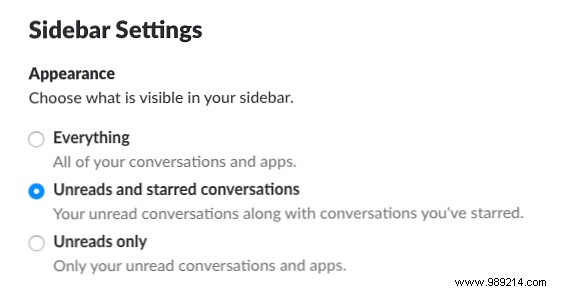
Go to Preferences > Sidebar to choose display options and order:
Show:
For noisy channels, mute them: Open channel > Settings > Mute [#channel].
Track key messages easily by starring or pinning.
Star for personal use: Hover over message > click star icon.
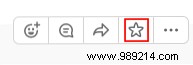
View starred: Click star icon in top-right of any channel or DM.

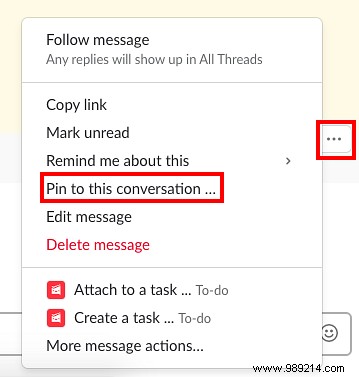
Pin for team access: Hover > More actions > Pin to [#channel] or Pin to this conversation.
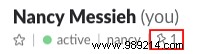
Note: Access pins via the pin icon at the top of the screen.
Enhance communication with basic and advanced formatting for clarity and emphasis.
Slack supports intuitive markdown-style formatting:
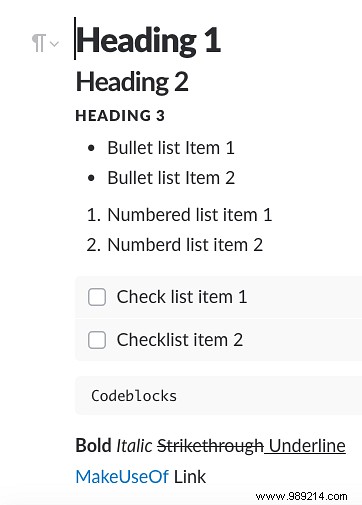
Click the + left of the message field > Rich text.
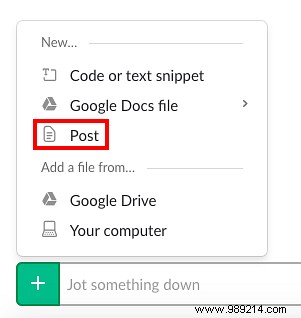
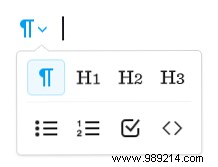
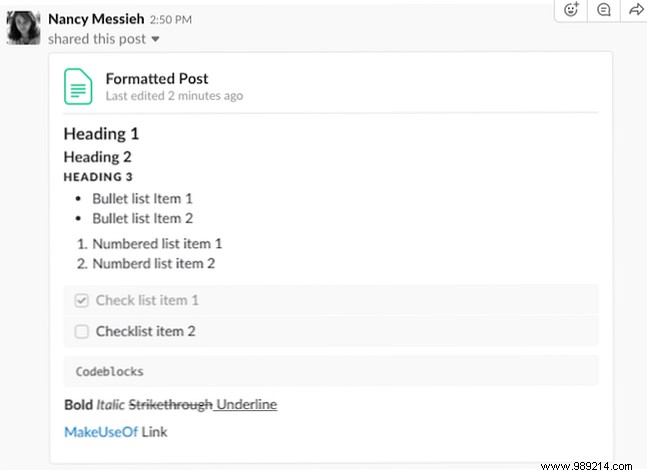
This opens an editor with bold, italic, strikethrough, lists, hyperlinks, and headers.
Share to channel/DM, with optional edit permissions.
Incorporate emojis to highlight info, prioritize tasks, or add fun.
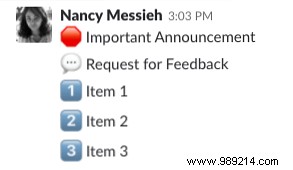
Endless creative possibilities—and you can even upload custom ones (see below).
Tailor Slack from custom emojis to themes.
Upload team-specific emojis: Click your profile > Customize Slack.
Name with colons (:name:) using underscores for spaces.
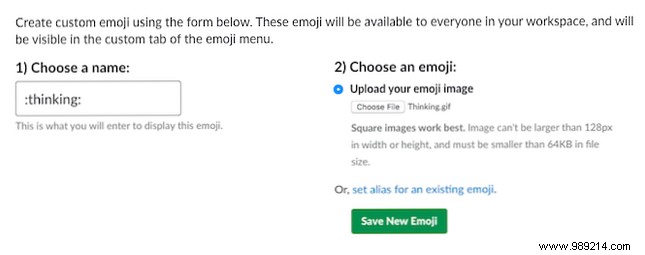
Tips:
Replace default quotes: Profile > Customize Slack > Loading messages.
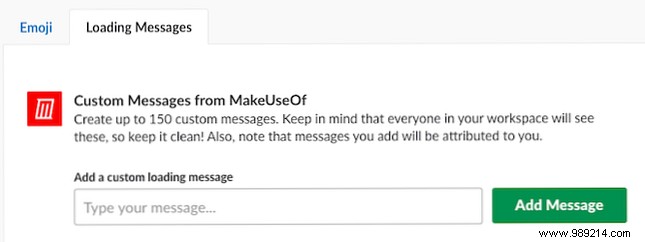
Team members see who added them.
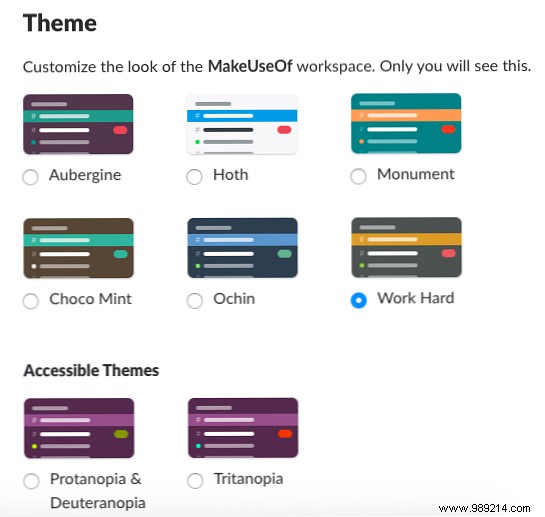
Profile > Preferences > Sidebar > Theme. Choose from 8 options, including color-blind friendly.
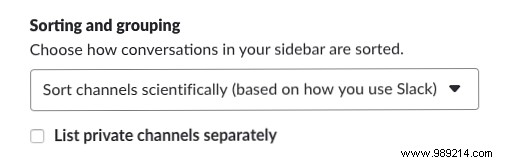
Two sorting options:
Separate private/public lists (may affect recency).
Beyond these tips, integrate with favorite apps for peak productivity. For a deep-dive strategy, check our guide: Solid Tips to Master Slack and Become the Most Effective Team Member.
