Sometimes, the smallest features deliver the biggest impact. Fine-tune AutoRecover settings, and you'll effortlessly retrieve unsaved documents—no more last-minute panic over that summer assignment.
Microsoft Office 2016 appears straightforward, but beneath its clean interface lies a powerhouse of tools. Many users overlook these hidden gems, missing out on massive productivity gains. As a seasoned Office expert with years of optimizing workflows for professionals, I've curated this list of 10 under-the-radar features across Word, Excel, Outlook, PowerPoint, and Access to help you work smarter.
For Word 2016, Excel 2016, Outlook 2016, PowerPoint 2016, and Access 2016.
The "Tell me what you want to do" search box on the ribbon is one of Office 2016's standout enhancements. Simply type a natural phrase describing your task, and it suggests matching commands via a dropdown. Select one, and the relevant dialog opens instantly. It's like having a dynamic assistant for any command—far quicker than digging through menus.
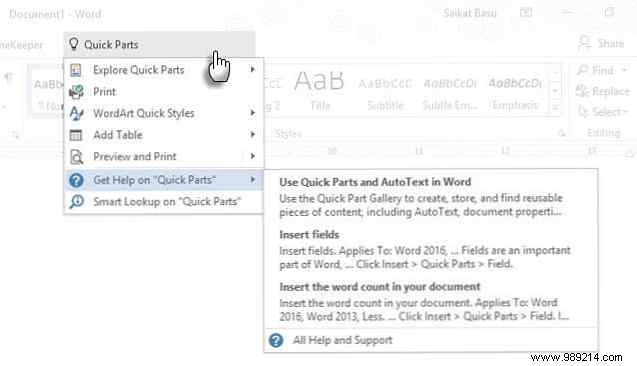
Click "Get help on" for traditional support, as shown above.
For Word 2016 and PowerPoint 2016.
Manually updating dates across reused documents—like footers on multiple pages—is tedious and error-prone. Office solves this with auto-updating date insertion. Place your cursor, go to Insert > Date & Time, choose a format, and check Update automatically. The date refreshes every time you open the file.
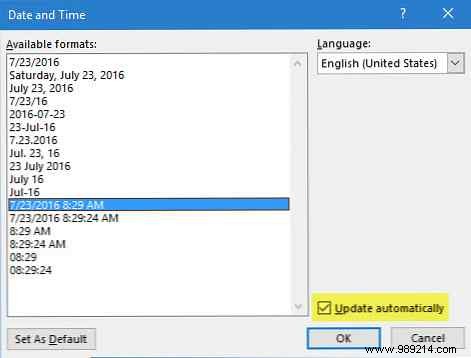
For Word 2016.
Quick Parts are reusable "building blocks" for text, tables, images, headers, or any content in Word and Outlook. They save hours on repetitive formatting. Access via Insert > Text group > Quick Parts.
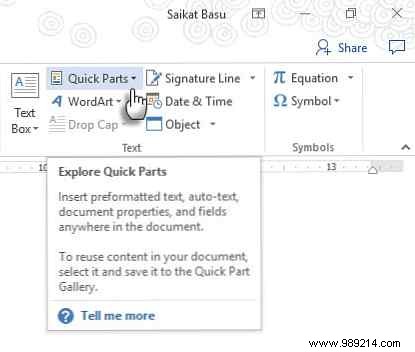
Use AutoText for instant shortcuts, like typing "Microsoft Office" repeatedly. To save content: Select it, go to Quick Parts > Save Selection to Quick Part Gallery, name it, and click OK.
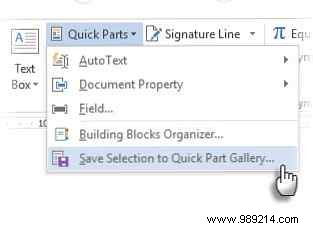
Reinsert by selecting from the gallery. The Building Blocks Organizer manages all your entries.
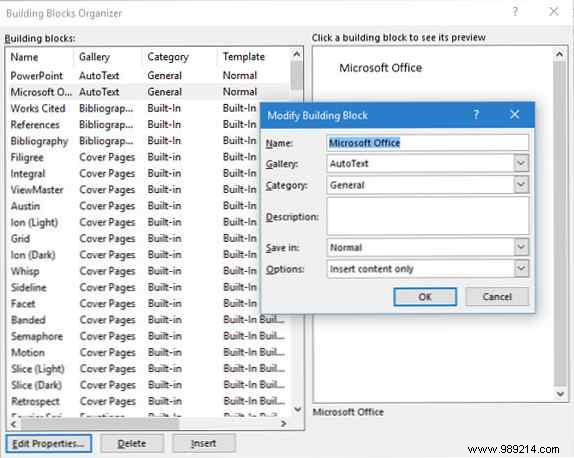
Microsoft's support article details Quick Parts types.
For Word 2016.
Watermarks add branding, status (e.g., "DRAFT"), or security using text or images. Go to Design > Watermark for presets or custom options.
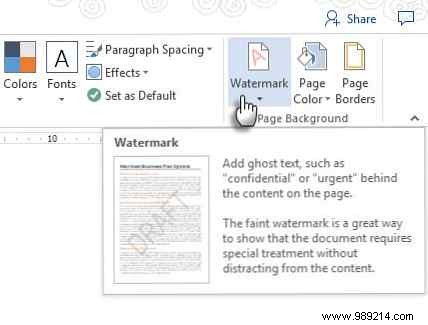
For text: Custom Watermark > Text watermark—adjust font, size, color, and transparency. For images: Picture watermark, with automatic washout (unless unchecked).
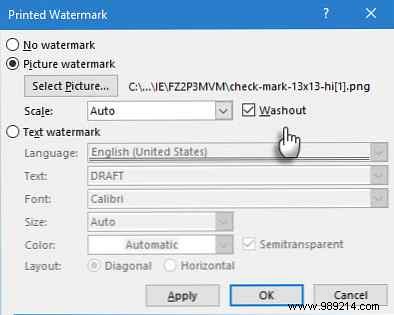
Save customs to the gallery. Note: Available in Print Layout view. Excel/PowerPoint require manual headers/footers.
For Word 2016 and Outlook 2016.
Boost readability with built-in stats: Flesch Reading Ease (60-70 target; higher = easier) and Flesch-Kincaid Grade Level (7-8 target).
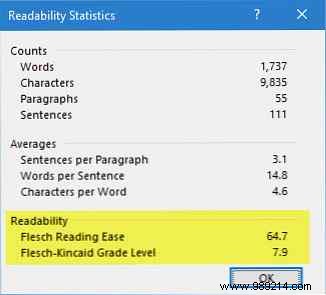
In Word: File > Options > Proofing. Under When correcting spelling and grammar in Word, check Check grammar with spelling and Show readability statistics.
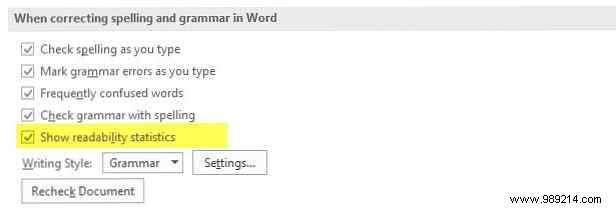
In Outlook: File > Options > Mail > Spelling and Autocorrect. Stats appear post-spellcheck.
For Word 2016.
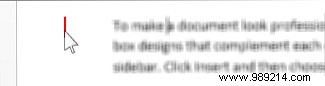
Track Changes gets cluttered with multiple editors. Switch to Simple Markup via Review > Tracking for a clean view—a red margin bar indicates changes, with balloons for comments.
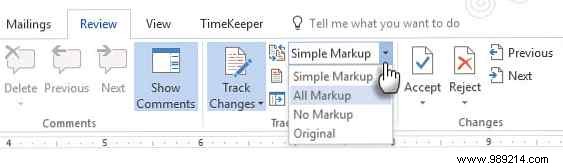
Click the bar to toggle back to All Markup.
For Word 2016, Excel 2016, and PowerPoint 2016.
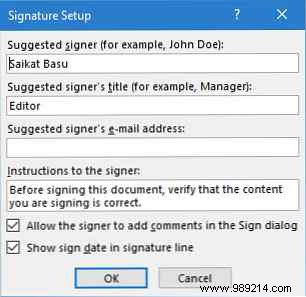
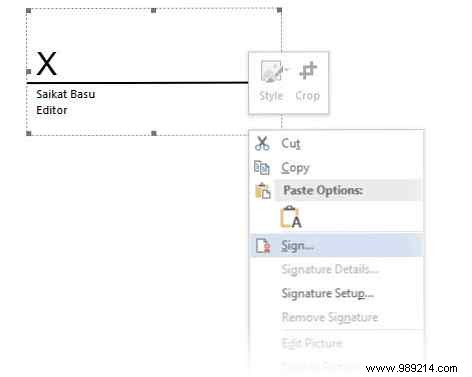
Add customizable signature placeholders with instructions. Insert via Insert > Text group > Signature Line.
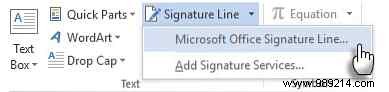
Right-click to sign digitally or create reusable formats via Quick Parts.
For Word 2016, Excel 2016, and PowerPoint 2016.
Secure documents with encrypted digital signatures (stronger than e-signatures). Get a digital ID, then File > Info > Protect Document > Add a Digital Signature.
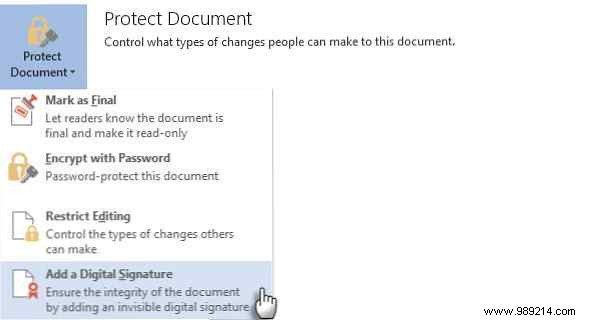
Documents become read-only post-signing. See Microsoft's Outlook guide.
For Word 2016, Excel 2016, and PowerPoint 2016.
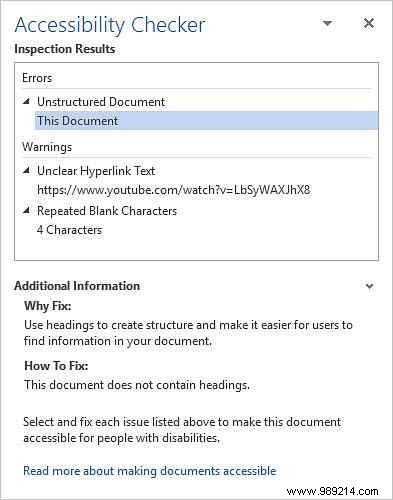
Ensure inclusivity: It flags issues (e.g., missing alt text) with explanations and fixes.
File > Info > Check for Issues > Check Accessibility.
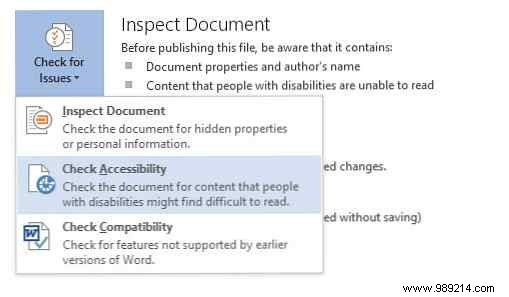
The task pane details problems and solutions.
For Word 2016, Excel 2016, and PowerPoint 2016.
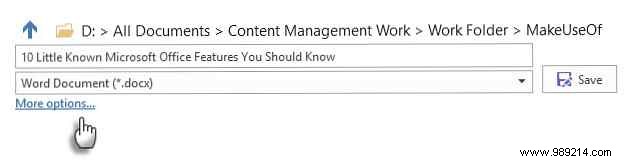
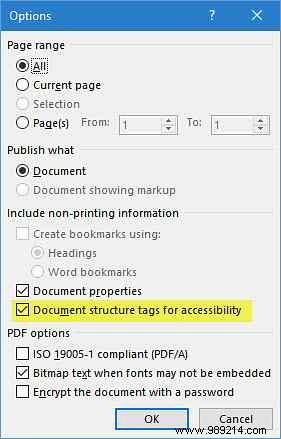
Create accessible, reflowable PDFs with logical structure for screen readers. File > Save As > PDF, click More options > Options, and check Document structure tags for accessibility.
These tools, like keyboard shortcuts or password protection, integrate seamlessly into your workflow, sharpening your Office mastery. What's your favorite hidden gem? How many were new to you?
