Microsoft Word is built for productivity, packed with features that streamline your workflow. While advanced tools like those in our guide to 10 Hidden Microsoft Word Features That Will Make Your Life Easier shine, don't overlook these simple text selection techniques. As seasoned Word experts, we've relied on them for years to edit documents faster. Here are three essential methods to elevate your efficiency.
Placing your cursor at the start and holding Shift + down arrow works, but it's slower than this mouse-keyboard combo.
Fastest method: Hold Ctrl, position your mouse anywhere in the sentence, and click. The entire sentence selects instantly.
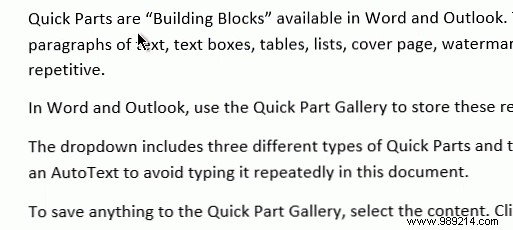
Typically, you click the start, hold the left mouse button, and drag to the end.
Fastest method: Click in the left margin, hold the button, and drag down the page to capture the block effortlessly.
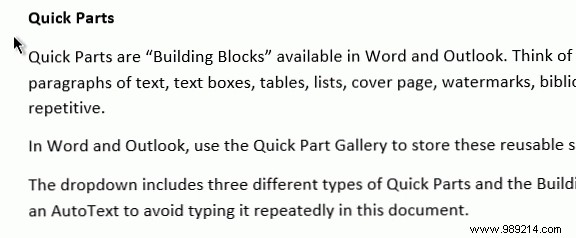
Juggling keyboard and mouse can be tedious. Activate Word's built-in "Extend Selection" mode (F8) for pinpoint accuracy without fatigue.
Fastest method: Press F8 to enter Extend mode. Press F8 repeatedly to select word, sentence, paragraph, or section. Use Shift + F8 to step back and deselect.
