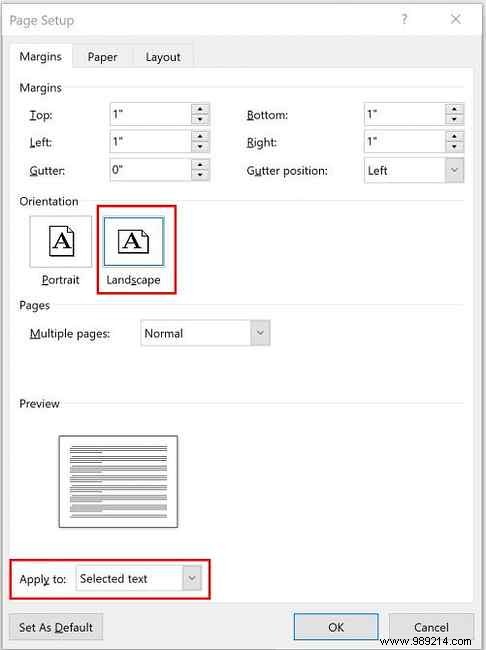
Microsoft Word goes far beyond basic document creation. As a seasoned user with years of experience crafting professional reports and presentations, I've relied on these advanced formatting tricks to ensure consistency, visual appeal, and precision: embedding fonts for flawless sharing, adding diagonal lines to tables, and adjusting page orientations individually.
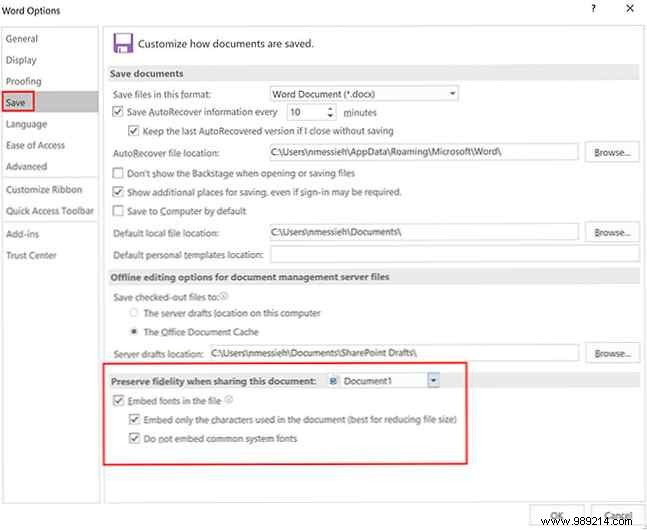
Sharing a Word document? Ensure recipients see it exactly as you designed, including your chosen fonts. Without the exact font installed, it defaults to substitutes, ruining your layout. Embedding fonts solves this reliably.
To embed fonts:
Opt to exclude common system fonts to minimize size. For editable files, embed all characters; for view-only, use subsets to keep files lean. File size varies by font complexity, especially with bold or italic variants. This works with TrueType fonts (learn more about OTF vs. TTF fonts here for differences and when to choose each). Check your font license before embedding.
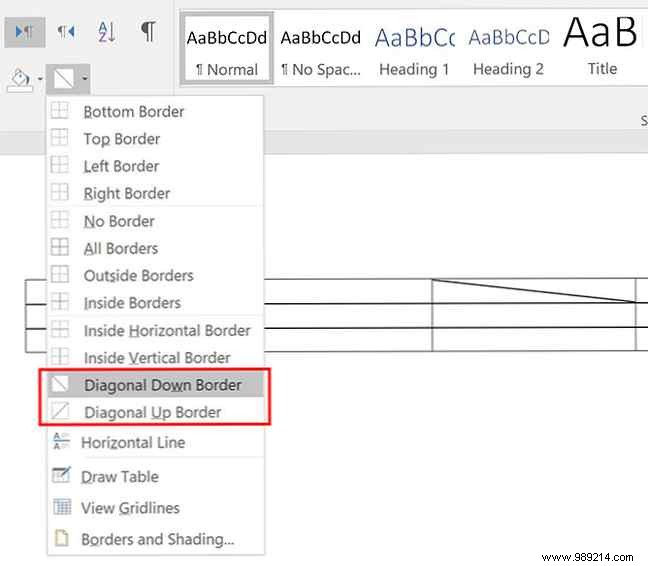
Diagonal lines in table cells create striking dividers, highlighting unique data or categories without splitting cells.
This adds a visual split but keeps the cell intact for single-entry content.
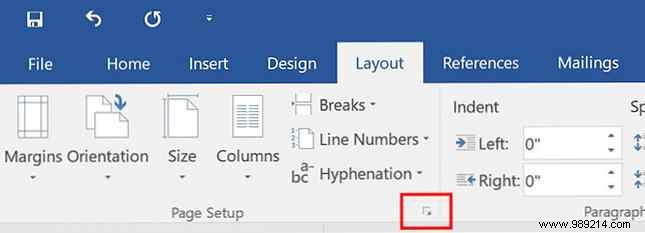
In long documents with wide tables or charts, mix portrait and landscape pages seamlessly for optimal layout.