As experienced Microsoft Office power users, we've fine-tuned countless workflows over years of professional use. Default settings often prioritize broad appeal over efficiency—here are 8 essential tweaks across Word, Excel, PowerPoint, and universal options to streamline your day and boost productivity.
These adjustments apply to most Office apps or specific ones. We'll start with universal settings, then cover Excel, PowerPoint, and Word. For deeper dives, check our guides like Microsoft Office Ecosystem: A Complete Guide and more.
Have a must-change setting we missed? Share in the comments below.
Available across all (or most) Office programs.
The Ribbon—that top toolbar with shortcuts for common tasks—can be tailored to your needs. Go to File > Options > Customize Ribbon. The left pane lists available commands; the right shows your current setup.
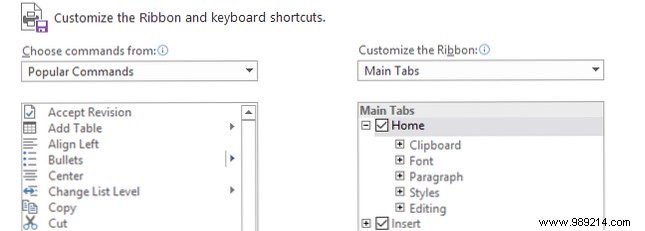
Click an item on the left, then Add >> to include it. Expand categories with plus signs for deeper customization. See our full guide: How to Optimize the Office 2016 Ribbon or Menu Interface.
Streamline saving by setting your preferred folder. Navigate to File > Options > Save, and in the Save documents section:

Check Save to Computer by default, then click Browse… next to Default local file location to select your path. Hit OK twice.
Older Excel versions defaulted to three sheets to highlight the feature (see our 14 Tips to Save Time in Microsoft Excel). Now it's one—but adjust as needed. In Excel, go to File > Options > General. Under When creating new workbooks, set Include this number of sheets (max 255).
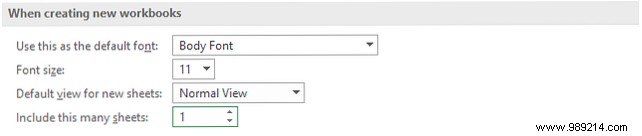
Click OK.
Long text spills into adjacent cells unless wrapped (learn more in Saving Time With Text Operations in Excel). To set as default:
Open a new workbook, go to Home tab > Styles group > right-click Normal > Modify… > Format…. On the Alignment tab, check Wrap text and click OK twice.
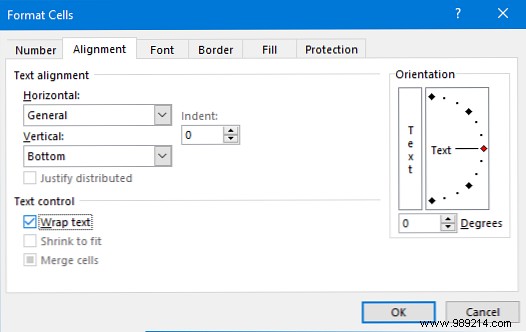
To apply to all new workbooks, save as a template. First, find your XLSTART folder: In Excel, press Alt + F11 (VBA editor) > Ctrl + G > type ?Application.StartupPath > Enter.
Then File > Save As, name it Book, set Save as type to Excel Template, browse to XLSTART, and save. New workbooks will use it. (Explore templates in An Excel Template for Every Occasion.)
Presentations default to a black 'End of slide show' screen after your last slide—redundant if you've designed an ending (tips in 10 Tips for Better PowerPoint Presentations with Office 2016). Disable it: File > Options > Advanced > scroll to Slide Show > uncheck End with black slide.

Click OK.
Files open in their last-saved view, hiding thumbnails or notes. Override: File > Options > Advanced > Display section > choose from Open all documents using this view dropdown.
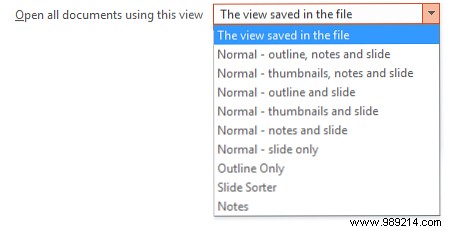
Click OK.
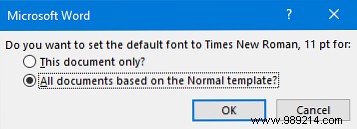
Calibri replaced Times New Roman—swap it permanently (font tips in How to Style Fonts in Microsoft Word). On Home tab > Font group > click the arrow:
Select your font, style, size > Set As Default > choose All documents based on the Normal template? > OK.
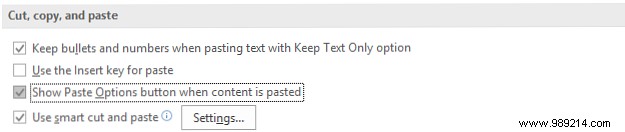
The Paste Options icon pops up after pasting—dismiss with Esc, or disable: File > Options > Advanced > Cut, copy, and paste > uncheck Show Paste Options button when content is pasted > OK.
Office's flexibility is its strength—customize freely. Small changes like fonts or wrapping save hours long-term. For more, see 10 Simple Office 2013 Tips to Boost Productivity and 10 Microsoft Word Default Settings to Optimize.
Which tip helps you most? Missed a key setting?
