Microsoft Excel is a powerful data analysis tool, but VBA macros take it to the next level by automating repetitive tasks. However, misuse can lead to errors and inefficiencies. As a developer with over 20 years of experience in VBA and Excel automation, I've seen these issues firsthand.
Even if you're new to programming, VBA's straightforward syntax lets you add impressive features to spreadsheets. Stick around for practical advice.
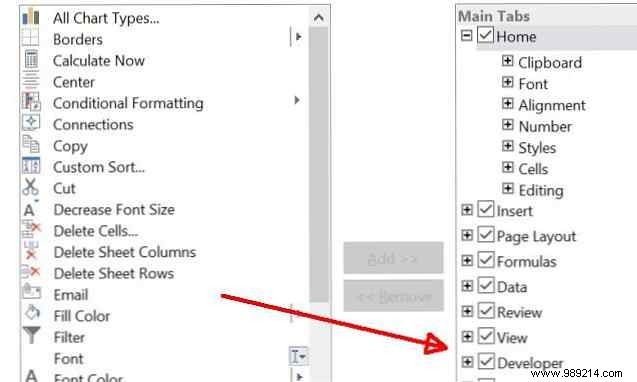
To begin, enable the Developer tab: Go to File > Options > Customize Ribbon, and check Developer in the right pane.
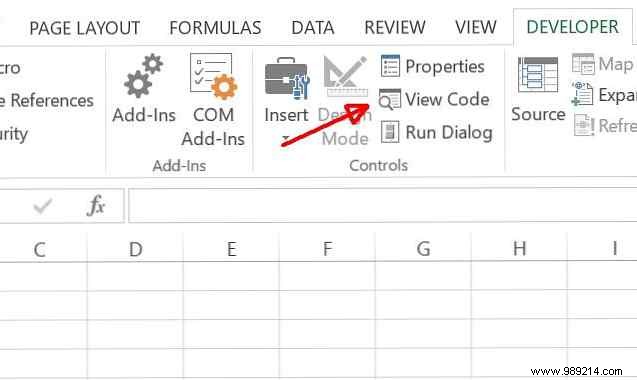
Once enabled, the Developer tab appears. Access the VBA editor by clicking View Code under Controls.
Defining variables is crucial. From decades of coding, here are my best practices:
Here's an example from a script I use to gather PC info via WMIC:
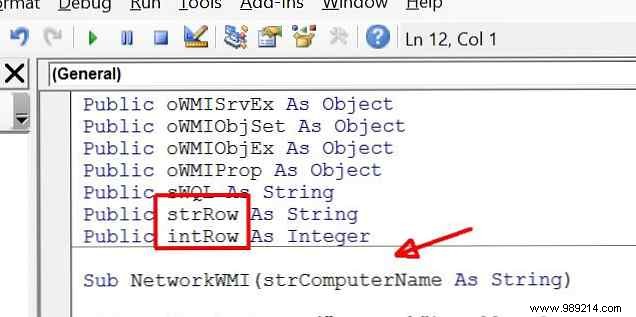
Clear prefixes instantly reveal data types, like strComputerName. Avoid cryptic names—make code readable for teams.
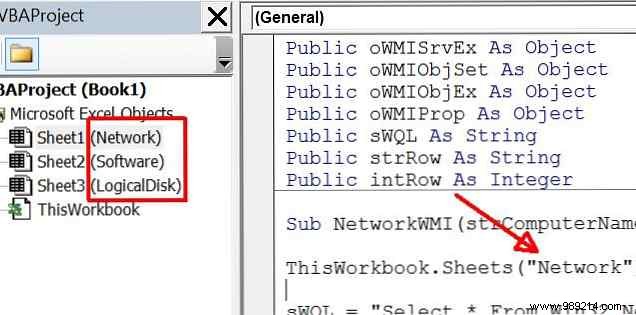
Also, rename default sheets (e.g., Sheet1) to meaningful ones like "Network" for clarity in code.
Novice coders often use Exit For to break loops prematurely. Resist this—it skips essential post-loop code.
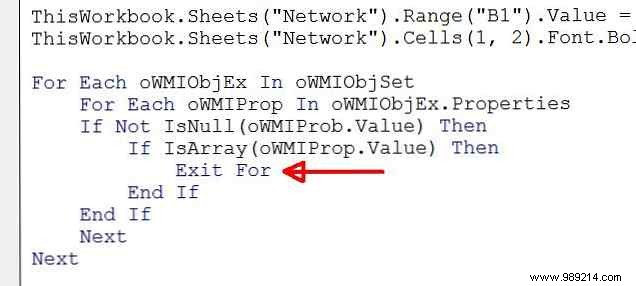
Avoid:
For x = 1 To 20
If x = 6 Then Exit For
y = x + intRoomTemp
Next
Instead, integrate conditions into a While...Wend:
Dim x As Integer
x = 1
While (x >= 1 And x <= 20 And x <> 6)
    y = x + intRoomTemp
    x = x + 1
Wend
This ensures logical flow and graceful exits.
Nested loops for row/column processing kill performance. Arrays store data in memory for fast access.
Think of an array as an ice cube tray: Dim arrMyArray(12) As Integer creates 13 slots (0-12).

Inefficient loop:
Sub Test1()
Dim x As Integer
Dim intNumRows As Integer
intNumRows = Range("A2", Range("A2").End(xlDown)).Rows.Count
Range("A2").Select
For x = 1 To intNumRows
    If Range("A" & Str(x)).Value < 100 Then
        intTemp = (Range("A" & Str(x)).Value) * 32 - 100
    End If
    ActiveCell.Offset(1, 0).Select
Next
End Sub
With array (load once):
Sub Test1()
Dim x As Integer
Dim intNumRows As Integer
intNumRows = Range("A2", Range("A2").End(xlDown)).Rows.Count
ReDim arrMyArray(1 To intNumRows)
Range("A2").Select
For x = 1 To intNumRows
    arrMyArray(x) = Range("A" & Str(x)).Value
    ActiveCell.Offset(1, 0).Select
Next
End Sub
Later calculations:
Sub TempCalc()
Dim x As Integer
ReDim arrMyTemps(1 To UBound(arrMyArray))
For x = 1 To UBound(arrMyArray)
    arrMyTemps(x) = arrMyArray(x) * 32 - 100
Next
End Sub
Arrays preload data, enabling quick reuse.
References are libraries for advanced features. Minimize them for efficiency.
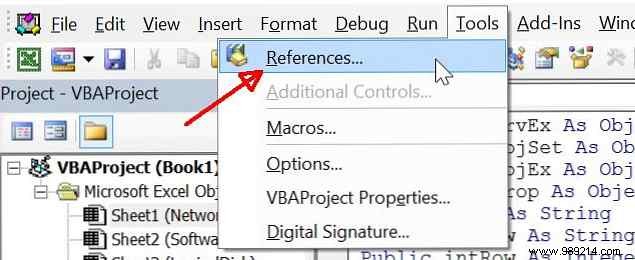
In VBA editor: Tools > References.
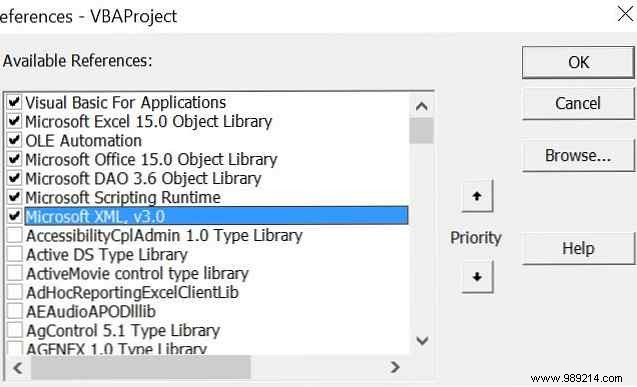
Uncheck unused ones (e.g., Microsoft XML if no XML, DAO if no databases). Use F2 for Object Browser to inspect.
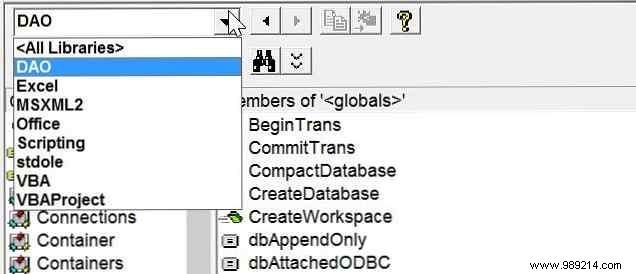
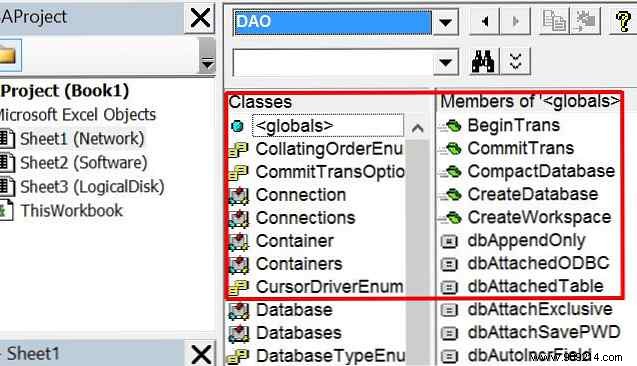
Fewer references mean leaner, faster code.
VBA is approachable—follow these tips for clean, efficient code. What's your top VBA lesson? Share in comments!
