As an experienced Excel power user and VBA developer, I've helped countless beginners unlock the full potential of spreadsheets. Visual Basic for Applications (VBA) is Microsoft's built-in programming language for Office apps, enabling you to automate tasks, build custom forms, add message boxes, and respond to events like button clicks.
This hands-on tutorial walks you through a beginner-friendly project: a button that converts a selected cell's value from GBP to USD using a simple 1.28 exchange rate multiplier. It's the perfect entry point to VBA-Excel integration, setting you up for more advanced automations.
We'll use Excel 2016 (steps apply to newer versions too). Let's get started.
To access VBA tools, first show the Developer tab on the Ribbon. Go to File > Options > Customize Ribbon, or right-click the Ribbon and choose Customize the Ribbon....
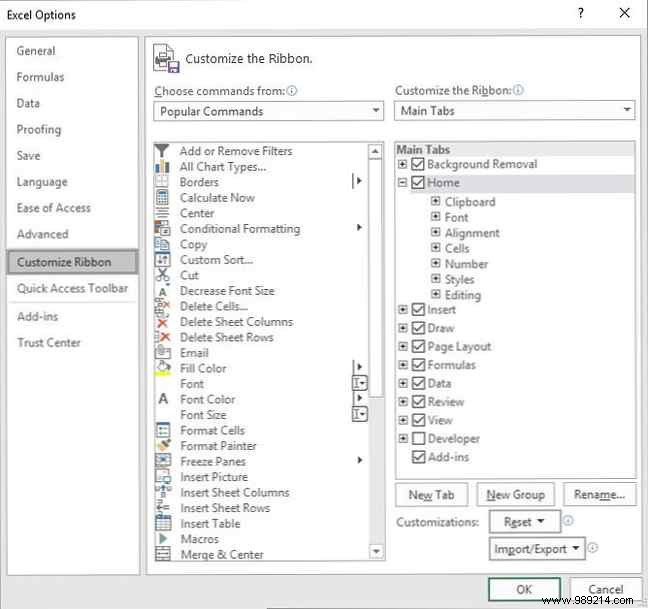
In the right pane under Main Tabs, check Developer and click OK.
Open a new workbook, go to the Developer tab, and click Insert in the Controls group. Choose ActiveX Command Button.
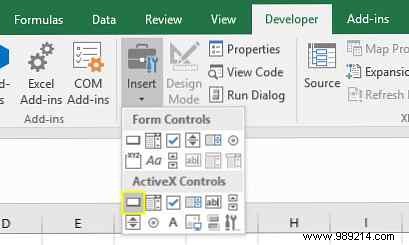
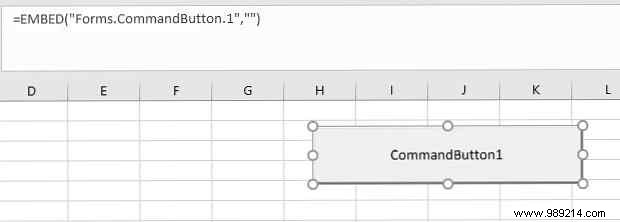
Draw the button on your sheet to size and position it as needed.
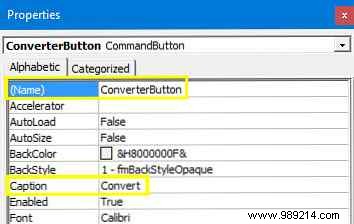
Right-click the button and select Properties. Update Name to "ConverterButton" (for code reference) and Caption to something like "Convert GBP to USD". Note your name—we'll use it in code.
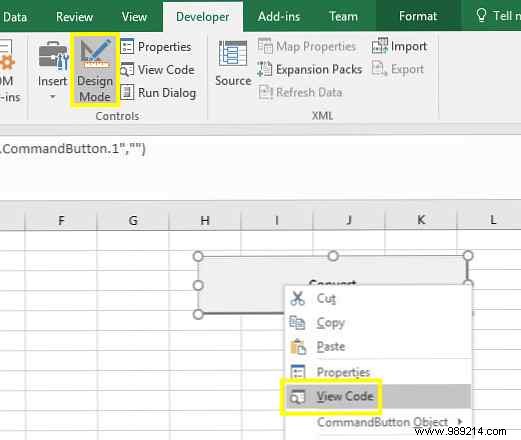
With Design Mode enabled on the Developer tab, right-click the button and select View Code.
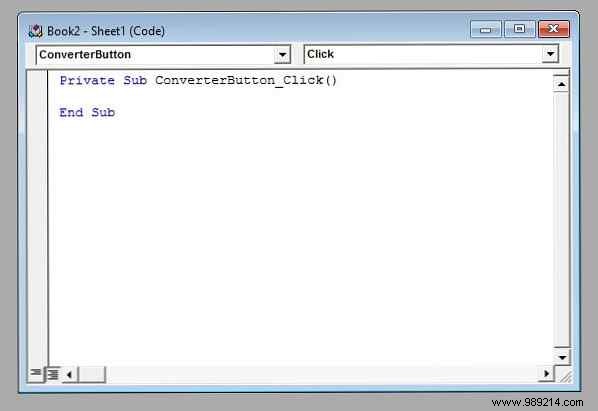
The VBA editor opens with a stub event handler:
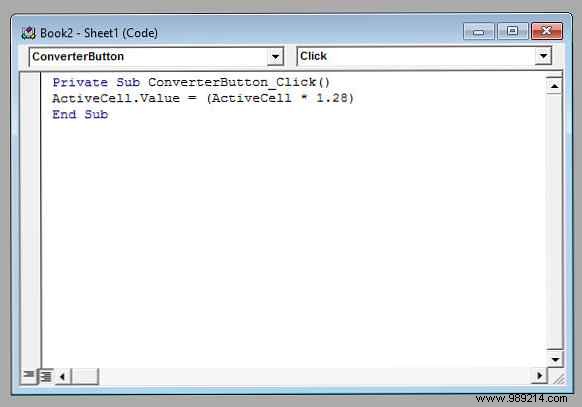
Paste this code between the Private Sub and End Sub lines:
ActiveCell.Value = (ActiveCell.Value * 1.28)This multiplies the active cell's value by 1.28 (GBP to USD rate) and updates it. Here's how it looks:
Close the editor (File menu) and return to Excel.
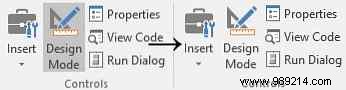
Disable Design Mode to activate the button.
Enter a GBP amount in a cell, select it, and click the button. The value should update to USD—success!
With this foundation, expand to random number generators, cell validations, or full games in Excel. Start small with projects that excite you to build real VBA expertise step by step.
Questions on this VBA button? Drop them in the comments—happy to help!
