Family Encyclopedia >> Work

How to Seamlessly Manage Multiple Google Accounts in Chrome with User Profiles

On shared computers, browsers often get shared too—but for personalized settings, history, and privacy, Google Chrome's user profiles deliver a tailored experience without compromise.
How to Set Up Custom Profiles in Chrome

How to Seamlessly Manage Multiple Google Accounts in Chrome with User Profiles

To create a custom profile in Google Chrome:

  • Click your profile picture or name in the top-right corner, then select Manage people > Add person. Or navigate via the Chrome menu: People > Add person.
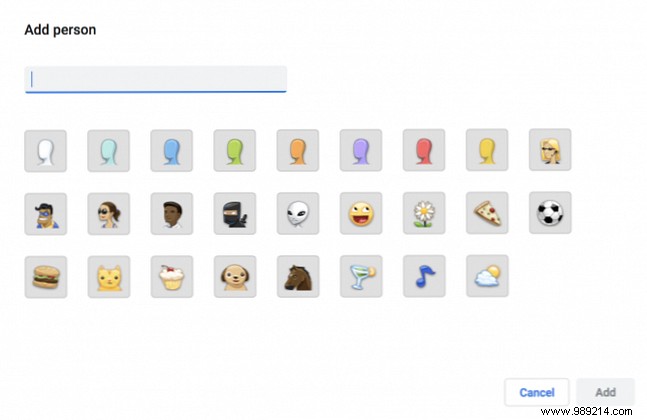
  • Enter a name and choose a photo for the new profile, then click Add.
  • A new Chrome window opens—sign in with the desired Google account.

How to Switch Profiles in Chrome

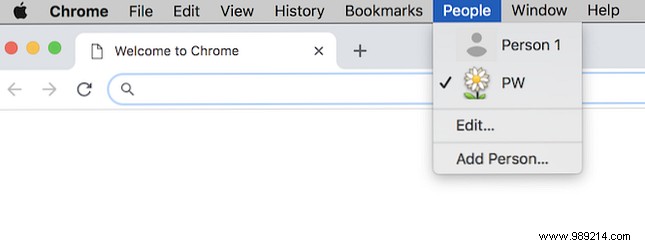
With profiles ready, simply click the profile picture or name in the top-right corner and select your preferred profile from the dropdown menu.

You can also access profiles via the Chrome menu under People:
How to Seamlessly Manage Multiple Google Accounts in Chrome with User Profiles

How to Remove a Profile in Chrome

How to Seamlessly Manage Multiple Google Accounts in Chrome with User Profiles

To delete a profile:

  • Click your profile picture or name in the top-right corner > Manage people.
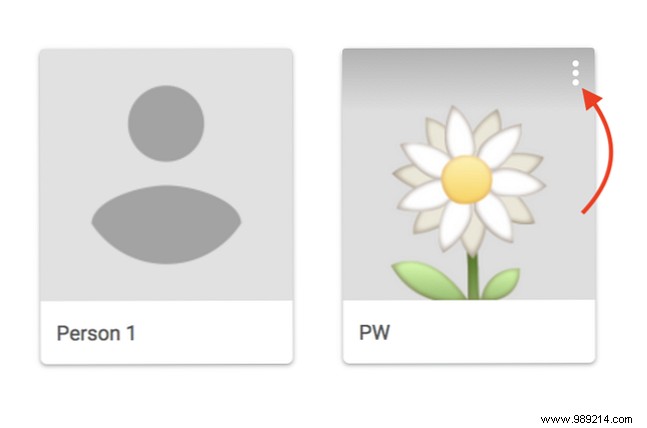
  • Click the three-dot menu next to the profile you want to remove.
  • Select Remove this person and confirm.

Warning: This deletes local bookmarks, history, passwords, and settings from your computer. Synced data via Google account remains accessible on other devices.

Go beyond basics—use profiles to separate work and personal browsing, test extensions safely, or organize workflows. Explore ideas like '5 Custom Chrome Profiles You Should Start Using' for productivity boosts. Profiles work in Firefox and other browsers too.