As a Google Workspace specialist with years of experience streamlining office processes for teams and small businesses, I've seen Google Forms transform simple data collection into robust, interactive workflows. Far beyond basic surveys, it integrates seamlessly with Google Sheets and add-ons like formMule to automate approvals, notifications, and updates.
Out of the box, Google Forms captures responses directly into a Google Sheet, with each entry as a new row. But with smart setup, you can edit existing rows, trigger actions, and manage dynamic processes—ideal for service requests needing responses or approvals, without manual spreadsheet wrangling.
Picture this: Your team handles ad-hoc help requests efficiently, without heavy incident management software. Using Google Forms, achieve a complete flow:
Include essential fields like email and request details for notifications.
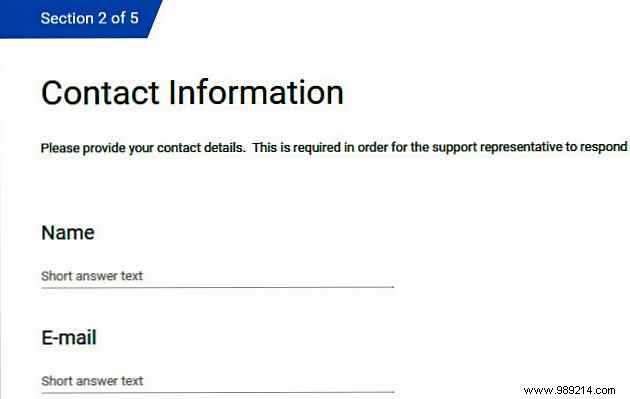
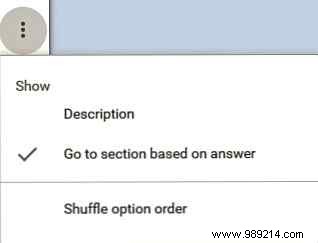
Branching directs users to relevant sections. Start with a question: "New request or update?" Route new submitters one way, admins another.
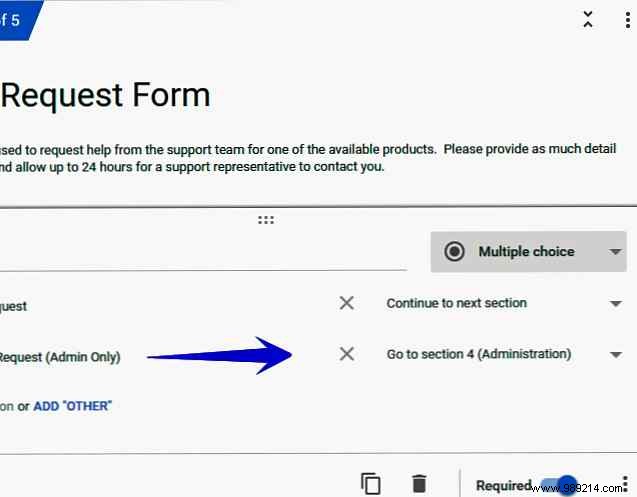
To set it up:
Protect admin sections with validation. After selecting "Update Request (admin only)," require an access code matching a specific string.
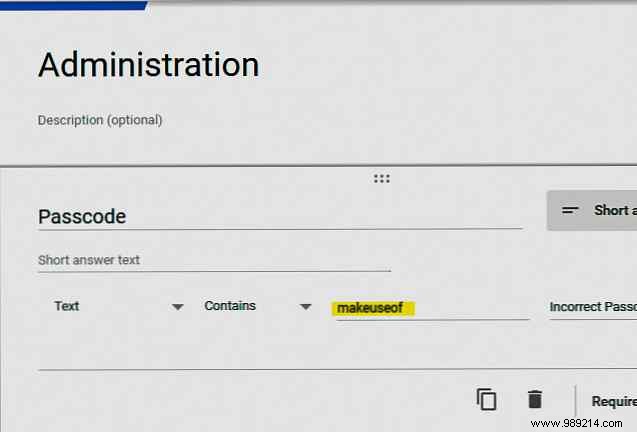
This isn't foolproof for sensitive data—use it for low-stakes scenarios and avoid real passwords.
Link your form to a Sheet, then install formMule via Extensions > Add-ons > Get add-ons. It sends customized emails on form submit.
Configure under Extensions > formMule > Settings: Enable "on form submit" trigger and "record edit URL per response."
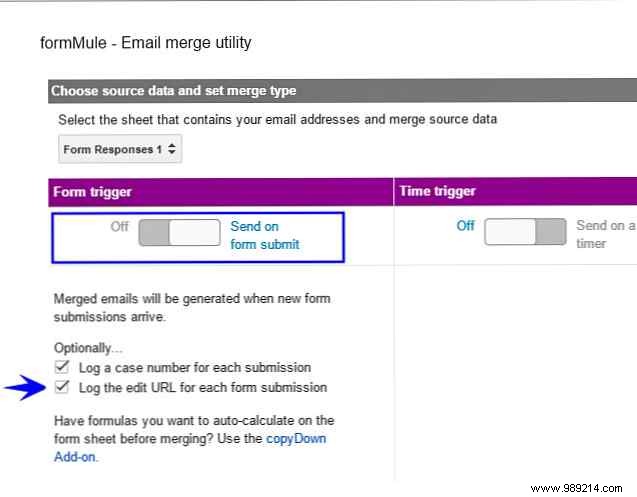
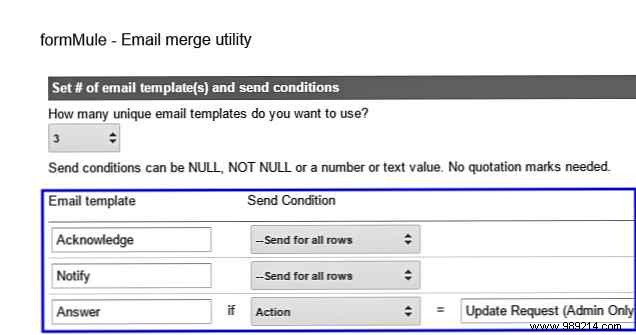
Create three templates: Acknowledgment, Notification, and Resolution.
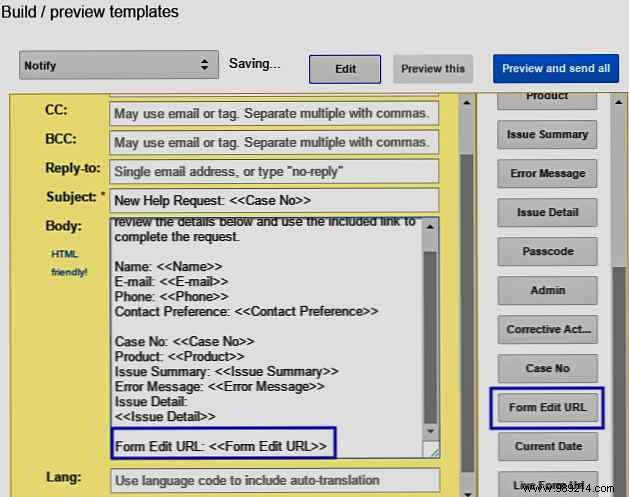
Use merge tags for dynamic content (e.g., requester name, details) and include the unique edit URL for seamless updates. Share the access code in notifications.
Extend further with custom on form submit scripts via Apps Script for tailored automations.
Run end-to-end tests to ensure every step flows perfectly before launch.
Click Send to share via link, email, or embed. Responses auto-populate your Sheet for analysis.
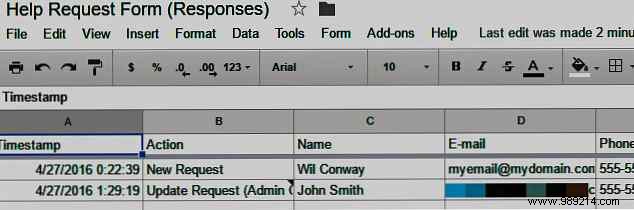
Google Forms excels at lightweight workflows. Pair with Apps Script for unlimited automation. What workflows will you build? Share in the comments!
