One of the biggest frustrations with cloud-based tools like Google Docs (now part of Google Drive) is losing internet access. Fortunately, Google provides robust offline capabilities, allowing you to view, edit, and create files seamlessly on desktops, mobiles, Chromebooks, and more. As a productivity expert with years of guiding teams through cloud workflows, I've relied on these features during travel and outages. Here's a complete, step-by-step guide based on the latest methods.
Chrome is required for offline access on Windows, Mac, or Linux. Download and install the Google Drive Chrome web app if prompted—it's built into Chrome by default.
Visit drive.google.com and sign in. Click the gear icon in the top right, then select Settings.
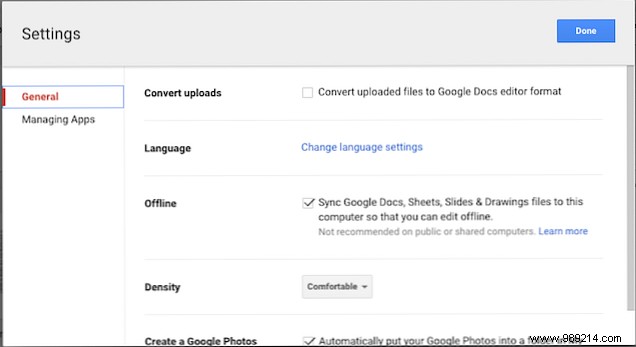
In the Offline section, check Sync Google Docs, Sheets, Slides & Drawings to this computer. Files will begin caching locally.
Go to docs.google.com, click the menu icon (three lines) in the top left, and select Settings.
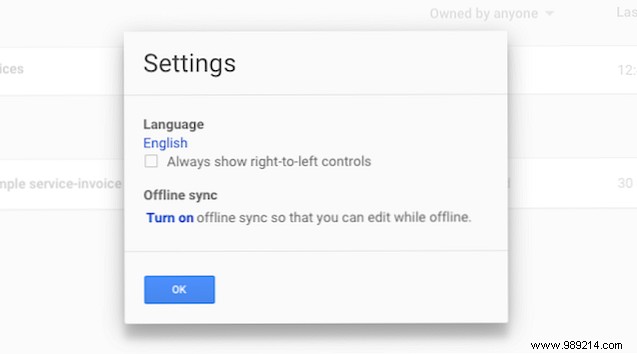
Under Offline, click Turn on. Confirm the Chrome web app installation if needed.
Allow time for files to cache—don't disconnect too soon. Open Drive or Docs offline via the same URLs; unavailable files appear grayed out.
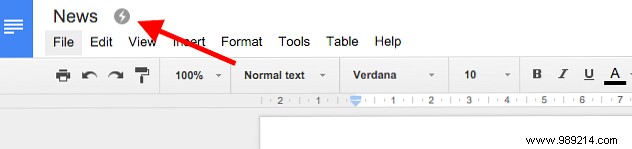
Double-click a file; a gray "Offline" badge confirms availability.
Edits save automatically locally. Reconnect to sync—unsynced files appear bold. Create new docs offline; they'll upload later.
Install the Google Drive desktop app for Windows or Mac. It syncs your entire Drive (or select folders via Preferences > Sync options).
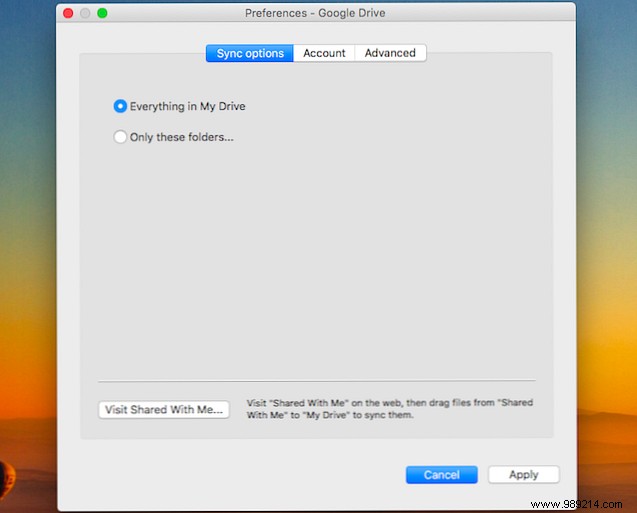
Access files via File Explorer (Windows) or Finder (Mac). Edit .gdoc, .gsheet files in Chrome (set as default browser), with offline enabled as above. Other files open in local apps like Excel or Photoshop.
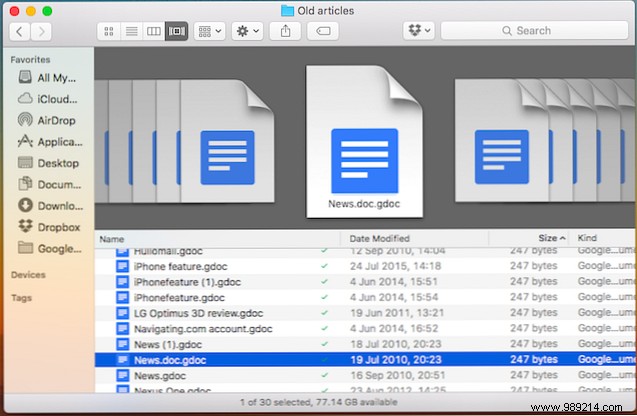
Changes sync on reconnect. Ideal for single-device users, but watch storage space.
Chromebooks support full offline editing. Follow the same Chrome browser steps as desktop.
Admins: Log into the Admin console, navigate to Apps > Google Workspace > Drive > Data access, and enable Allow users to enable offline documents. Applies organization-wide; restrict per user/group for Unlimited or Education plans.
Google Docs, Sheets, and Drive apps support per-file offline access—no global toggle.
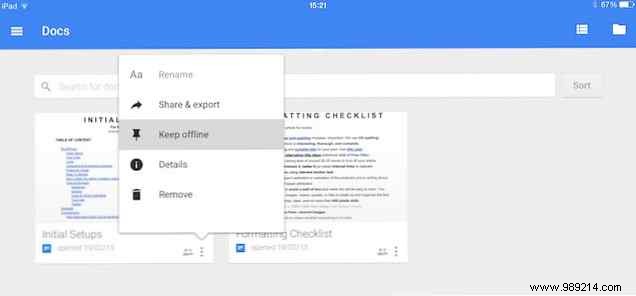
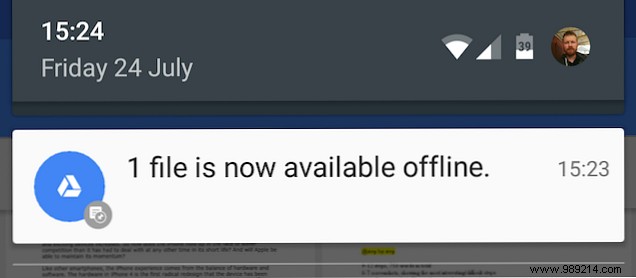
Tap the three dots next to a file and select Make available offline (or from file details/open menu). Files download; check progress via notification.
Swipe left for the Offline view. Edits sync automatically on reconnect. No support for Windows Phone editing.
Offline mode isn't a full MS Office replacement but excels for on-the-go productivity. Enable it proactively—there's no performance downside online. Share your offline experiences in the comments!
