Microsoft's Immersive Reader is a powerful, under-the-radar tool launched earlier this year to boost reading skills for everyone—from students with learning differences to gifted learners and professionals. As a free add-on for OneNote and other apps, it builds fluency, comprehension, and focus. With expanding support across Microsoft products and nearly 30 languages, here's a detailed look at its features and usage.
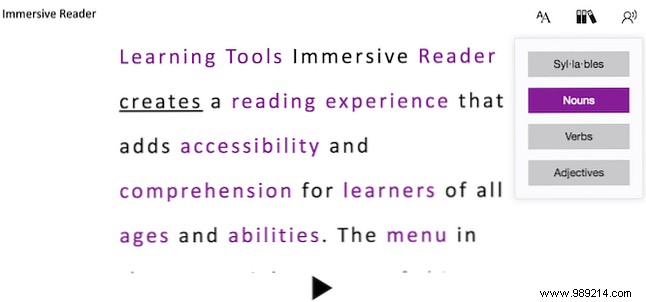
Immersive Reader elevates your experience in Microsoft apps by improving reading fluency, comprehension, word recognition, and concentration. It reads text aloud via text-to-speech while color-highlighting parts of speech like verbs, nouns, and adjectives to clarify sentence structure.
Key benefits for Windows users include:
Currently available in nearly 30 languages, including Arabic, English, French, German, and Spanish. Coming soon: Norwegian, Swedish, Finnish, Danish, and Brazilian Portuguese.
Immersive Reader is integrated into these apps:
Test it first with the Try It Now online demo to explore features.
Quick start guides:
What do you think of Microsoft's Immersive Reader? Share your favorite online tools for reading, writing, and comprehension in the comments.
