Keyboard shortcuts are a game-changer for Mac users, slashing time on repetitive tasks in Microsoft Office. As a seasoned Mac power user with years optimizing workflows using official Microsoft and Apple resources, I've curated the most practical shortcuts for OneNote, Outlook, Excel, PowerPoint, Word—plus universal basics and tips for custom ones. Master these to work smarter.
Basic Shortcuts
These reliable commands work across all Microsoft Office apps and beyond on Mac.
- Print: Command + P
- Find: Command + F
- Cut: Command + X
- Copy: Command + C
- Paste: Command + V
- Save: Command + S

App-Specific Shortcuts
Each Office app shines with tailored shortcuts. Here's a vetted selection of the most efficient ones, drawn from Microsoft and Apple documentation.
Microsoft OneNote
OneNote on Mac delivers robust note-taking. These shortcuts streamline navigation, insertion, and management—ideal for daily productivity.
- Switch notebook sections: Option + Tab
- Move paragraph up: Command + Shift + Up Arrow
- Move paragraph down: Command + Shift + Down Arrow
- Move paragraph left: Command + Shift + Left Arrow
To navigate pages:
- Cursor on page: Control + Tab highlights navigation.
- Arrow keys to select page.
Insert and delete:
- Line break: Shift + Return
- Current date: Command + 1
- Date and time: Command + Shift + 1
- Insert link: Command + K
- Delete word left: Option + Delete
- Delete word right: Fn + Option + Delete
Pages and notebooks:
- Open notebooks list: Command + ` (backtick)
- Search all: Command + Option + F
- New page: Command + N
- Move page: Command + Shift + M
- Copy page: Command + Shift + C

For full OneNote shortcuts, check Apple Support.
Microsoft Outlook
Streamline email and calendar with these proven shortcuts.
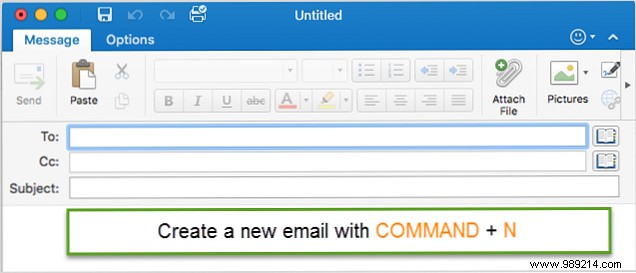
- New message: Command + N
- Save as draft: Command + S
- Send: Command + Return
- Add attachment: Command + Shift + A
- Send/receive: Command + K
- Reply: Command + R
- Reply all: Shift + Command + R
- Resend: Command + J
Calendar, notes, tasks, contacts:
- New item: Command + N
- Open selected: Command + O
- Delete: Delete
- Previous pane: Shift + Control + [
- Next pane: Shift + Control + ]
- Today view: Command + T
- Send note as email: Command + J
Flag with due dates (select then Control + number):
- Today: 1
- Tomorrow: 2
- This week: 3
- Next week: 4
- No date: 5
- Custom: 6
- Reminder: =
- Clear flag: 0
Full Outlook list on Apple Support.
Microsoft Excel
Excel pros rely on these for cells, rows, navigation.
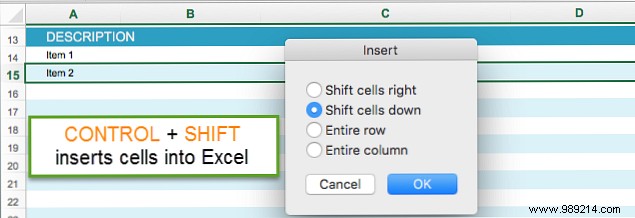
- Insert cells: Control + Shift + =
- Delete cells: Command + - or Control + -
- Insert hyperlink: Command + K
- Enter date: Control + ;
- Enter time: Command + ;
- Select visible cells: Command + Shift + *
- Select active cell: Shift + Backspace
Rows and columns (select first):
- Select row: Shift + Spacebar
- Hide rows: Control + 9
- Unhide rows: Control + Shift + (
- Select column: Control + Spacebar
- Hide columns: Control + 0
- Unhide columns: Control + Shift + )
Worksheets:
- Next sheet: Control + Page Down or Option + Right Arrow
- Previous sheet: Control + Page Up or Option + Left Arrow
- Jump to active cell: Control + Backspace
- Protected sheet navigation: Tab
Full Excel shortcuts on Apple Support.
Microsoft PowerPoint
Perfect presentations faster with these.
- New presentation: Command + N
- Open: Command + O
- Close: Command + W
- Print: Command + P
- Save: Command + S
- Insert slide: Command + Shift + N
During slideshow:
- Start from first: Command + Shift + Return
- Start from current: Command + Return
- End show: Esc, Command + ., or -
- Hide pointer: Control + H
Views:
- Normal: Command + 1
- Slide sorter: Command + 2
- Notes page: Command + 3
- Slide outline: Command + 4
- Full screen: Command + Control + F
- Presenter view: Option + Return
Tip: In slideshow, W blanks screen white, B blacks it out—great for audience focus.

Full PowerPoint list on Apple Support.
Microsoft Word
Format and insert effortlessly.
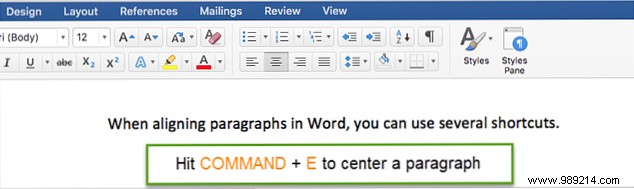
- Center paragraph: Command + E
- Justify: Command + J
- Left align: Command + L
- Right align: Command + R
- Increase font: Command + Shift + >
- Decrease font: Command + Shift + <
- All caps: Command + Shift + A
- Bold: Command + B
- Italic: Command + I
- Underline: Command + U
- Double underline: Command + Shift + D
Line spacing:
- Single: Command + 1
- Double: Command + 2
- 1.5 lines: Command + 5
Special inserts:
- Line break: Shift + Return
- Page break: Command + Shift + Return
- Column break: Command + Shift + Return (contextual)
- Copyright: Option + G
- Registered: Option + 2
- Trademark: Option + R
Full Word shortcuts on Apple Support.
Create Custom Shortcuts in Word
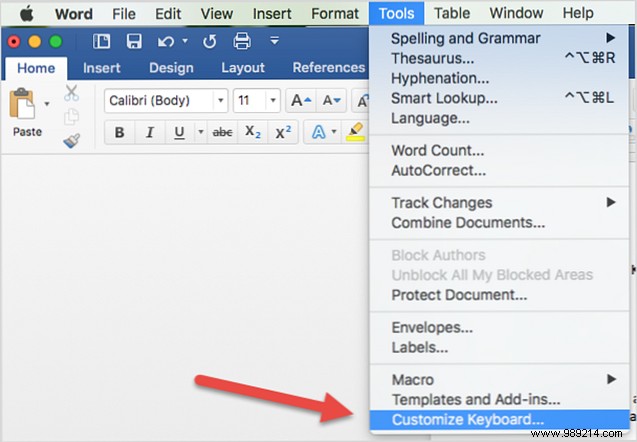
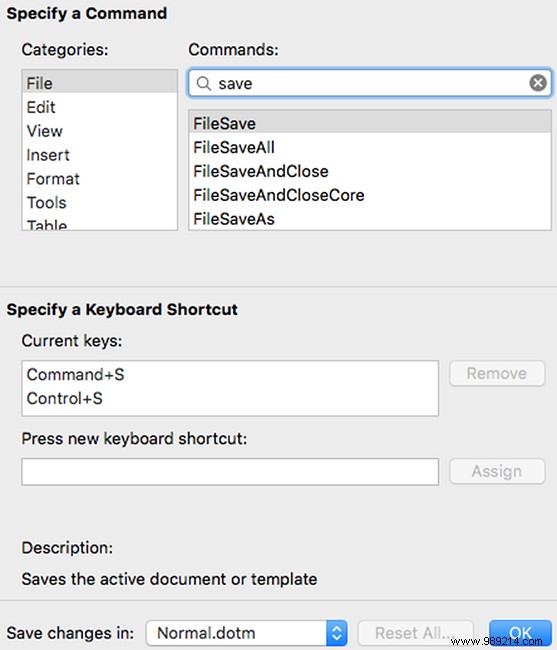
Word uniquely allows keyboard customization. From the Word menu (not Mac's), go to Tools > Customize Keyboard. Pick category/command, assign keys in Press new keyboard shortcut, save to document or template. Remove existing via Remove.
System-Wide App Shortcuts
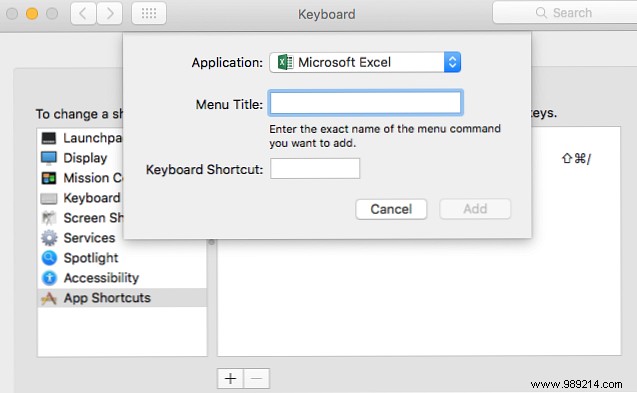
Alternatively, in System Settings > Keyboard > Keyboard Shortcuts > App Shortcuts, add app-specific ones (+ button). Note: Works only without conflicts.
Your Must-Have Shortcuts?
We can't memorize them all, but favorites become muscle memory. Which Office on Mac shortcuts can't you live without? Share below!
