As a long-time Microsoft Office user and IT consultant who's managed deployments across versions from 2003 to 2016, I know firsthand how new features can sometimes feel more like bloat than benefit. While Office 2016 brought powerful updates, many stick with earlier editions like 2010 or 2013. One common irritant is the Microsoft Office Upload Center, introduced in Office 2010 and carried through 2016. It handles syncing files to OneDrive but can clutter your system tray or cause issues on spotty connections. Here's a clear, tested guide to understand it and turn it off if it's not for you.
Pre-2010 Office saved files locally only. With OneDrive integration, every Save creates a local copy and queues an upload to the cloud. If your connection drops or sync fails, the Upload Center steps in: it notifies you of errors, manages retries, and ensures your remote file updates once you're back online. Microsoft's documentation highlights its value for remote work or bulk uploads, especially on unreliable Wi-Fi.
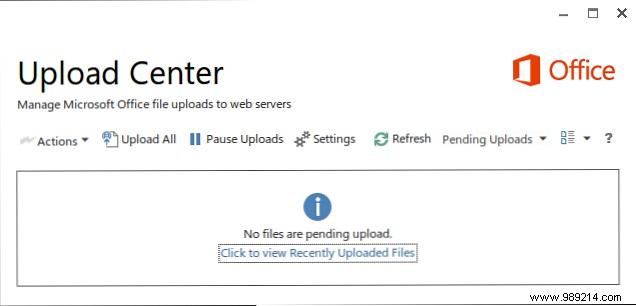
That said, if you rarely use OneDrive or work offline, it's unnecessary overhead. I've helped clients disable it to streamline their workflow without issues.
If you want Upload Center running silently, just remove the tray icon. Right-click the icon in the system tray and select Settings. Or launch it via Start Menu:
In the window, click Settings and uncheck Show icon in notification area.
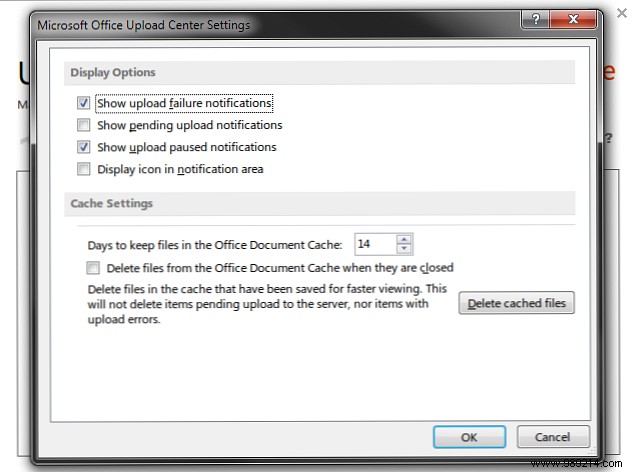
This keeps it functional but out of sight.
For full removal, methods vary by Office/Windows version. I've tested these on Office 2013/Windows 7 setups; results may differ—backup your system first.
Office 2010: Press Windows + R, type msconfig, go to Startup tab, disable MSOSYNC or any Microsoft Office 2010 entries.
Alternatively, edit the Registry (caution advised—backup via regedit > File > Export):
Navigate to HKEY_CURRENT_USER\Software\Microsoft\Office\14.0\Common\SignIn (or similar sync path), delete the OfficeSyncProcess value, then reboot.
Office 2013: Open Task Scheduler (search in Start), expand Task Scheduler Library, find Microsoft Office 15 Sync Maintenance Utility for your username, right-click, and Disable.
Office 2016 on Windows 10: Open OneDrive settings, go to Office tab, uncheck Use Office to work on files with other people at the same time.
Last resort—rename executable: For Office 2013: C:\Program Files\Microsoft Office\Office15\msosync.exe. Rename to msosync.exe.bak. This prevents launch but may trigger minor errors. Alternatively, use Task Manager to end msosync.exe on boot.
No method is foolproof due to Microsoft's integration, but hiding the icon often suffices. If you rely on collaboration, keep it enabled.
The Upload Center aids cloud syncing, a boon for Office 365 users. But if it's a distraction, these steps reclaim control. In my experience, most users are happier without it unless heavily using OneDrive.
Which method worked for you? Share in the comments—I reply to troubleshoot!
