Large PDF files can slow down emails and uploads, but you can shrink them easily and for free. As a tech writer with years of experience optimizing files, I've tested these reliable methods using built-in tools and trusted online services. Here's how to compress PDFs while preserving most quality.
1. Using Microsoft Word on Windows: Open the PDF in Word (2010 or later) via right-click > Open with. Go to File > Save As, choose PDF from the Save as type dropdown. Under Optimize for:, select Standard (avoid Minimum size to prevent quality loss), then Save.
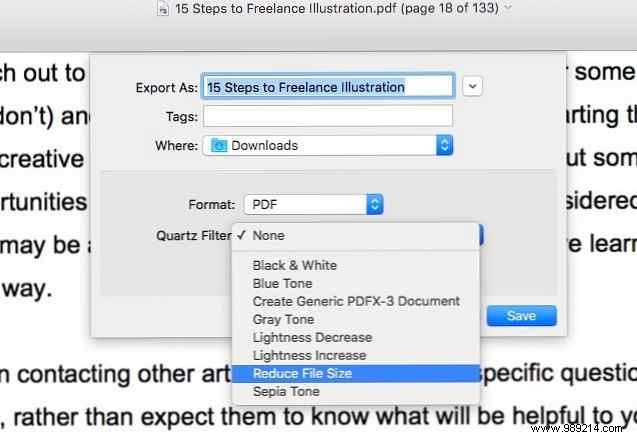
2. Using Preview on macOS: Open the PDF in Preview, then select File > Export. In the dialog, choose Reduce File Size from the Quartz Filter dropdown. Pick a save location and name, then hit Save. Note: Export to PDF won't compress the file.
3. Using Smallpdf Online: This secure service (100% privacy guaranteed) lets you upload PDFs from your computer, Dropbox, or Google Drive. It compresses quickly to up to 144 DPI resolution, ready for download and sharing via email or web.
Compression often reduces some detail, so review the output for quality and formatting before sharing. What's your go-to free tool? For best results, prioritize methods that balance size and fidelity.
