Every Microsoft Office document includes built-in properties like Title, Author, and Subject. While often overlooked during file reviews, these properties are powerful tools for effective document management.
Here's how to access, edit, and leverage document properties across Word, Excel, PowerPoint, and more for streamlined workflows.
The method varies by Office version. In Office 2007, click the Microsoft Office Button > Setup > Properties > Advanced Properties. For Office 2010-2016, go to File > Info, then from the Properties dropdown, select Advanced Properties. On Mac, use File > Properties.
These steps apply to Word, Excel, PowerPoint, Access, and Publisher. Examples here use the first three.
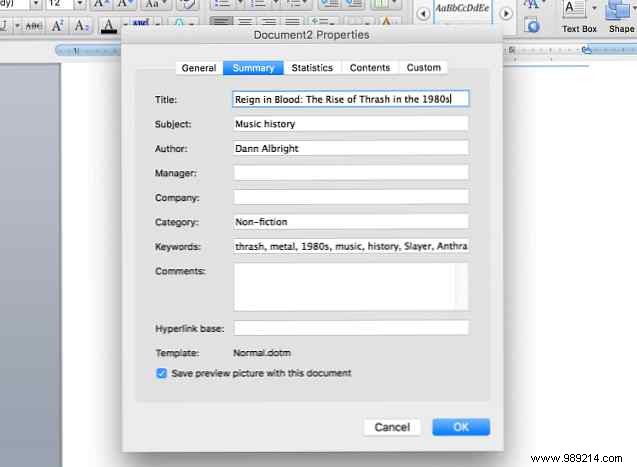
The Summary tab displays core details like Title, Subject, Author, Manager, and Company. Edit them directly, such as updating the Author on an Excel sheet.
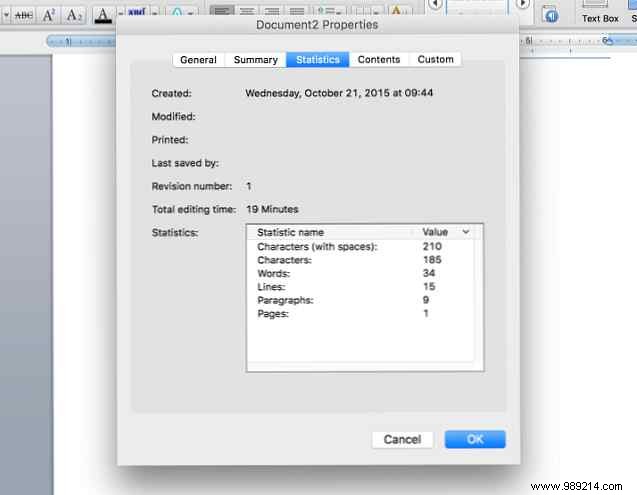
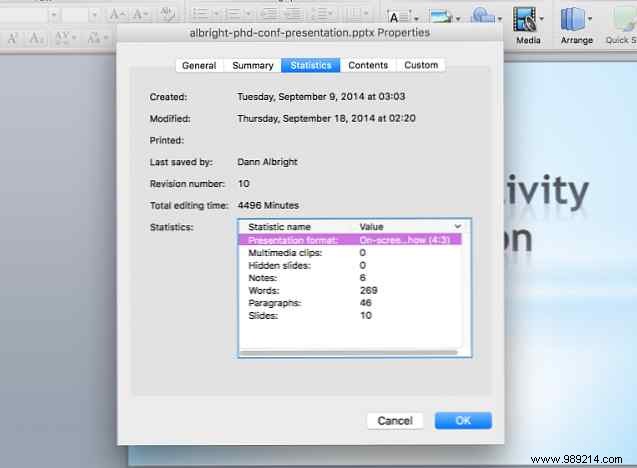
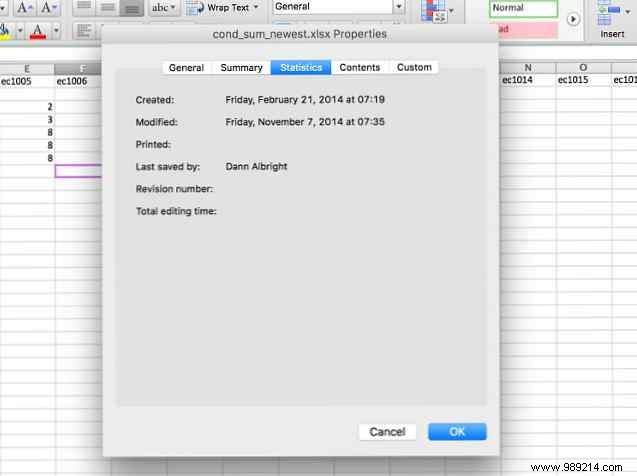
This tab shows auto-generated stats: creation/modification dates, revisions, pages, characters, lines, etc. Stats vary by app—PowerPoint tracks slides and media, while Excel offers minimal data.
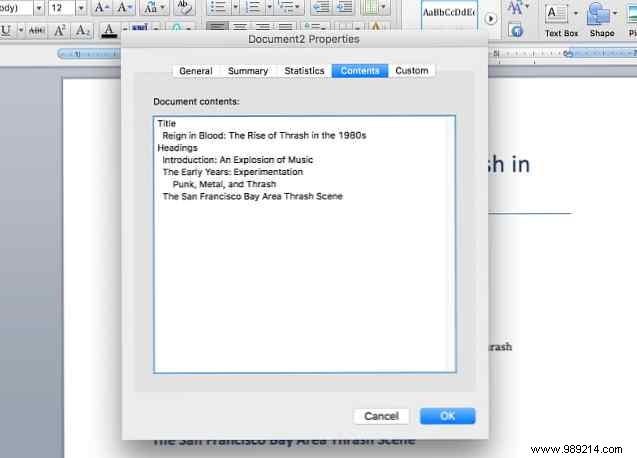
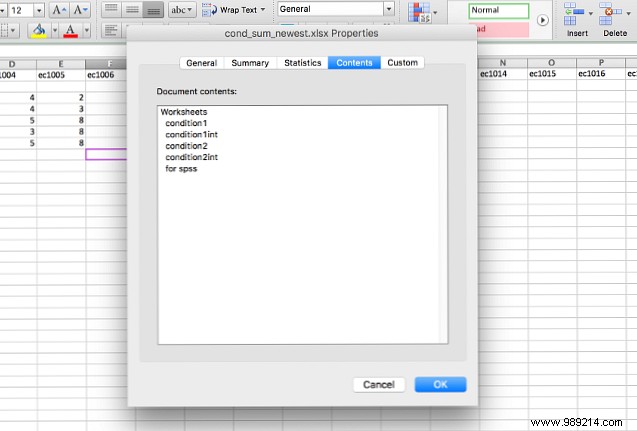
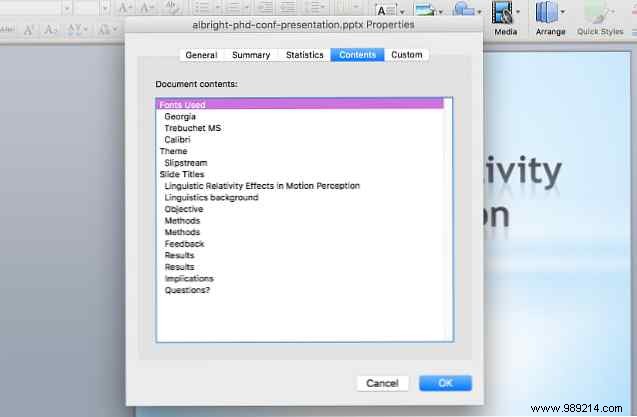
The Contents tab provides an overview, especially useful for long documents. Using Word's heading styles populates an automatic outline. Excel lists sheet names; PowerPoint details fonts and themes.

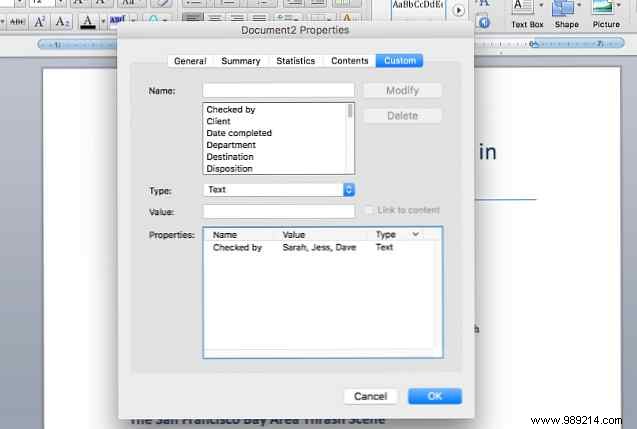
Custom properties let you store any relevant info. Predefined options include:
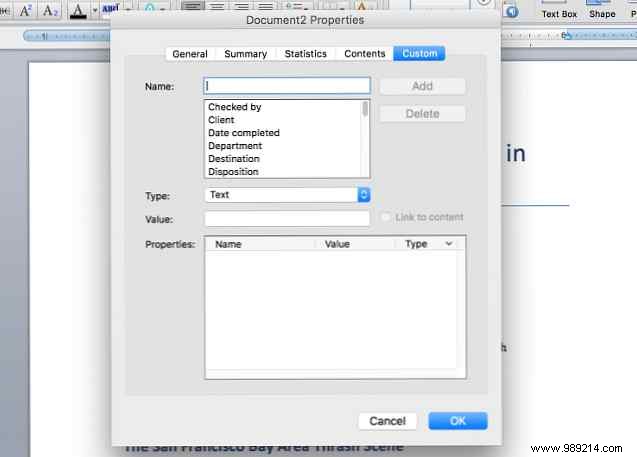
Append names to Reviewed By for team feedback without emails. Create custom fields like Reviewed By 2 for multiple entries. Use Source, Received From, or Client for context.
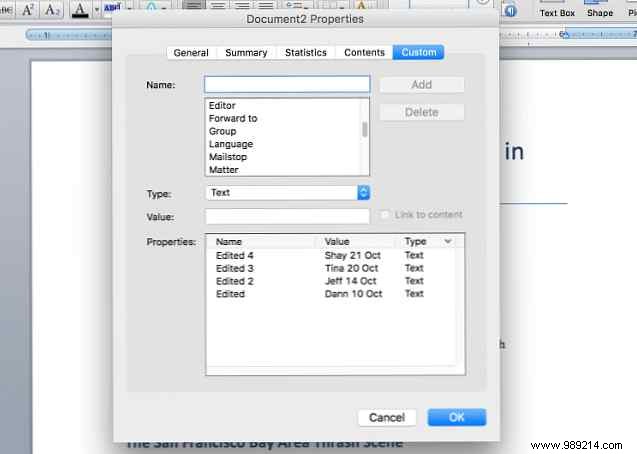
Create properties like "Edited" with name/date values, or "Rating" as a number. Limitless uses for tracking edits, ratings, or project details.
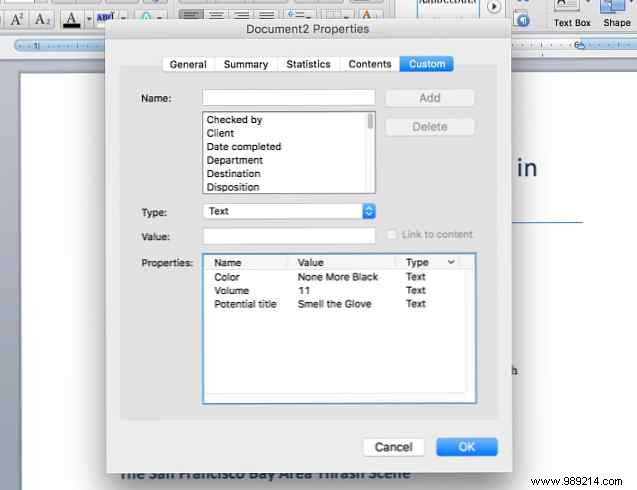
Office properties simplify management without external tools—perfect for teams. From author updates to edit logs, master this for pro-level efficiency.
Which properties do you use most? Share your tips in the comments!
