Microsoft Office powers productivity for millions worldwide, but corrupted installations can halt your workflow. As IT experts with years of troubleshooting experience, we've guided countless users through reliable fixes backed by Microsoft's official tools. Here are three proven methods to restore your suite—starting with the simplest.
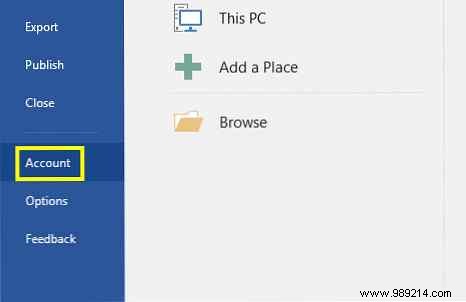
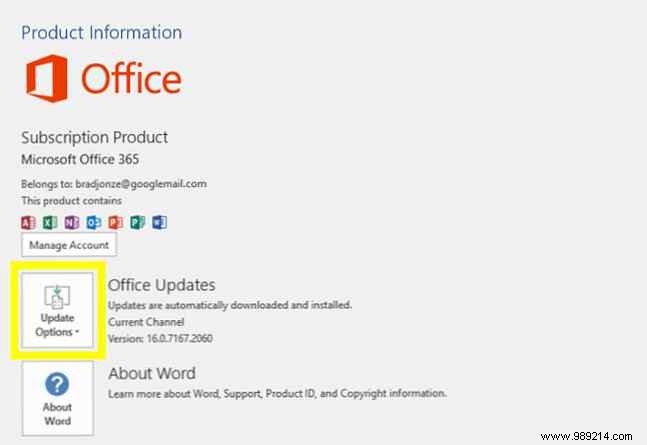
First, identify your installation type: Click-to-Run or MSI-based. Open Word (or any Office app), go to File > Account (or Office Account), and check for an Update Options button. If present, it's Click-to-Run; otherwise, it's MSI. Note this and close the app.
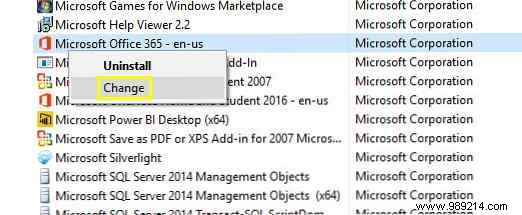
Search for Programs and Features, open it via Control Panel, find your Office suite, right-click, and select Change.
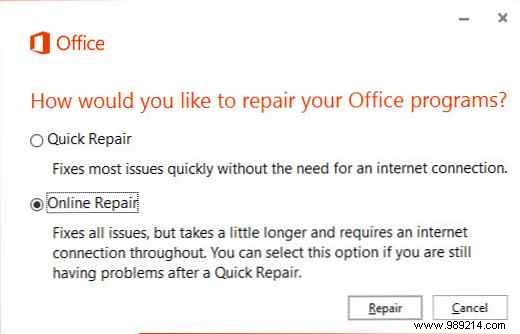
For Click-to-Run, choose Online Repair (more thorough than Quick Repair). For MSI, select Repair and click Continue. Follow the wizard to complete.
For deeper insights, use Microsoft's Diagnostics tool to scan for file damage or system issues. Close all apps, search for Microsoft Office Diagnostics, and launch it. Avoid using your PC during memory tests.
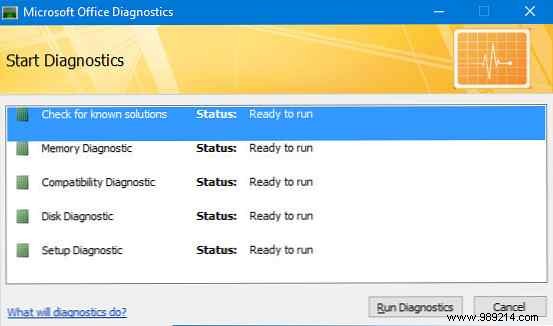
Click Run Diagnostics and let it analyze. You'll get detailed reports and potential fixes.
This free tool, favored by Microsoft support teams, excels at Office 365 issues, especially Outlook. Download it from the Outlook Support Center.
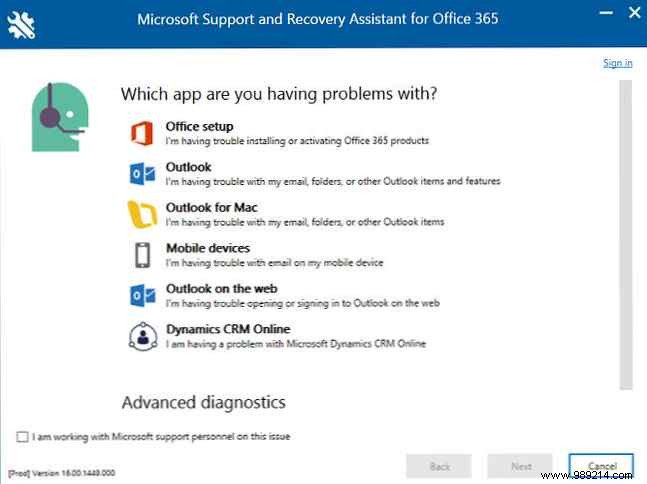
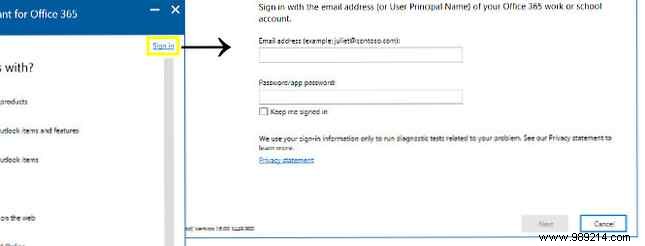
Install, sign in with your Office 365 account, and select Office (or Outlook for email-specific problems).
If nothing works, uninstall completely using Microsoft's official removal tool, then reinstall via your account. Enable automatic updates post-fix to prevent recurrence—staying current is the best defense.
Still stuck? Share your issue in the comments; our community of experts can help.
