Printing Microsoft Office documents isn't always straightforward. Margins, orientation, duplex printing, and more can make or break your output. As someone who's optimized countless professional documents, I've learned the key settings to ensure crisp, professional prints every time.
In this guide, I'll walk you through essential printing options in Word and Excel to save paper, ink, and time while achieving flawless results.
Skip the quick print button. Instead, preview and tweak settings based on your document type. This prevents wasted resources and delivers polished output.
Before printing, ask:
Simple hacks, like tightening margins, consolidate content and cut pages.
A cramped portrait chart lacks punch. Landscape mode lets it span the full page for maximum effect.

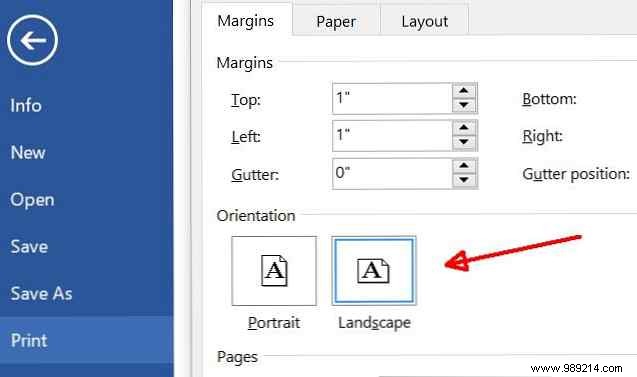
In Word, access Print settings to preview and switch orientations.
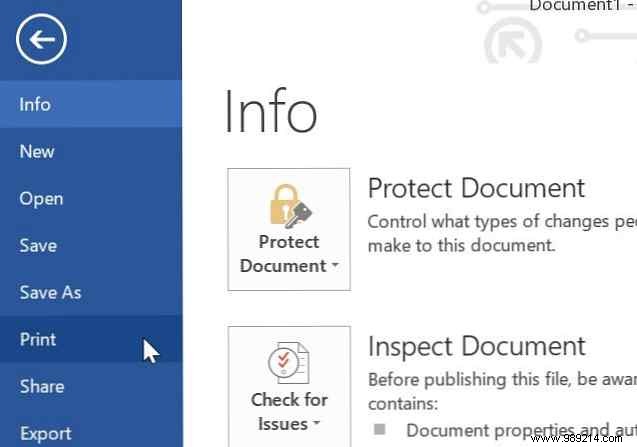
Default is Portrait. Switch to Landscape, resize your chart, and preview the difference.
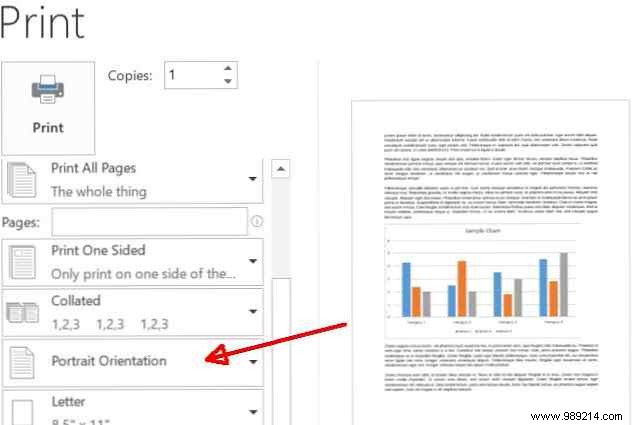
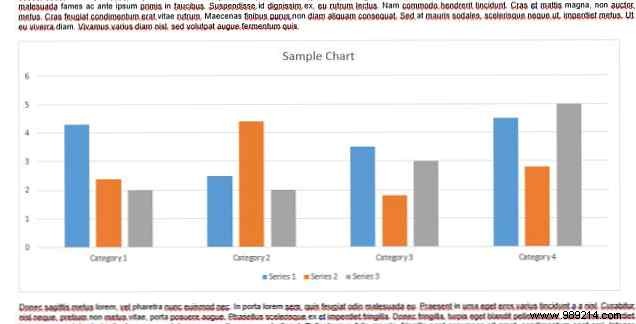
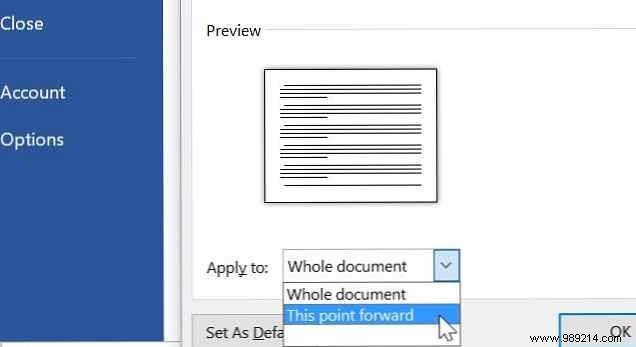
Issue: Text reads poorly in landscape. Solution: Mix orientations by section.
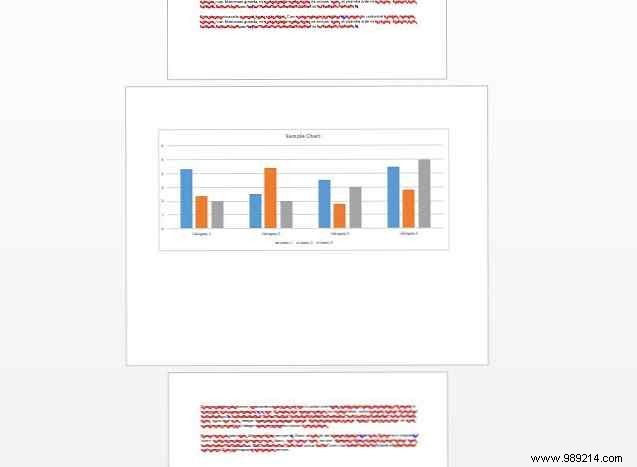
Result: Professional text and graphics.
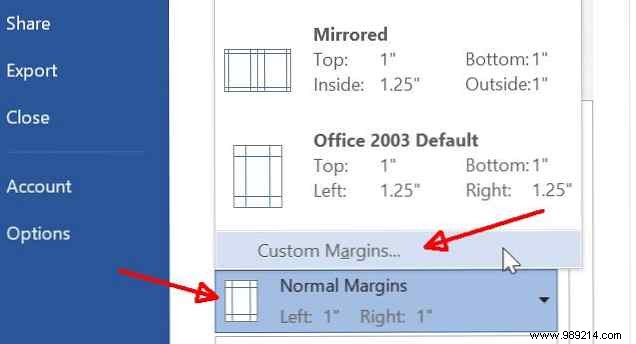
Orphaned lines on the last page? Adjust margins in Print preview.
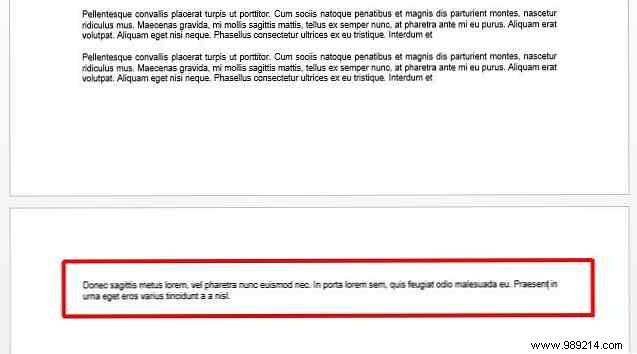
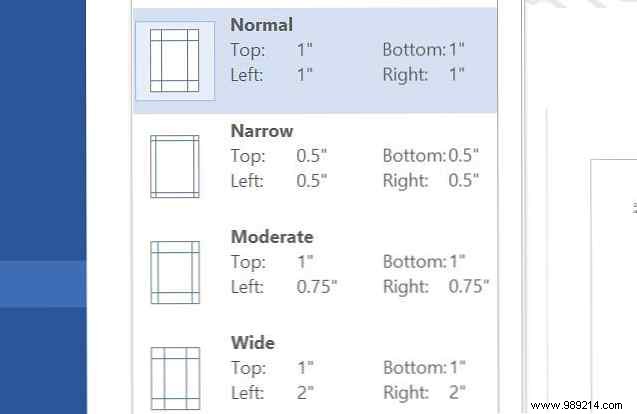
Test presets or custom sizes (e.g., 0.5-inch all sides) to fit content neatly.
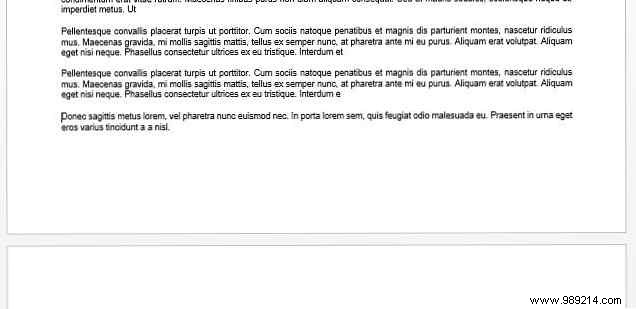
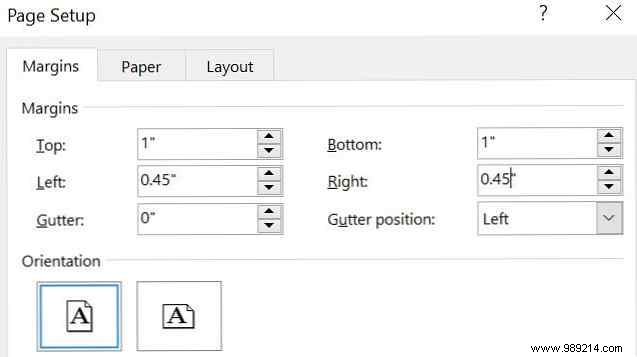
It takes minutes but impresses with pro polish.
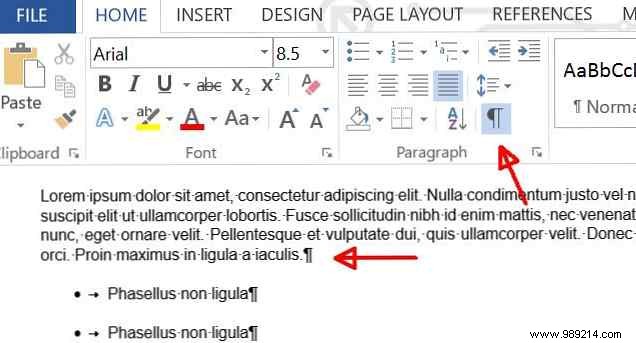
Show paragraph marks via Home > ¶ icon for edits. Print them via File > Print > Settings > Print markup.
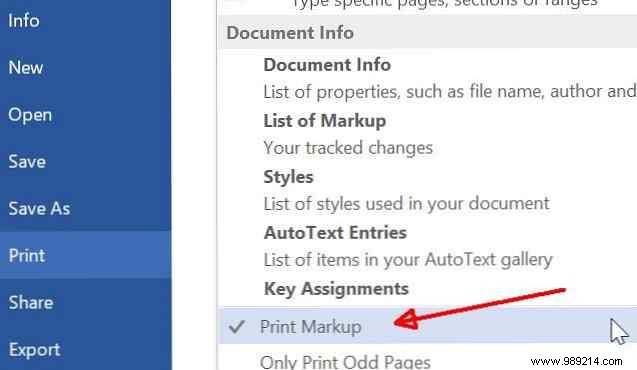
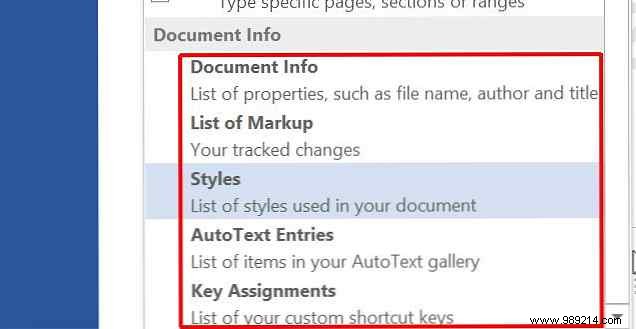
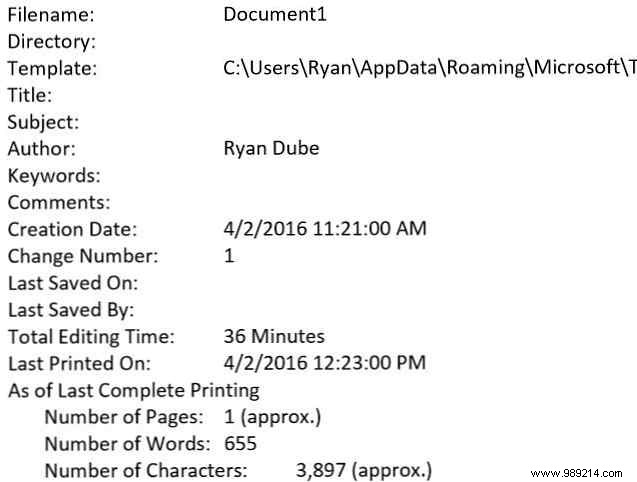
Also print Document Info for file paths, word counts—handy for tracking.
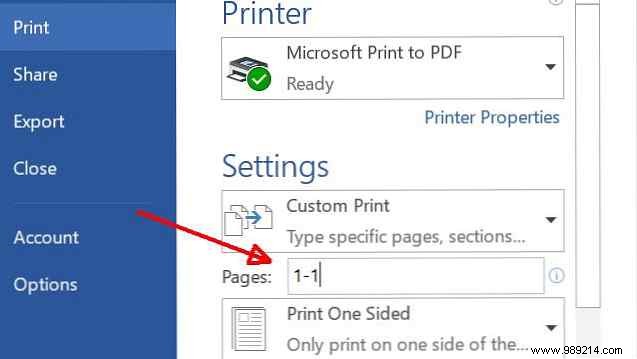
Avoid full docs: Use Pages field like "1", "1-10", "1,20", or "p5s3" for sections. Hover for tips.
Thoughtful settings yield pro results and cut waste. What's your top printing tip? Share below!
