Need to pull an image from a Word document, PowerPoint slide, Excel sheet, or PDF without losing quality? We've got proven methods that preserve every detail.
While inserting images into documents is straightforward, extracting them cleanly isn't always obvious. A quick screenshot might work in a pinch, but it often degrades resolution and sharpness. As IT professionals know, the right technique ensures you get the original image intact.
Depending on your file type, these reliable approaches make extraction fast and simple. Let's dive in.
For Microsoft Office files like Word, Excel, or PowerPoint, the simplest built-in method is saving as a web page. This generates an HTML file and a companion folder containing all embedded images as separate files—ready to use.
Open your document, click the Office Button > Save As > Other Formats. In the Save as type dropdown, select Web Page, and choose an accessible location.
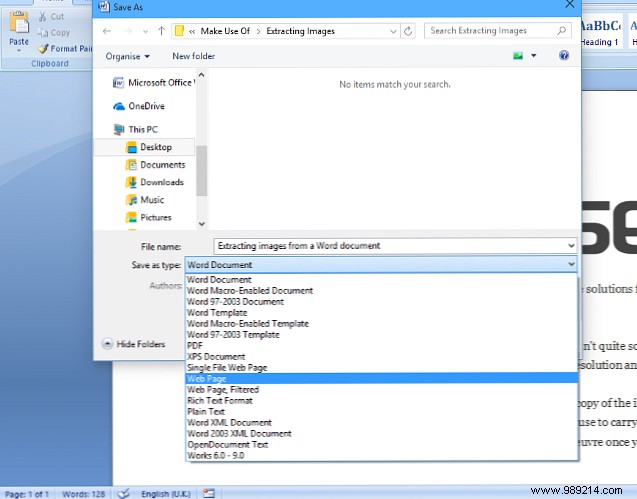
Navigate to the saved folder. You'll find the HTML file and a subfolder named [filename]_files. Inside, your images await. For large documents, trim unnecessary content first to keep things organized. This trick works across the Office suite.
For batch extraction or avoiding folder hunts, try RL Vision's free Office Image Extraction Wizard. It's intuitive and handles multiple images effortlessly.
Download and launch the tool, select your Office file as input, specify an output folder, and hit go. It extracts everything neatly, linking to your chosen directory.
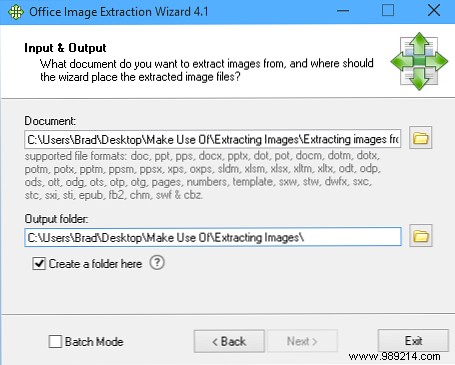
Perfect for novices or pros, though it requires a download—ideal when internet access or admin rights aren't issues.
PDFs are trickier due to their locked format, but browser-based tools make it easy. Prioritize security: only upload non-sensitive files to reputable sites.
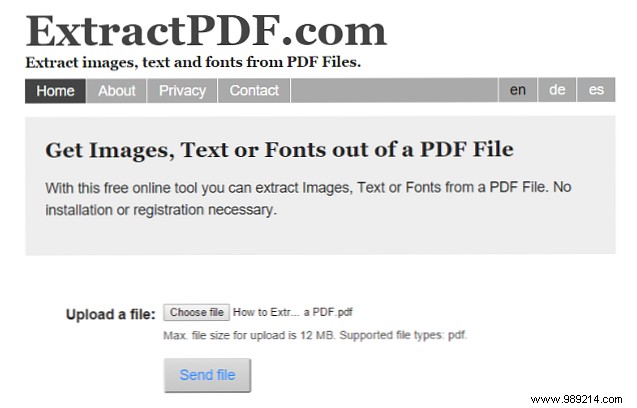
For trusted options, check reviews of top PDF image extractors.
Prefer offline? Adobe Acrobat Pro excels here (free trial available). Open your PDF, go to Tools > Document Processing > Export All Images. Pick a folder, and it's done.
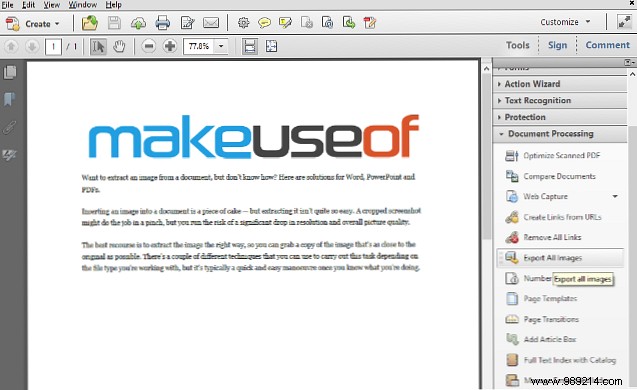
If Document Processing is hidden, click the Settings icon in Tools and enable it. Note: This is Acrobat Pro only, not free Reader.
Got favorite tools or tips for image extraction from Office or PDFs? Share in the comments!
