Family Encyclopedia >> Work

How to Free Up Space by Removing Local OneDrive Files Without Deleting Them from the Cloud

In a previous guide, we explained how to access Windows 10 files from anywhere using OneDrive—a frequently overlooked solution for seamless file access. Read more.

Files On-Demand, introduced in the Windows 10 Fall Creators Update, gives you full control over your OneDrive files. Check out our coverage of 9 new Settings features in Windows 10 Fall Creators Update for more details. Read more.

Your options include:
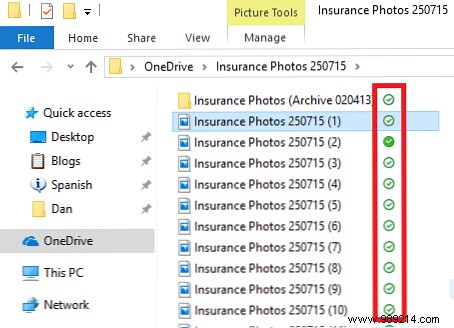
  • Files online only: These don't occupy local storage and require an internet connection to access. Identified by a cloud icon.
  • Locally available files: Downloaded files accessible offline, marked with a green checkmark in a white circle.
  • Files always available: Automatically downloaded and always ready offline, shown with a green checkmark in a green circle.

How to Free Up Space by Removing Local OneDrive Files Without Deleting Them from the Cloud

As Windows and OneDrive experts with years of hands-on experience helping users optimize storage, we've streamlined the process to remove local copies without affecting your cloud files. Choose based on your file's current status.


From 'Always Available' to Locally Available

  1. Open your OneDrive folder in Windows Explorer.
  2. Right-click the file.
  3. Clear the checkmark next to 'Always keep on this device.'

How to Free Up Space by Removing Local OneDrive Files Without Deleting Them from the Cloud

From Locally Available to Online Only (Frees Up Space)

  1. Open your OneDrive folder in Windows Explorer.
  2. Right-click the file.
  3. Select 'Free up space.'

How to Free Up Space by Removing Local OneDrive Files Without Deleting Them from the Cloud

To fully free space from 'always available' files, apply both methods in sequence. The 'Free up space' step is key for reclaiming disk space while keeping files safe in the cloud.

Do you use these OneDrive management tips? Share your experience in the comments below.
