Family Encyclopedia >> Work

Share Live PDF Versions of Google Drive Files Without Manual Conversion

As a Google Workspace power user with years of experience optimizing workflows, I've discovered one of Drive's best-kept secrets: sharing PDF versions of your Docs, Sheets, or Slides directly—no manual exports required. This beats traditional methods by keeping files lightweight and always up-to-date.

Key advantages include:

  • No duplicate PDF storage cluttering your Drive.
  • Recipients always access the latest version automatically after updates—no re-sharing needed.
  • Universal compatibility across devices, leveraging PDF's timeless reliability (a format trusted for over two decades).
  • Frees up storage space, as no extra large PDF files accumulate.

This approach shines for view-only sharing, ideal when editing isn't required.
Share Live PDF Versions of Google Drive Files Without Manual Conversion

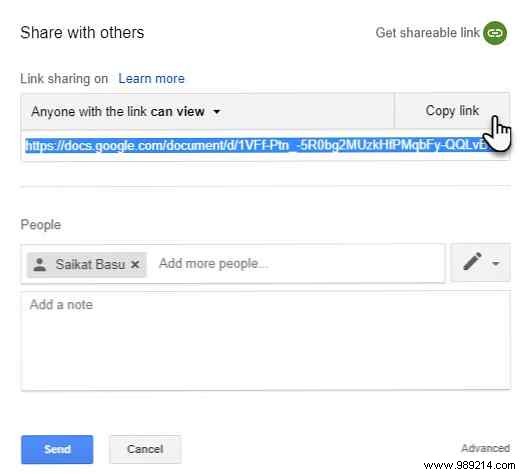
  1. Select the file in Google Drive.
  2. Click the Share button in the top right.
  3. Add recipients' names or emails.
  4. Set permissions (Viewer, Commenter, or Editor).
  5. Click Copy link and paste it into your message.
  6. Modify the URL: Replace edit?usp=sharing with export?format=pdf.

For example:

  • Before:
    https://docs.google.com/document/d/1IGHN4OvZ0ezyzxTizLViJ3HMYiVjfU1eV7c9QIWXxL8/edit?usp=sharing
  • After:
    https://docs.google.com/document/d/1IGHN4OvZ0ezyzxTizLViJ3HMYiVjfU1eV7c9QIWXxL8/export?format=pdf

Share the updated link—clickers download the PDF instantly. Always note it's a direct PDF download for clarity.

Have you used this Google Drive PDF trick? Share your top collaboration tips below!
