Microsoft PowerPoint offers a wealth of features to create dynamic slideshows for business, education, or personal use. Among them, the screen recording tool—available since PowerPoint 2013 and enhanced in Office 2016—helps make presentations more interactive and memorable. Whether demonstrating software processes or showcasing real-time actions, this feature allows you to capture, insert, and share recordings directly in your slides.
No one benefits from dull slides. Incorporate screen recordings to engage viewers effectively, especially when live demos aren't feasible. Save, share, and reference them anytime.
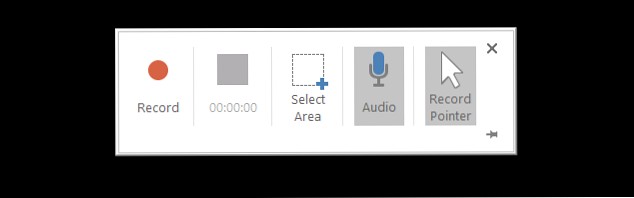
The process is straightforward. Navigate to the desired slide, go to Insert > Screen Recording. A toolbar appears with options to select the recording area, enable audio, and show the mouse pointer. Click Record to start, and stop when finished.
The video inserts automatically. Play, pause, trim, or adjust volume as needed. Resize, crop, or format it via right-click options.
Record step-by-step software demos to illustrate tasks clearly. Visuals boost retention in training.
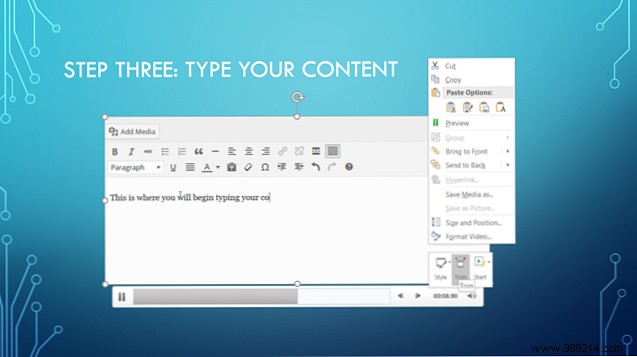
Trim lengthy clips: Right-click the video > Trim, then drag sliders or enter times. Share the deck for ongoing reference.
Students can demo equations, design tools, or setups dynamically, making projects stand out.
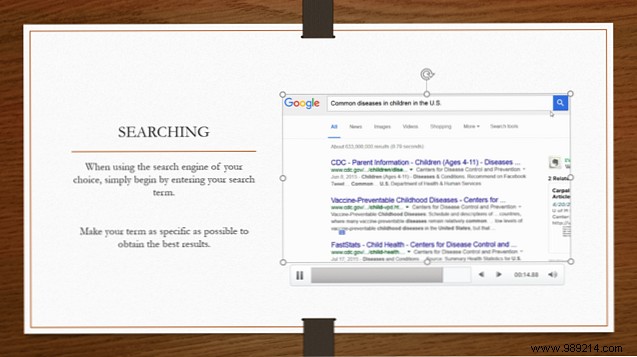
For visibility on light backgrounds, add borders: Right-click > Video Format > paint bucket icon for outlines or gradients.
Demo online products by navigating features like size or color options, ideal for sales pitches without live internet.
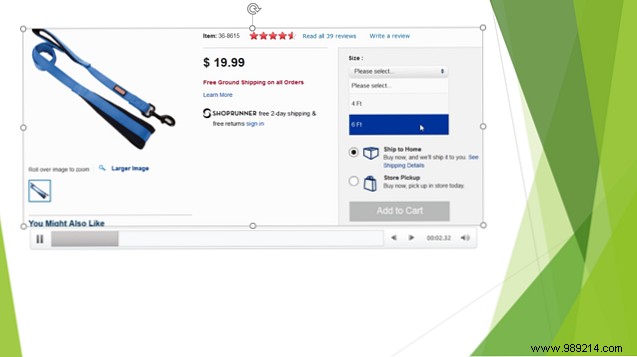
Expand to full slide: Right-click > Video Format > Size & Position for distortion-free scaling and centering.
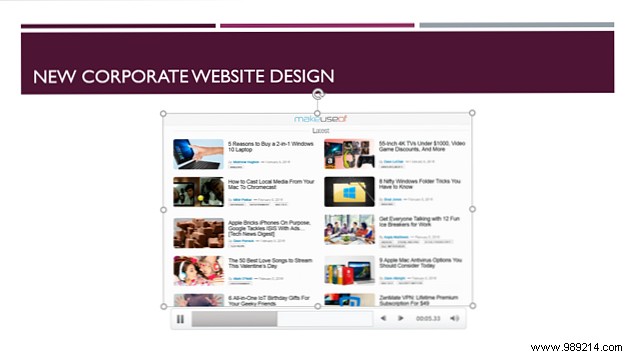
Illustrate website designs, growth charts, or org changes with recordings for impactful meetings.
Add narration: Enable Audio before recording, speak clearly into your microphone for self-explanatory demos.
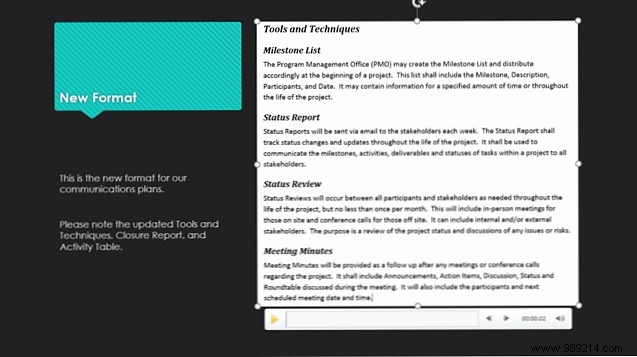
Capture evolving workflows, project plans, or task management for team alignment.
Export separately: Right-click > Save Media As for MP4 files, upload to YouTube, email, or edit in tools like Windows Movie Maker.
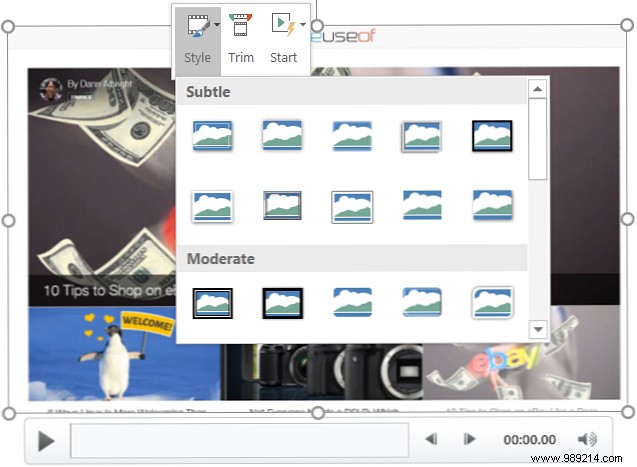
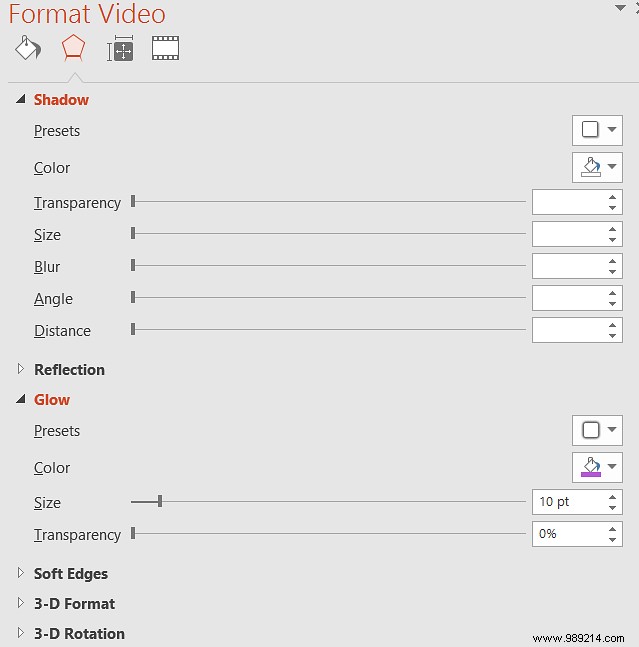
Right-click for quick styles, shadows, glows, or 3D effects. Adjust size, rotation, brightness, contrast, or add borders/gradients via Video Format.
Did you know PowerPoint had this feature? What presentations do you create, and how might this help? Share your thoughts below!
