When was the last time you updated your resume in Microsoft Word? If it's been a while, you're missing a powerful feature that can elevate your document.
LinkedIn's Resume Assistant is an invaluable tool for crafting a compelling resume that stands out.
This feature draws from real LinkedIn profiles to provide sample resume snippets from professionals in your field, showing how they articulate their experience and skills.
If you're struggling to showcase your achievements effectively, seeing proven examples can make all the difference. As LinkedIn notes, it also offers helpful articles, in-demand skills for your role, and local job suggestions.
Note that Resume Assistant is available only in Word 2016 or later for Windows, rolling out first to Office Insiders and then Office 365 subscribers. Ensure you have the latest version of Word.
The Resume Assistant button appears on the Review tab of the ribbon.
If the button is grayed out, enable LinkedIn integration: Go to File > Options > General tab. Under LinkedIn features, check Show LinkedIn features in my Office apps and click OK.

Launch it by clicking the ribbon button or opening an existing resume or template in Word—it auto-detects and opens the sidebar.
Click Learn more for a Microsoft support video, or hit Get started in the sidebar.
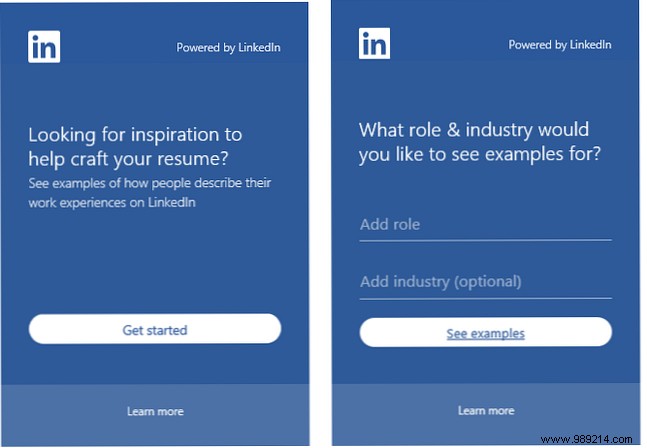
Enter a job title and optional industry. Suggestions appear as you type; select and click View examples.
Your results show tailored samples. Add an industry like healthcare or information technology to refine them.
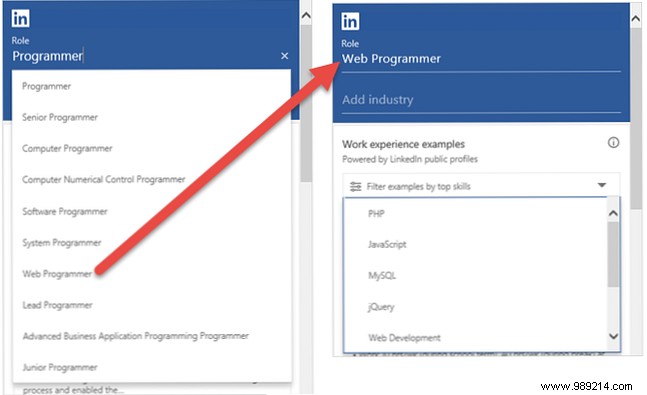
Filter by top skills—for "writer," try copywriting, blogging, or publishing; for "restaurant manager," assistant, general, or bar manager.
Some filters have subcategories: For "developer," choose software, systems, or web, then narrow to PHP, HTML, or JavaScript.
Each snippet displays job title and tenure. Click Read more to expand full descriptions.
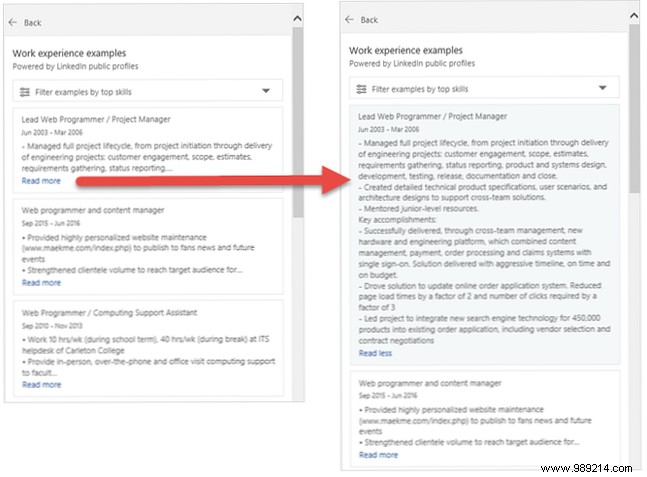
You can't copy-paste these samples directly—the tool inspires concise, creative phrasing and highlights key skills for your own resume.
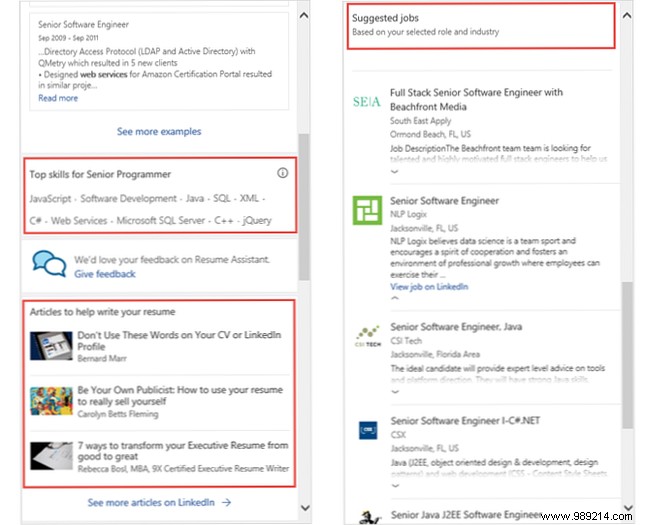
Below examples, find core skills for your role, LinkedIn resume articles (click to open on LinkedIn), and job suggestions with company, location, and summaries (also linking to LinkedIn).
Examples come from public LinkedIn profiles (no names or personal details, just descriptions).
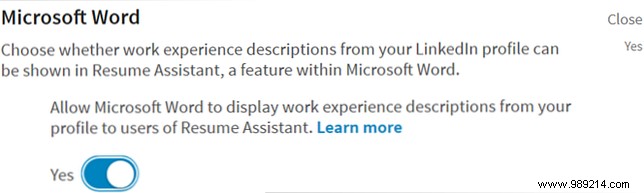
If your profile is public, your descriptions may appear for others. To opt out: On LinkedIn, go to Me > Settings & Privacy > Privacy. Under Security > Microsoft Word, switch from Yes to No.
In today's competitive job market, tools like Resume Assistant provide a real edge. Pair it with strong cover letter strategies for even better results.
