PowerPoint is a powerhouse for presentations, yet many overlook its slide resizing capabilities. Whether you're adapting to different screens or project needs, mastering this feature ensures your slides look professional every time. As someone who's designed thousands of decks for clients, I can attest: properly sized slides make all the difference.
Related reads: 8 Formatting Tips for Perfect Tables in Microsoft Word | 14 Tips to Save Time in Microsoft Excel | 10 PowerPoint Tips for Professional Presentations
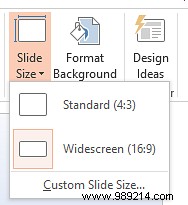
Switching between standard 4:3 and widescreen 16:9 is straightforward. First, switch to Normal view via View > Normal.
Then:
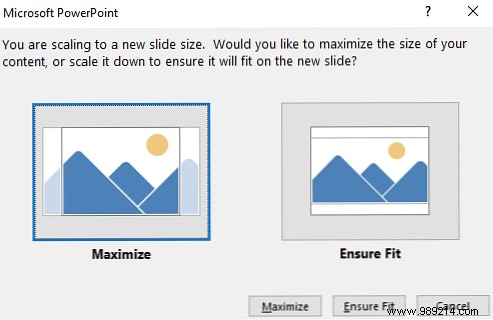
PowerPoint may prompt scaling options:
For unique formats like posters or handouts:
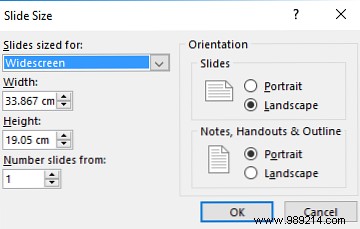
Note: For standard paper sizes (Letter, A4, etc.), choose from the Slides sized for dropdown.
Now you know the secrets to perfect slide sizing. What's your go-to PowerPoint trick? Share in the comments!
