Many associate Microsoft Outlook with the traditional desktop email client, but there's also a robust free web version. As a productivity expert with years of experience managing email workflows, I'll compare Outlook.com (the web app) and the desktop version to help you decide which fits your needs.
The key distinction? Outlook desktop requires a Microsoft 365 subscription (unless you're a student or educator), while Outlook Web is completely free.
Let's dive into a detailed head-to-head comparison based on real-world use.
Signing up for a free Outlook.com account integrates seamlessly with the Office web apps, serving as your central hub for online communication.
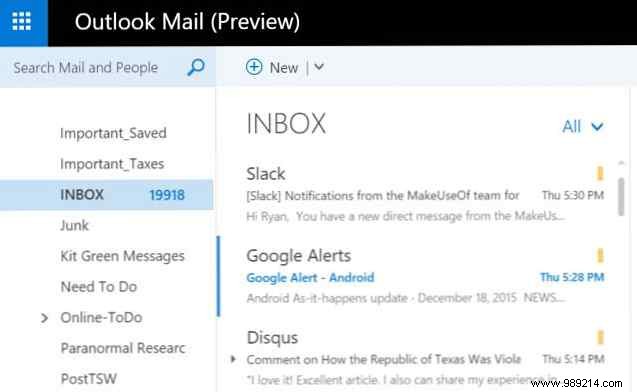
Outlook Web feels intuitive, much like Gmail, and supports adding multiple accounts—including legacy Hotmail or Live.com—in one interface.
When comparing layouts, the similarities stand out: both feature account navigation and subfolders on the left, with email lists and previews on the right.
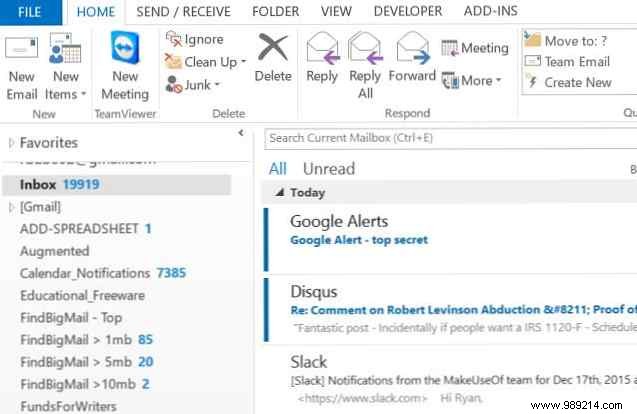
Click an email in Outlook.com, and the preview appears on the right.

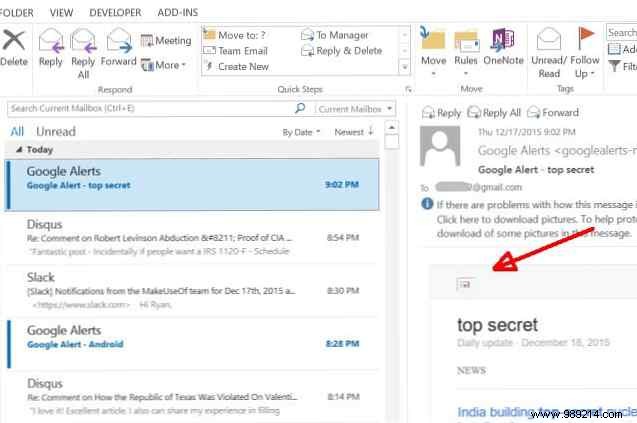
The desktop version mirrors this but adds a comprehensive top ribbon with extra icons and tools (more on that soon).
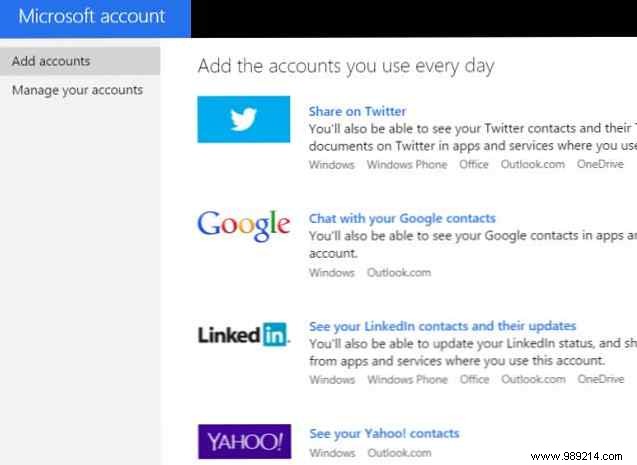
Both offer limited social integrations. Outlook Web connects to Twitter and LinkedIn, but major platforms like Facebook are absent.
Desktop support has ended entirely—navigating to social settings leads to a "no longer supported" notice.
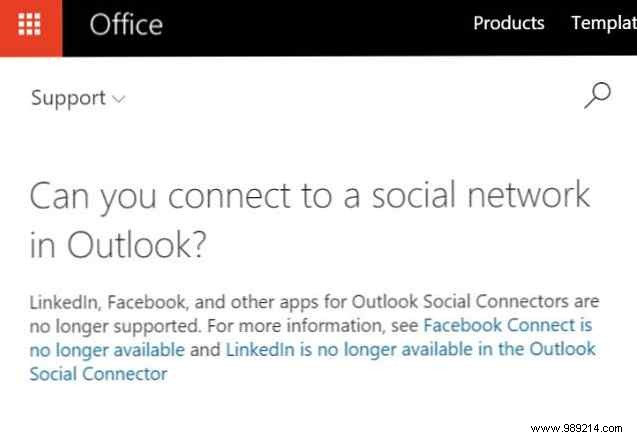
In an era of blurring lines between email and social, this is a missed opportunity from Microsoft.
Beyond folders, Outlook's color-coded categories streamline organization—available in both versions.
In the web app, select an email, then click Categories in the top menu.
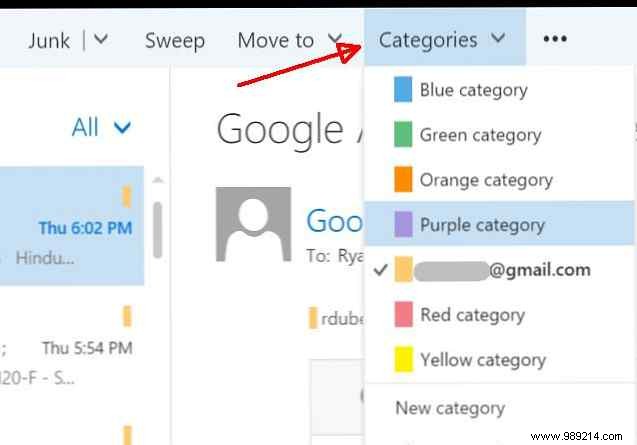
Customize via Manage Categories to add descriptive labels.
On desktop, right-click an email for Categorize, or use the Home tab's ribbon.
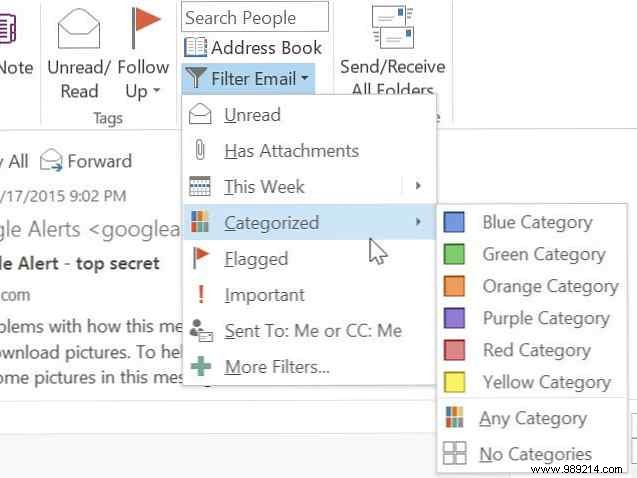
This shines for high-volume inboxes; pair it with tools for large attachments like secure file-sharing services.
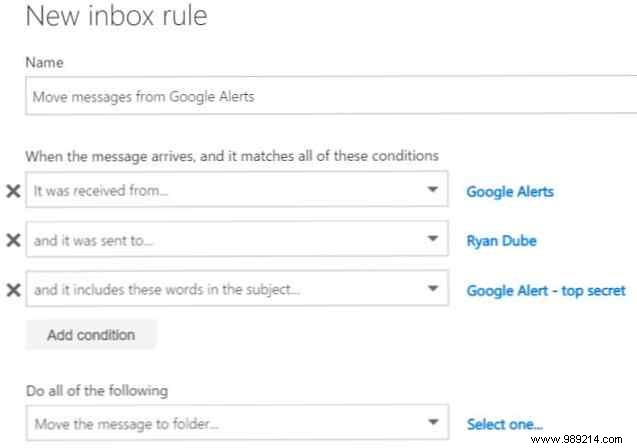
Outlook Web offers solid rules: click the ellipses (...) and select Create rule.
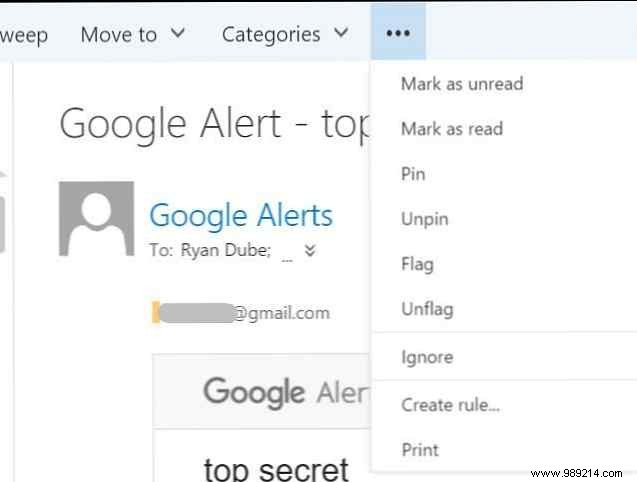
Triggers include sender, recipient, or subject keywords; actions are basic: move, delete, flag, etc.
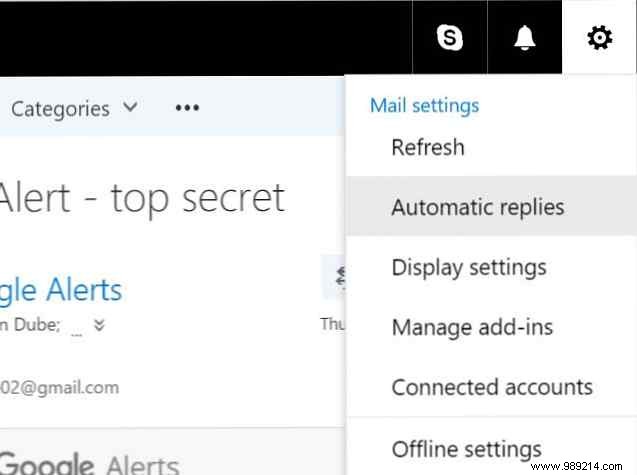
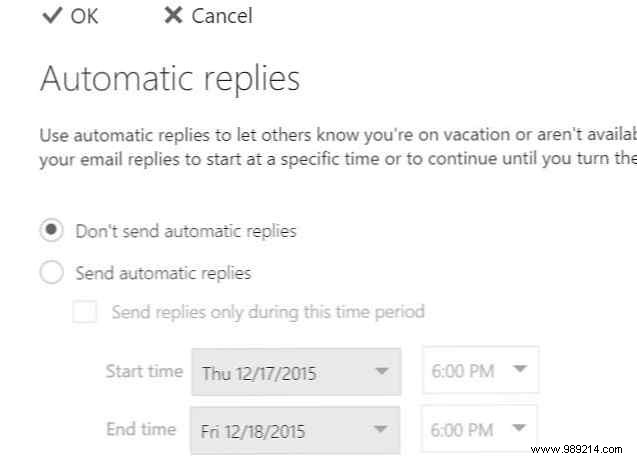
A standout web feature? Server-side automatic replies via Settings > Automatic responses—ideal for vacations, regardless of your email provider.
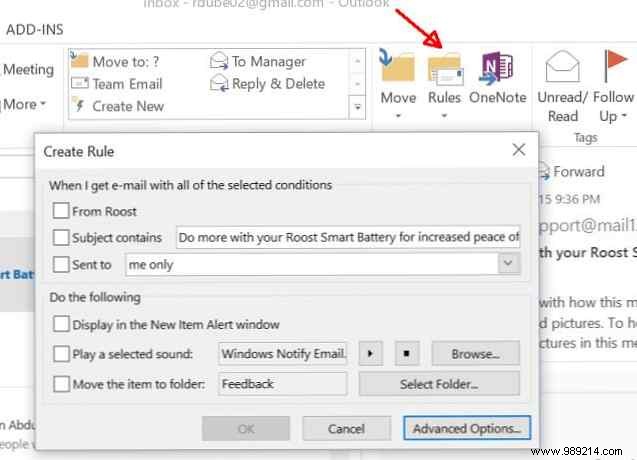
Desktop rules start similarly under Home > Rules but unlock advanced options like body text, importance, or attachments.
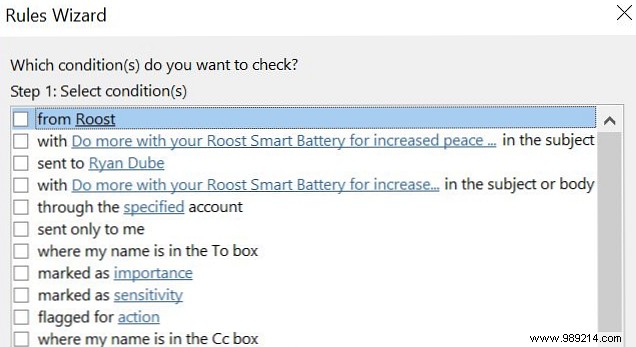
Note: Automatic replies need an Exchange server on desktop; local setups limit server-side automation.
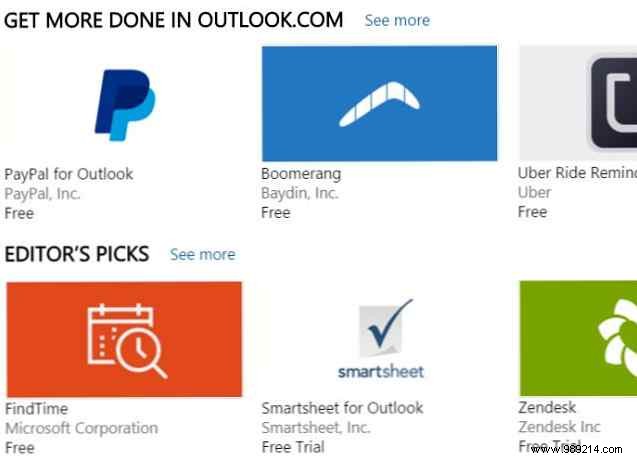
Web shines with add-ins: Settings > Manage add-ins brings PayPal payments, Uber reminders, Evernote clipping, and more.
Out-of-office works universally here.
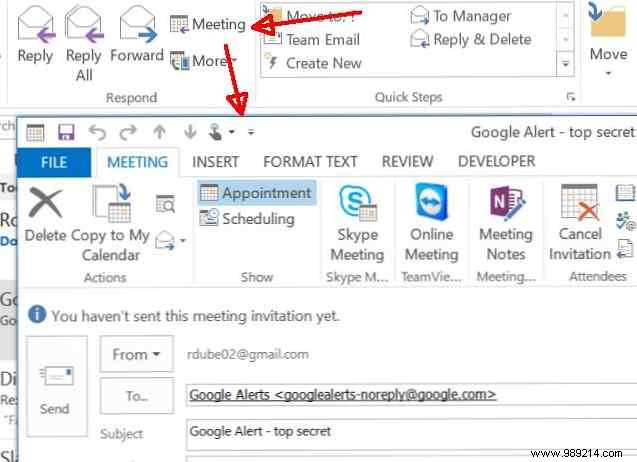
Desktop excels in integration: tasks and calendar sync tightly with email.
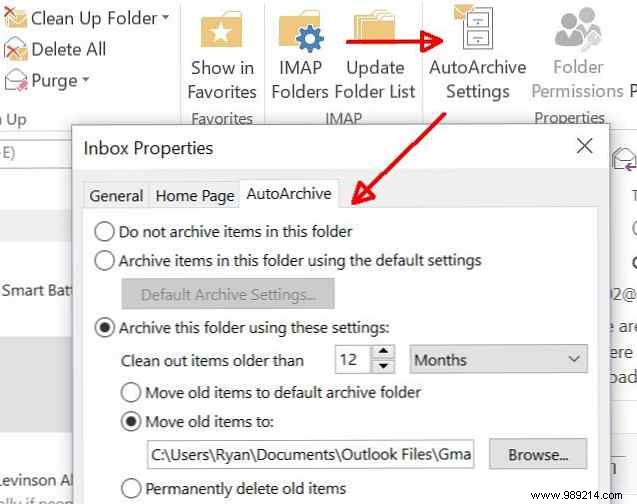
AutoArchive automatically manages old emails, keeping your inbox lean.
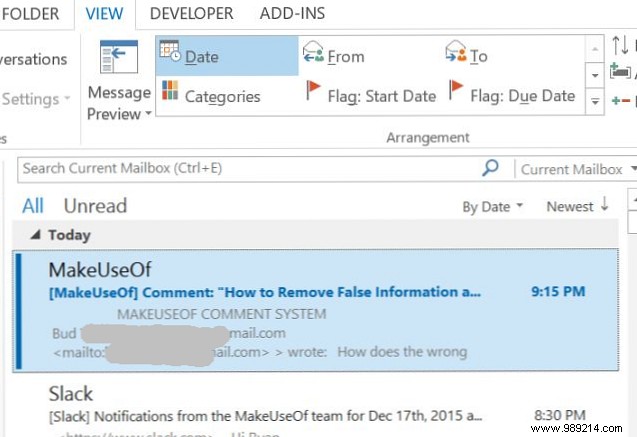
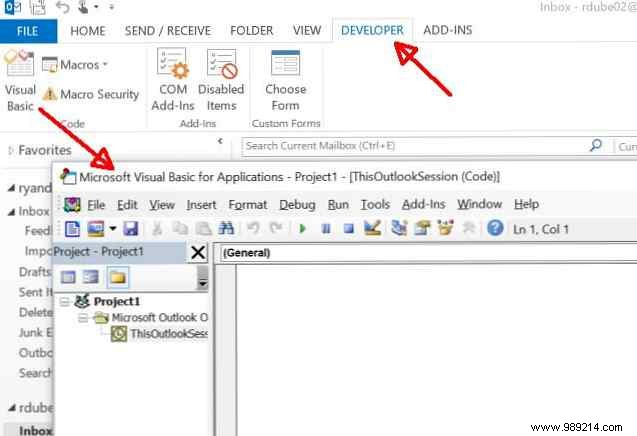
Advanced sorting by date/sender, flagging with due dates, and VBA customization (enable via File > Options > Customize Ribbon > Developer) offer pro-level power.
Your choice depends on priorities:
Either way, Outlook delivers reliable, Microsoft-backed performance. For more, see our guide on creating email signatures in Office 365.
Switching to Outlook? Web or desktop—which for you? Share below!
