Locked out of your own Excel VBA project due to a forgotten password? As an experienced Excel developer, I've used this reliable hex-editing technique countless times to recover access without data loss. Note: This method bypasses VBA project locks, highlighting Excel's limitations in code protection—use stronger security for sensitive macros.
We'll first demonstrate setting a password (to create a reference file), then remove it from a protected file. Always back up your workbook first.
To understand the process, create a test file with a password-protected macro.
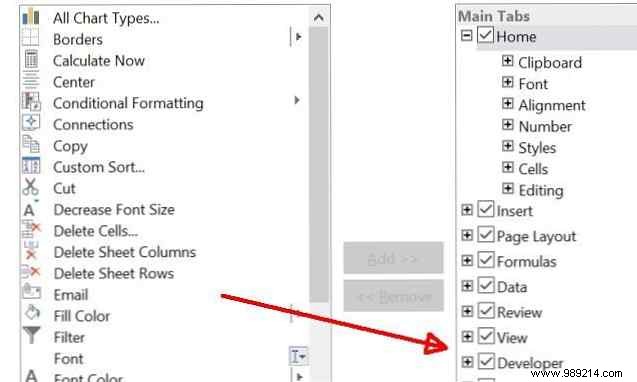
Enable the Developer tab: Go to File > Options > Customize Ribbon, and check Developer in the right pane.
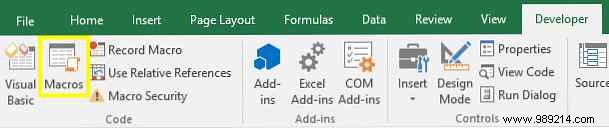
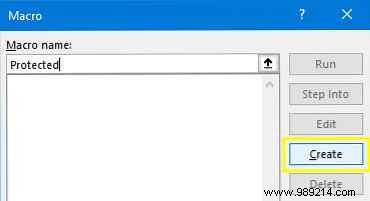
In the Developer tab, click Macros, name your macro (e.g., "TestMacro"), and click Create.
In the Visual Basic Editor, replace the code with:
Range("A1").Value = "Password Protected"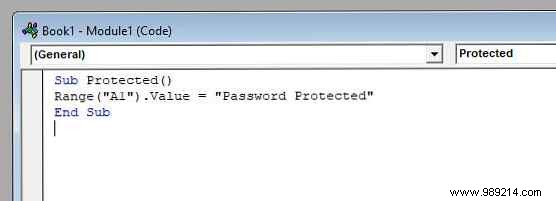
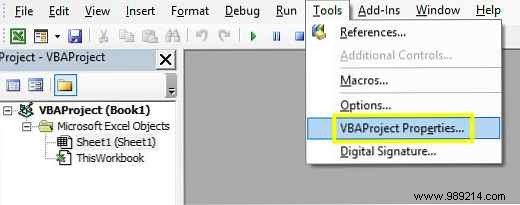
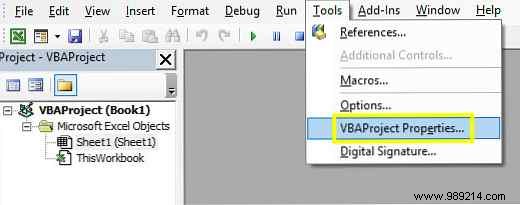
Go to Tools > VBAProject Properties.
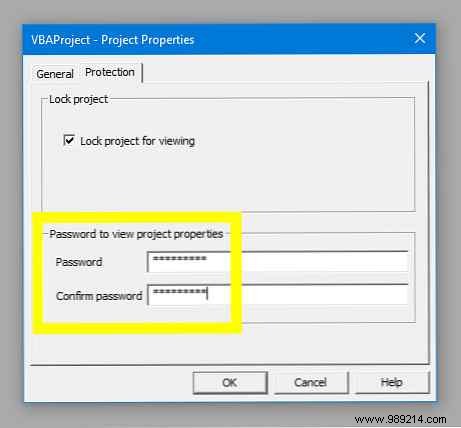
On the Protection tab, check Lock project for viewing and set a password (e.g., "test123").
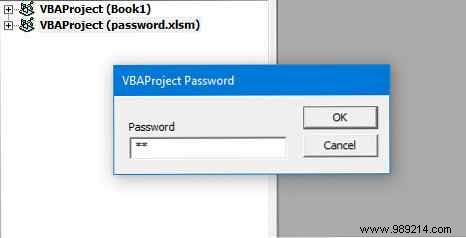
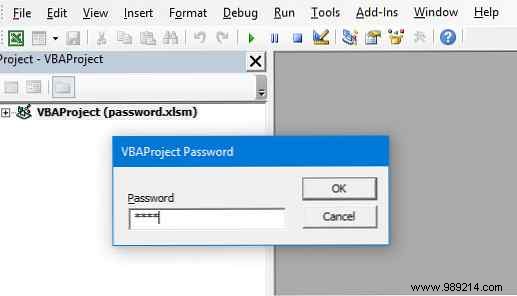
Save as .XLSM, close, and reopen. Accessing Visual Basic prompts for the password.
Download a free hex editor like HxD. The process varies slightly for .XLS vs. .XLSM.
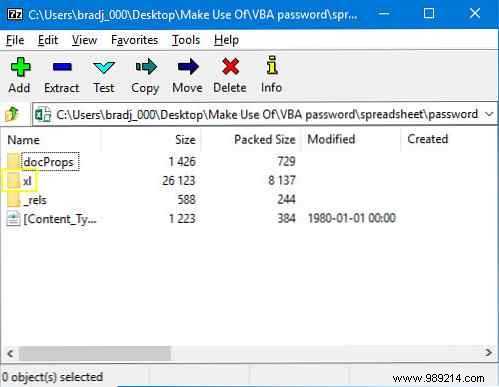
For .XLSM: Rename to .zip, open with an archiver (e.g., 7-Zip). Navigate to the xl folder (or equivalent like SG in some views), extract vbaProject.bin.
Open both your test file's vbaProject.bin (with known password) and the target file's in the hex editor.
In the test file, press Ctrl + F and search for CMG =. Copy the block starting with:
CMG =
DPB =
GC =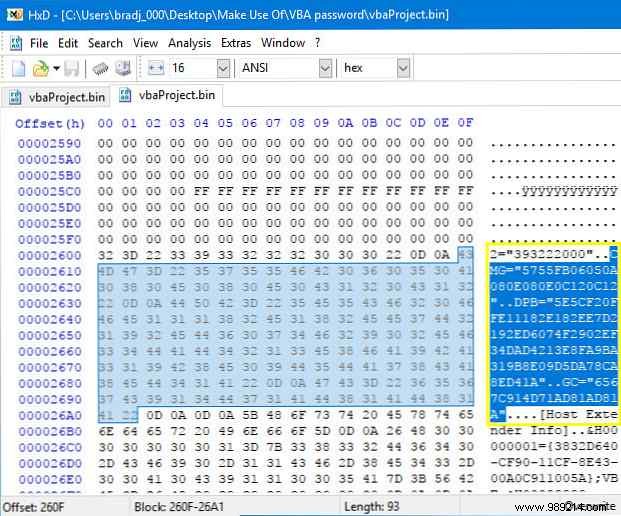
Paste this exact block into the target file at the matching position (after its CMG =), overwriting without deleting surrounding data. Save.
Replace the original vbaProject.bin in the .zip with this edited version, rename back to .XLSM.
Open in Excel, go to Developer > Visual Basic, and enter your test password (e.g., "test123"). Access restored!
This workaround exposes VBA protection's weakness—it's easily bypassed with basic tools. For real security, compile code into add-ins, use VSTO, or encrypt the entire file. Ideal for recovering your own forgotten passwords, but reconsider relying on VBA locks for sensitive data.
Questions on VBA recovery or tips for better Excel security? Share in the comments below!
