Microsoft Excel, a staple in data management for decades, remains essential for professionals, students, and everyday users. If you're just starting out, the interface might feel overwhelming—but don't worry. This expert-curated guide draws from years of real-world Excel experience to simplify the basics, helping you build confidence quickly. Download our free PDF version below to keep it handy and share with colleagues.
Download the Beginner's Guide to Microsoft Excel PDF (Free, shareable with friends and family).
Designed for complete novices, those struggling with fundamentals, or anyone wanting core skills to learn independently.
Excel is a powerful spreadsheet application that uses a grid of cells organized in rows and columns to store, analyze, and calculate data. Leverage features like formulas, functions, pivot tables, and charts for versatile applications.
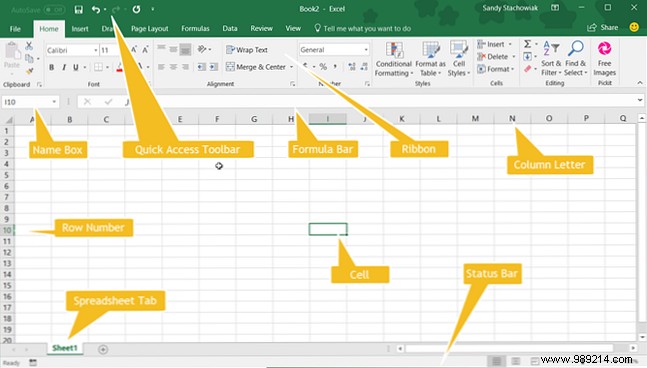
Beyond numbers—where it truly shines—Excel handles text, images, videos, and objects, making it ideal for tracking and visualizing information effectively.
Excel's versatility is endless. Next, master key terminology to navigate confidently.
These recurring terms form the foundation. Understanding them unlocks the rest of this guide.
Workbook and Worksheet: A workbook is the file you open in Excel, containing one or more worksheets (spreadsheets). Switch between them via tabs at the bottom. Pro tip: Learn to manage tabs efficiently for organized multi-sheet projects.
Cell: The basic unit—rectangular blocks holding data like numbers, text, images, or formulas. Enter data directly or via the formula bar below the ribbon. The Name Box (left of the formula bar) shows cell references, e.g., A1 for column A, row 1.
Formulas and Functions: Formulas are equations starting with '=' for calculations. Use built-in functions for tasks like summing columns or finding min/max values. Expert insight: Formulas automate tax prep or data analysis—start simple and scale up.
Familiarize yourself with Excel's ribbon—the top toolbar mirroring other Office apps. Customize it, but default tabs cover essentials.
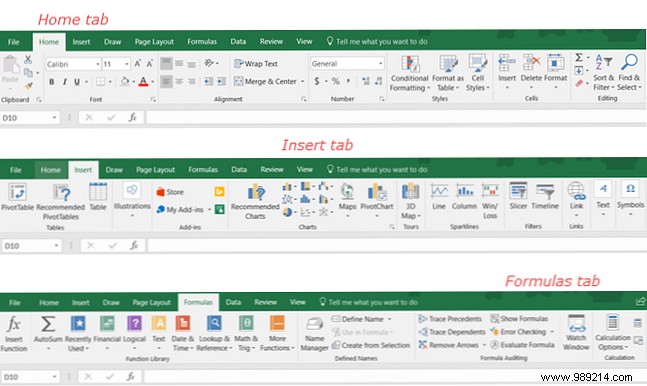
Use the Tell me what to do search box for instant help on features.
This customizable top-left toolbar offers one-click essentials like Undo, Redo, and Save—lifesavers for efficiency.
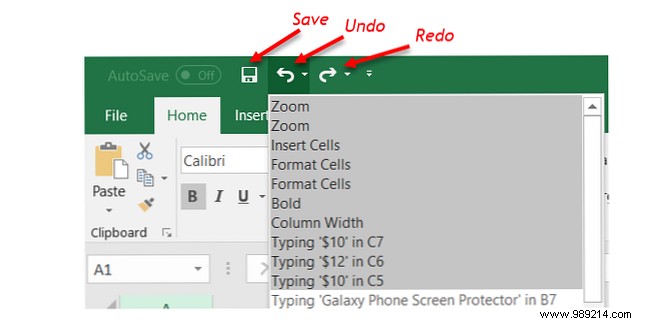
Click Undo to reverse actions (multi-step via dropdown). Redo restores them. Save updates your file instantly.
Excel handles multiple sheets seamlessly—perfect for monthly budgets or inventory by location.
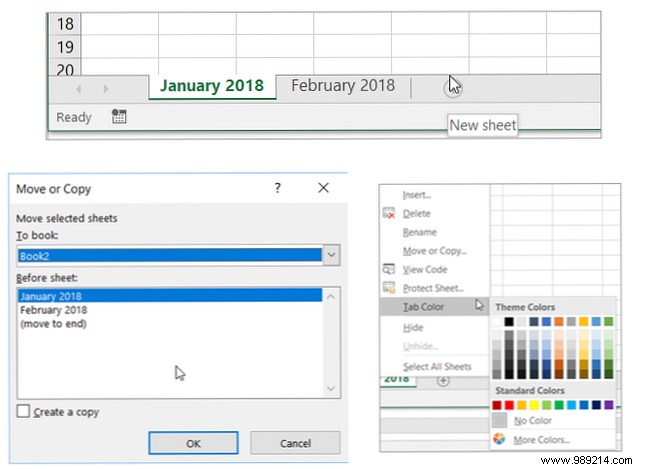
Master selection, insertion, deletion, and resizing for smooth data handling.
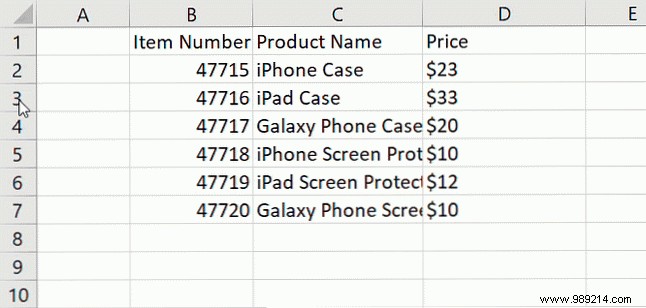
Hover over letters/numbers for arrow > click to select entire. For groups:
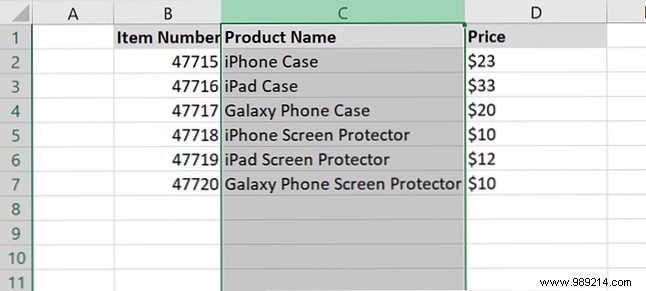
Drag or Shift+click.
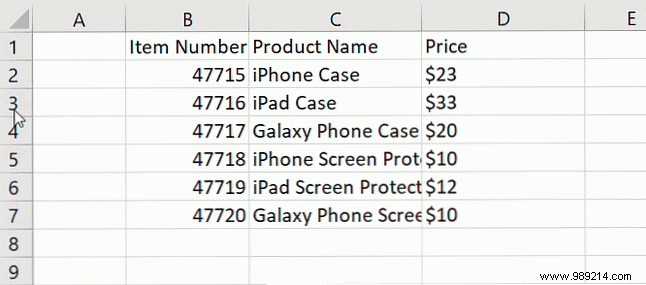
Ctrl+click.
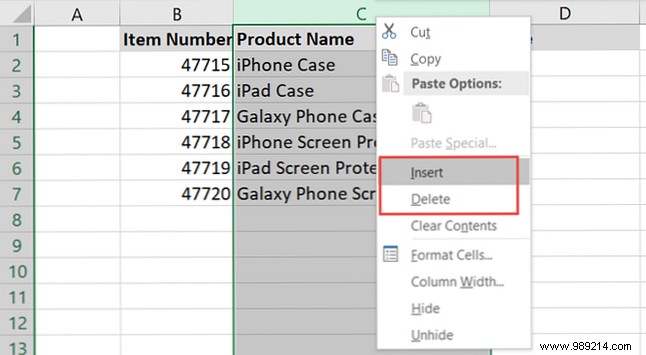
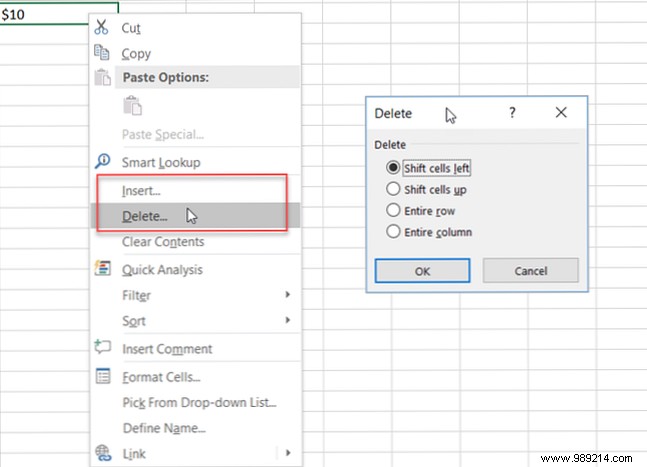
Right-click header > Insert/Delete. For cells, choose shift options.
Hide/unhide via right-click too.
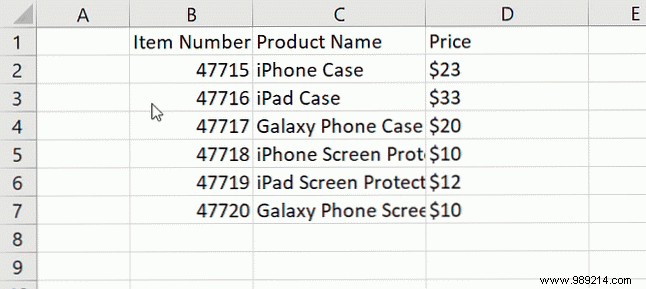
Select > drag edge (four-arrow cursor). Confirm overwrites.
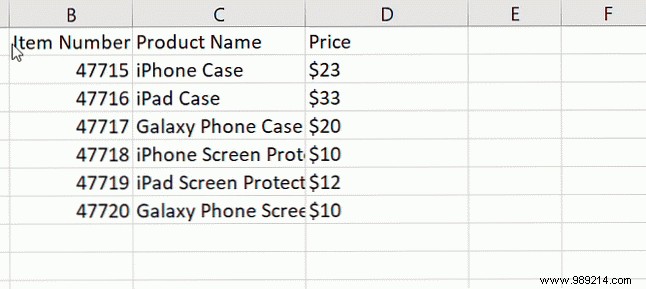
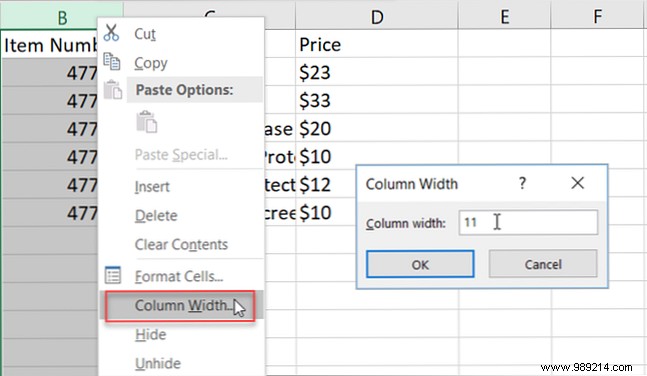
Right-click > Column Width/Row Height, or drag borders. Auto-fit: Double-click border or select all > double-click.
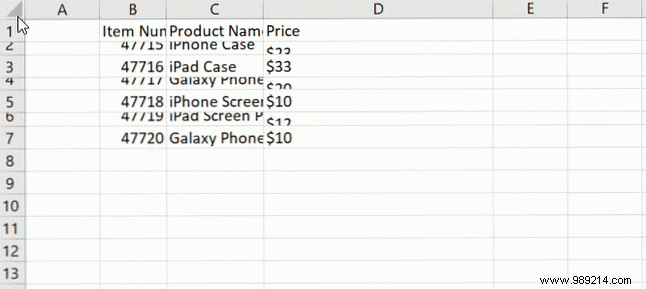
Elevate readability with fonts, colors, and number formats from the Home tab.
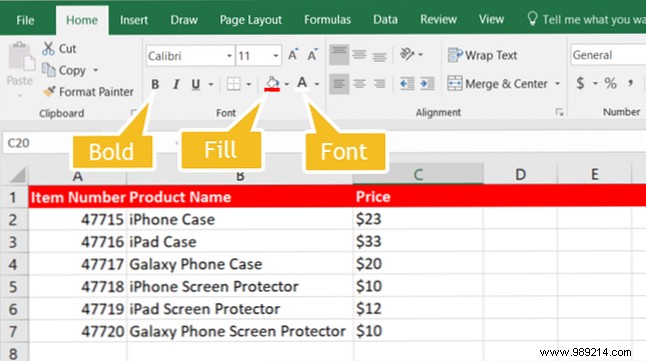
Bold headers: Select > Bold, Fill Color, Font Color.
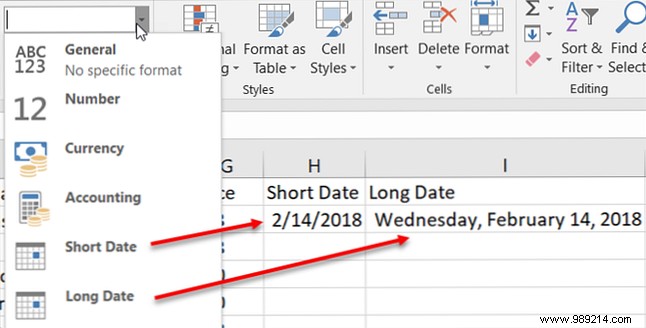
Auto-expands entries like 14/2/18 to full date.
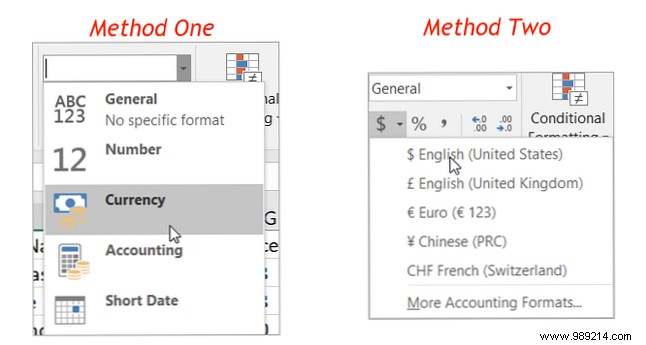
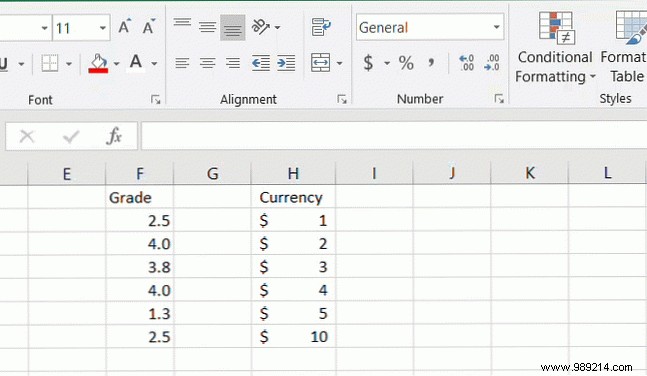
Increase/Decrease Decimal buttons.
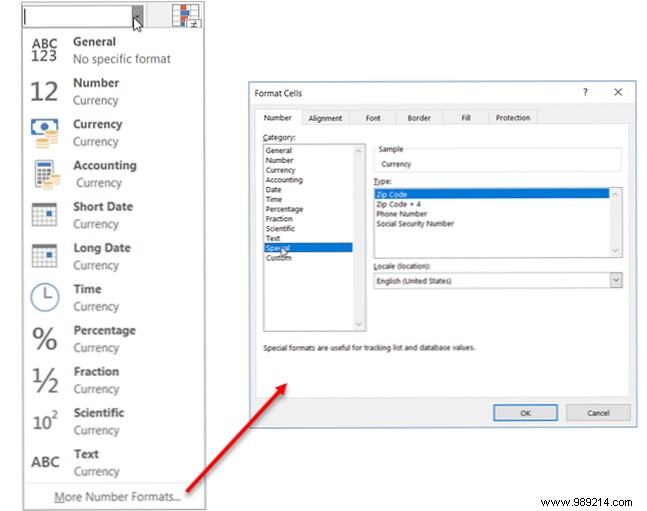
Time, percentages, fractions, custom (ZIP, phone).
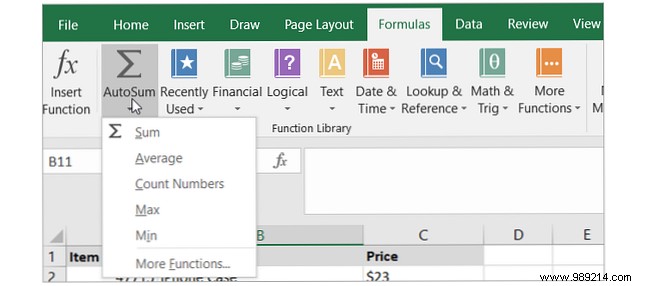
AutoSum on Home/ Formulas tab sums, averages, counts instantly—error-proof for budgets or trackers.
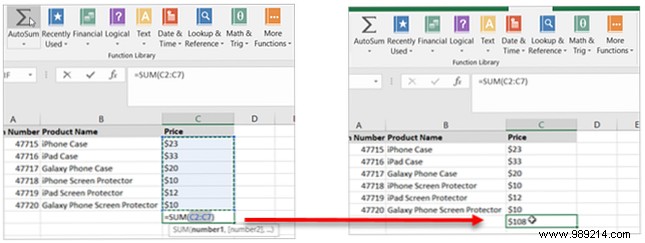
Click cell > AutoSum. Excel suggests range (e.g., =SUM(C2:C7)). Enter to calculate.
Works for Average, Count, Min/Max too.
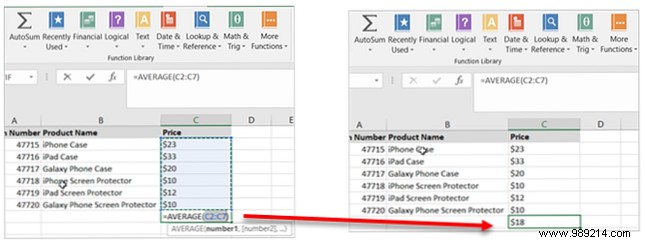
Explore Formulas tab for advanced functions.
File > New: Browse categories or search. Preview & Create.
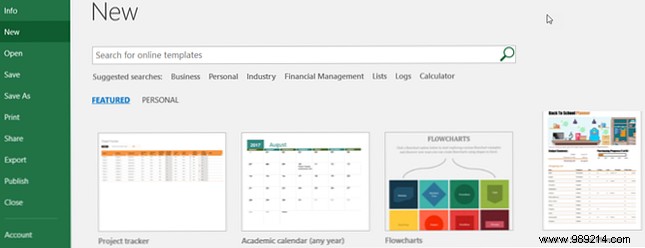
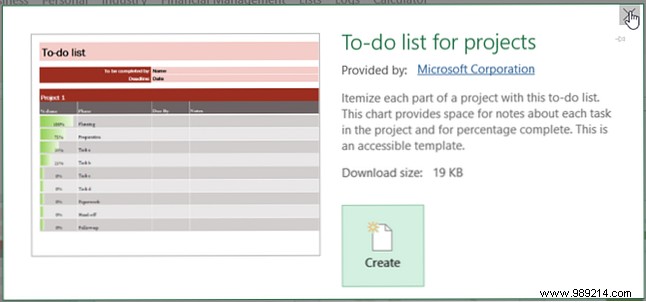
Create/reuse your own for calendars or fundraisers.
This guide equips you for Excel success. For formulas help or Developer tab, explore further resources.
