As a seasoned Microsoft Office specialist with years of experience training professionals and educators, I've crafted this comprehensive beginner's guide to PowerPoint. Whether you're crafting your first business pitch or a family slideshow, these proven steps will build your confidence and skills.
This guide is available as a free downloadable PDF. Download the Beginner's Guide to Microsoft PowerPoint: From Novice to Master now. Share it freely with colleagues, friends, or family.
Ideal for first-time users, those returning after a break, or anyone needing a quick reference, this focuses on the desktop version. Many features also apply to PowerPoint Online. Still deciding? Check our comparison: PowerPoint Online vs. PowerPoint 2016: What do you need for free?
Microsoft PowerPoint is a powerful presentation software for building slideshows with text, images, shapes, animations, audio, and more. Project them on screen for audiences or save as visual documents.
From Microsoft: For business, education, and personal use, PowerPoint's rich features make even simple presentations shine.
PowerPoint handles virtually any visual need—but start by mastering key terms.
These frequent terms will clarify every step ahead.
Slides and Presentation: Often used interchangeably, they refer to your overall document.
Slides: Individual pages in your slideshow, advanced sequentially like a physical deck.
Animations: Visual effects adding movement and flair to slide elements.
Transitions: Effects smoothing the shift from one slide to the next, for polish or drama.
Like other Office apps, PowerPoint's ribbon houses tools on customizable tabs. Defaults include:
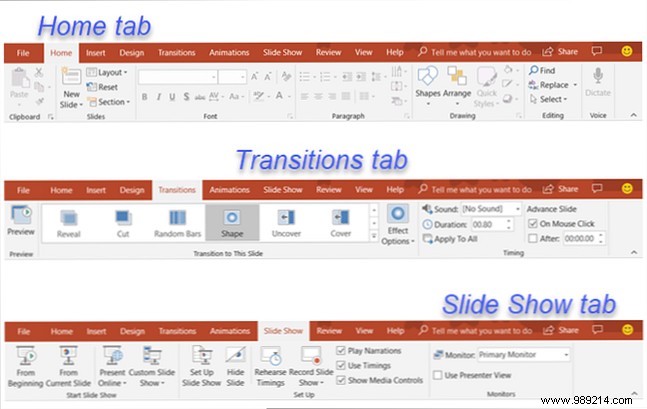
Also spot the Help tab and Tell me search box for instant assistance.
This top-left toolbar delivers one-click essentials.
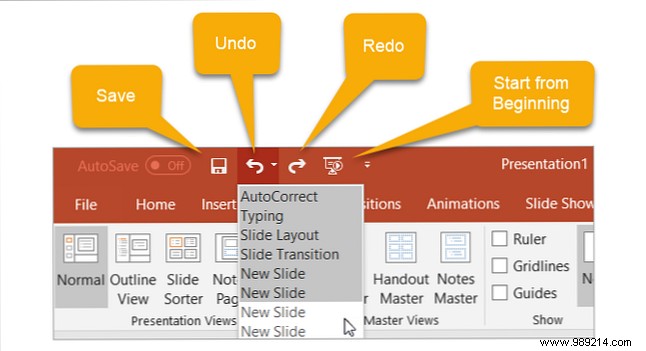
Save: Quick-save with current filename.
Undo: Revert last (or multiple) actions.
Redo: Restore undone steps.
Slide Show: Launch full-screen preview.
Customize via the arrow: add/remove commands or reposition below ribbon.
Master slides to elevate your presentations. Here's how.
On the Home tab's Slides section, click New Slide for a duplicate of the selected slide. Or arrow-down for layouts like blank, title+content, or title+image.
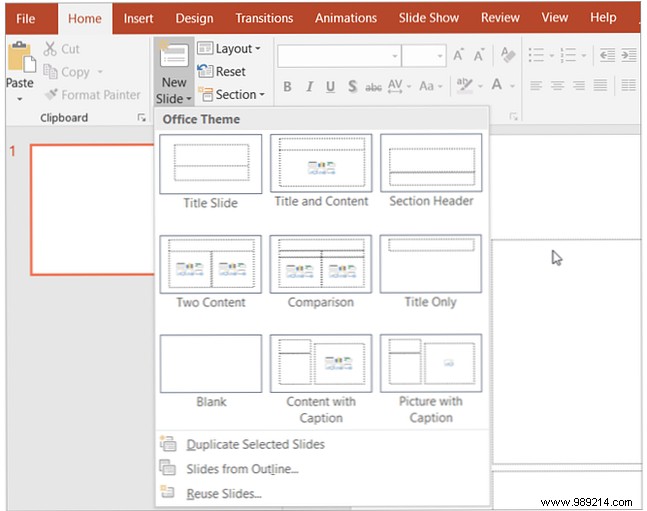
Use Layout on the ribbon to switch types instantly.
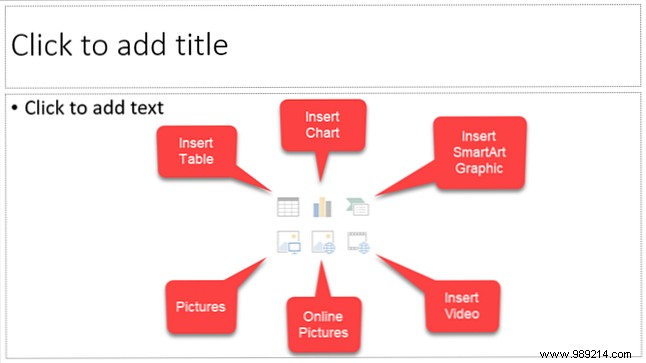
Media layouts feature clickable icons:
Learn more: How to embed YouTube videos in PowerPoint | How to add music to your PowerPoint.
Select and press Delete, or right-click > Delete Slide.
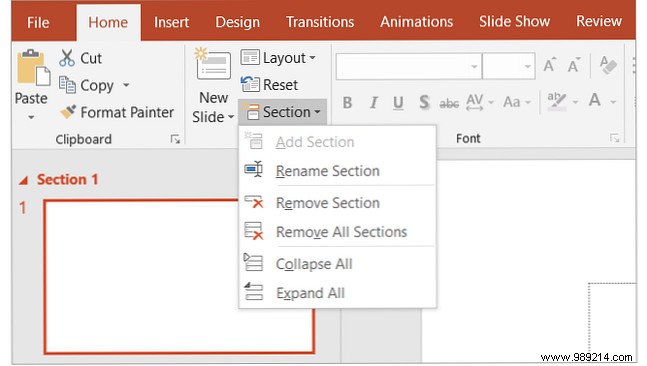
Organize with sections: Right-click in the thumbnail pane > Add Section, rename. Manage via arrow: collapse/expand, remove, rename.
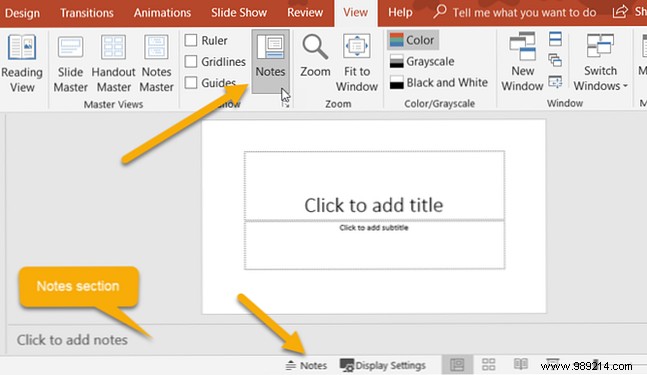
Notes keep you on track. Add via the notes pane below slides (View > Notes if hidden).
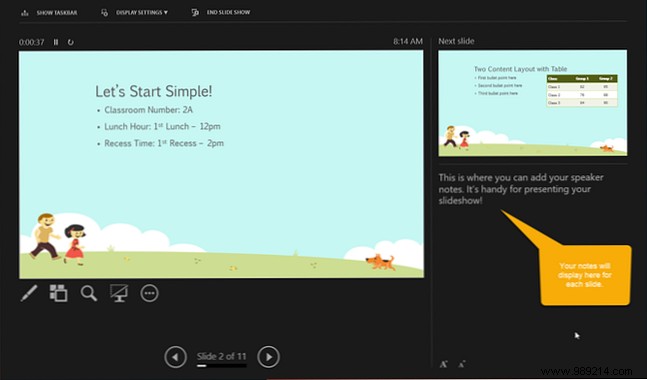
Visible only to you in Presenter View.
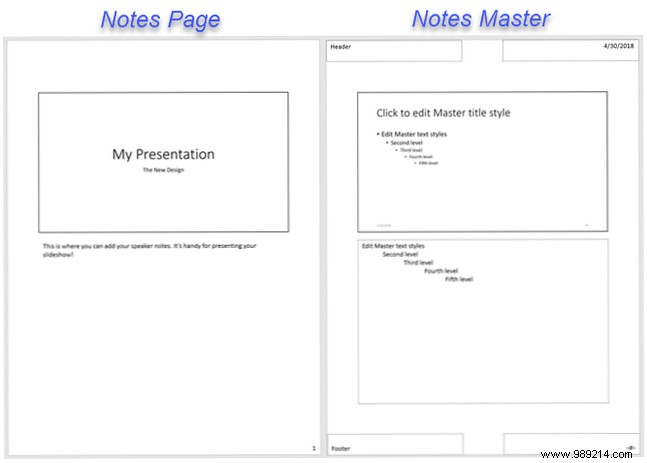
Preview: View > Notes Page. Customize: View > Notes Master or Handout Master.
Details: How to add and print speaker notes.
Animations engage audiences in education or fun events.
On Animations tab:
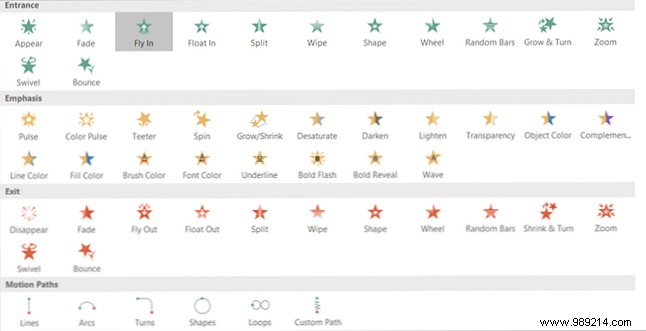
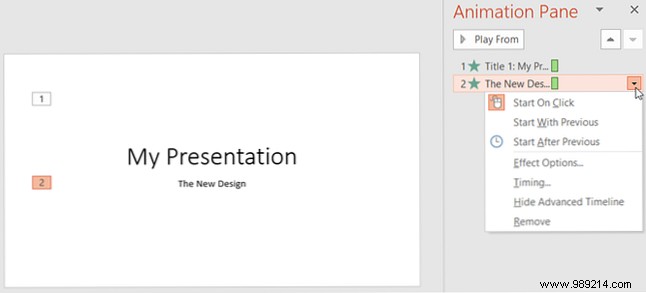
Select object > pick animation. Numbers indicate order. Use Animation Pane for details.
Animate Excel charts? How to animate Excel charts in PowerPoint.
Transitions maintain flow between slides.
On Transitions tab:
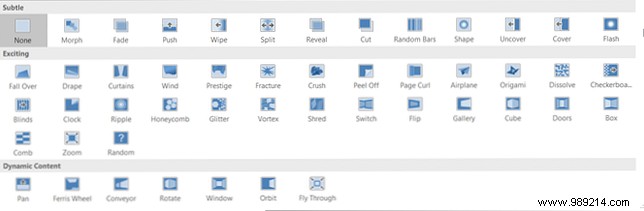
Select slide > choose transition. Add effects as needed. Ideal for smooth, professional shifts.
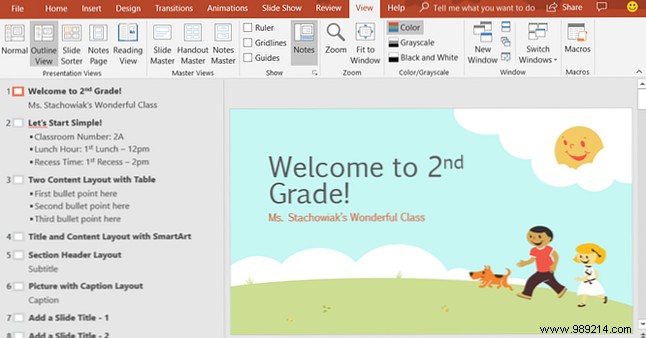
Adapt to your style via View tab's Presentation Views.
Share via Share button: OneDrive link, email, or invite edits.
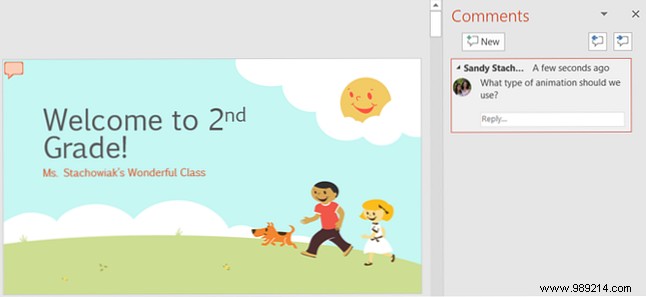
Use Comments for feedback. Track changes via version history.
Finalize on Slide Show tab.

Select display; enable Presenter View for notes/tools on one screen, audience view on another.
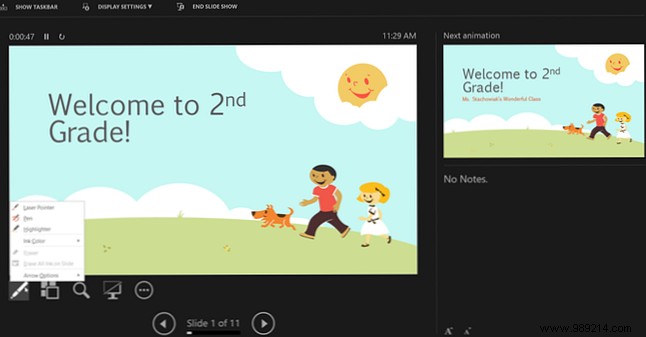
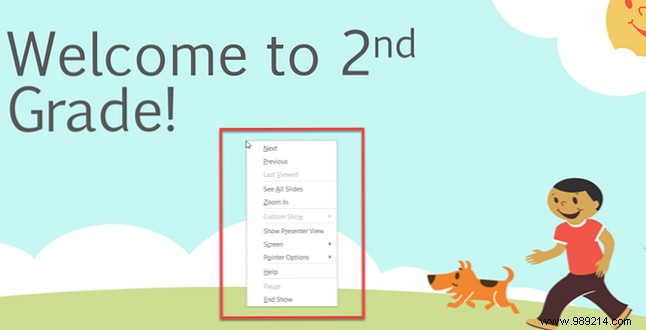
Hit From Beginning or F5. Right-click for navigation/black screen/zoom.
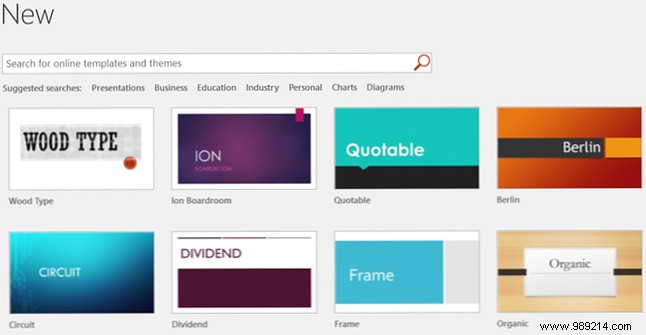
File > New reveals built-ins and searches.
This guide equips you for stunning slideshows. Pro tips: 10 PowerPoint Tips for Professional Presentations.
