Whether you're building an Excel workbook solo or teaming up on a shared spreadsheet, comments are invaluable for reminders, notes, formula explanations, and clarifying worksheet usage. As an Excel expert with years of training professionals, mastering comments is a foundational skill in your Excel journey.
Here are four key uses:
In this practical guide, drawn from real-world Excel experience, we'll cover the essentials of working with comments.
To add a comment, select the target cell, then choose one of these methods:
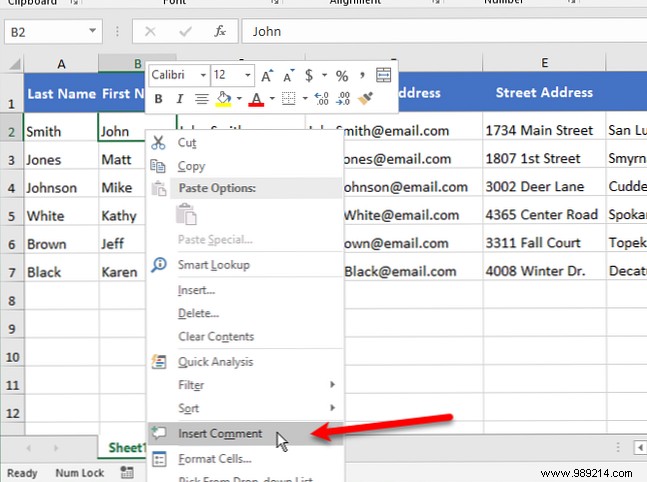
Type your comment text in the box below your name (pulled from Excel's username settings). Click the cell or another cell to finish—the comment hides, leaving a red indicator.
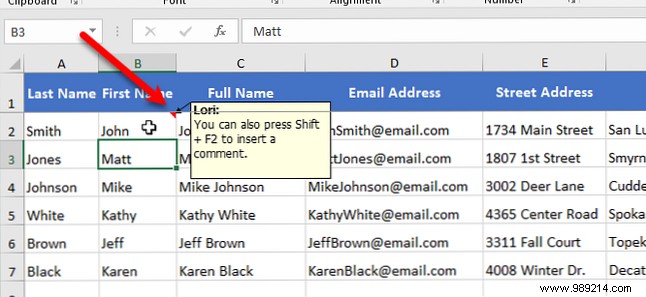
During hands-on testing in Excel 2016, I encountered a quirk: New comments initially show your username but later switch to "Author" automatically. Adjusting Document Properties didn't fix it. If you've resolved this, share in the comments—community insights drive better workflows!
To toggle a single comment, select its cell and:
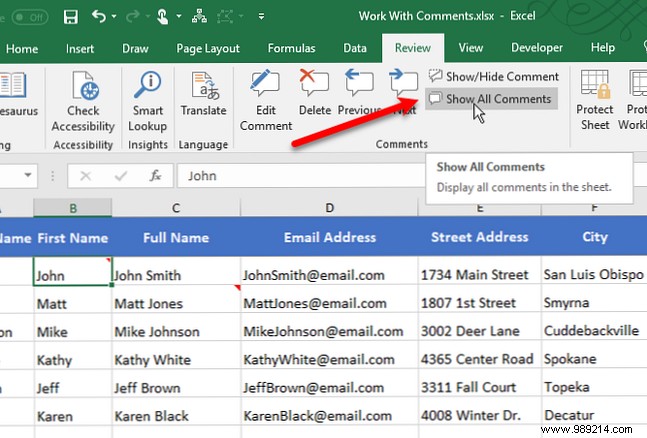
To display all comments across the workbook, click Show All Comments on the Review tab's Comments group. Click again to hide. Note: This affects all open workbooks; no single-sheet option exists—show individually as needed.
Overlapping comments? Adjust them next.
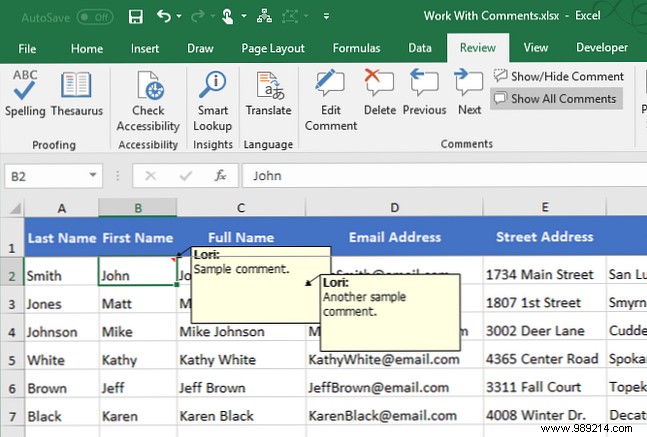
Display the comment first (via Show/Hide). Hover the edge until the cursor becomes a four-way arrow, then drag to reposition. Handles appear for selection.
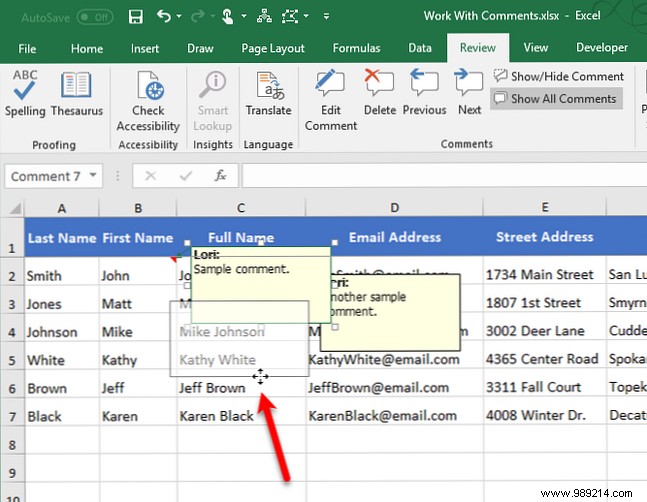
Example: Relocate to uncover cell C3.
For resizing, hover a handle until a double-arrow appears, then drag.
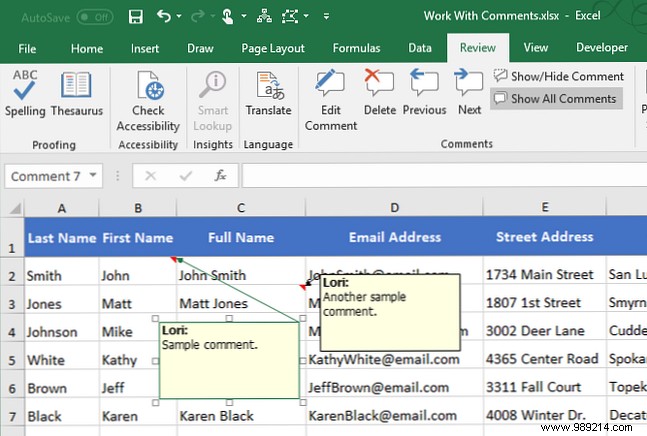
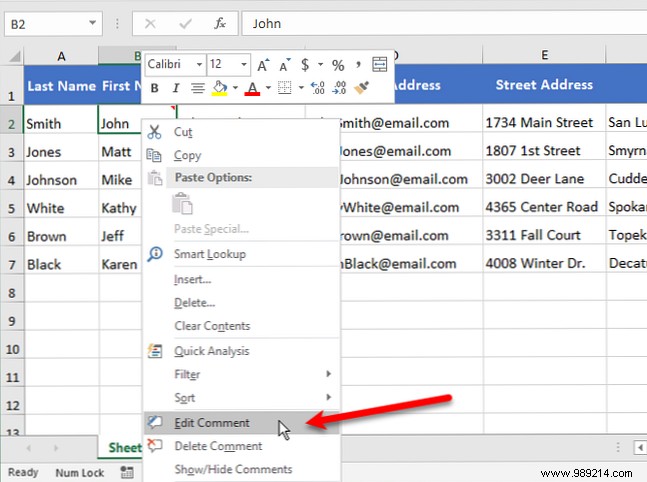
Select the cell and:
(No comment? It becomes New Comment.) Modify text, then click away.
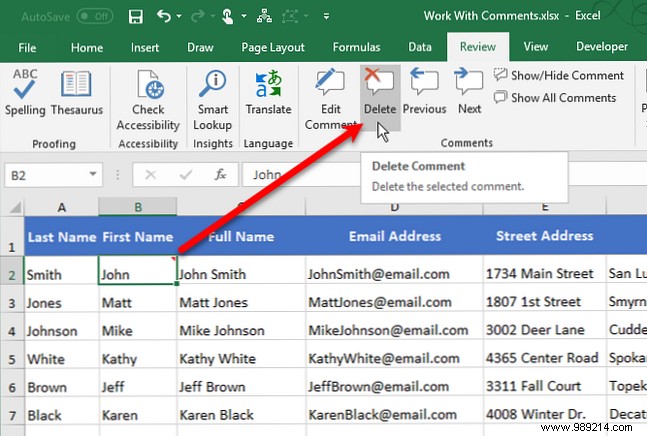
Select the cell and:
No confirmation—deletes instantly.
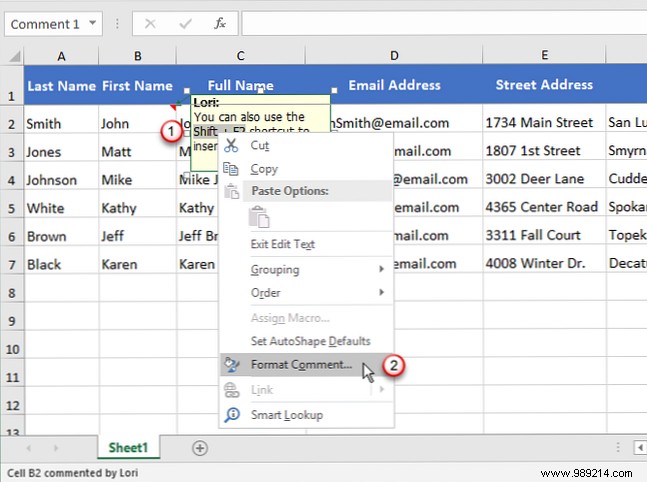
Default is Tahoma 9pt, but customize entered text. Edit the comment, highlight text, right-click, and select Format Comment.
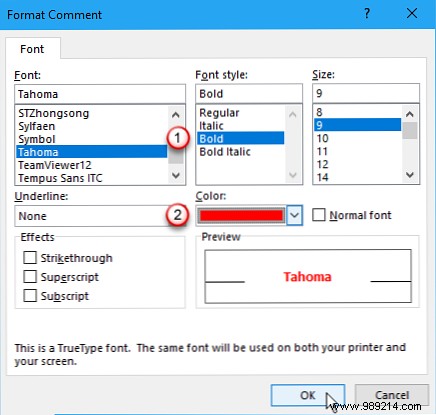
In the dialog, tweak font style, color, etc.—e.g., bold red text.
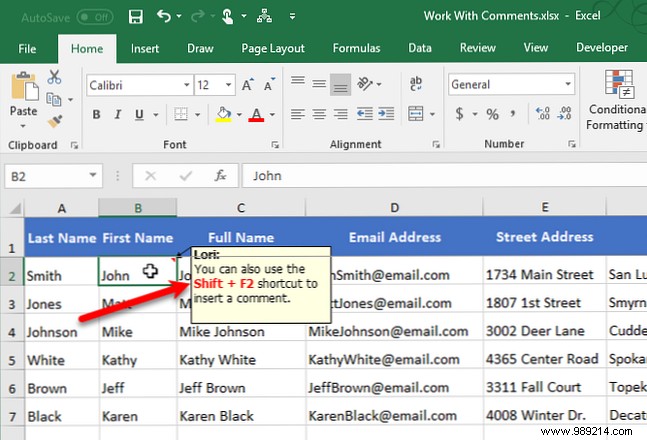
Changes appear on hover or show. Use Home tab tools for most formats, but font/fill colors require the dialog.
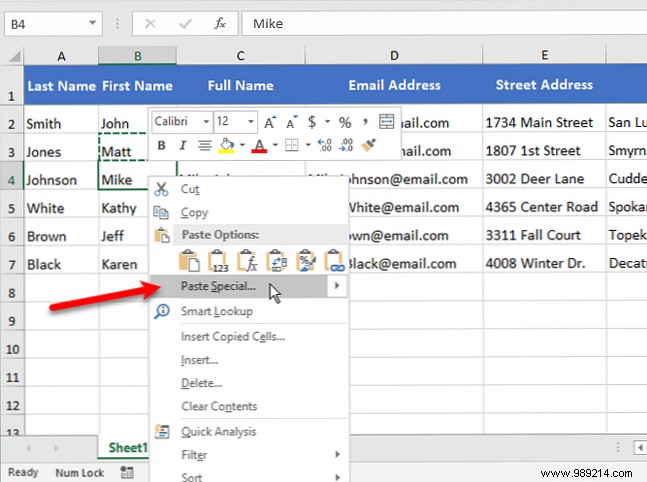
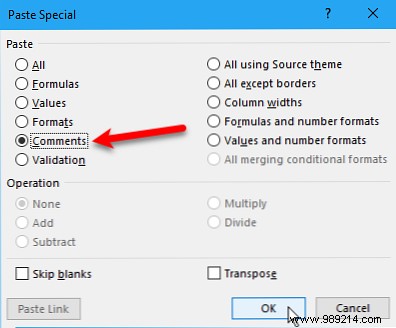
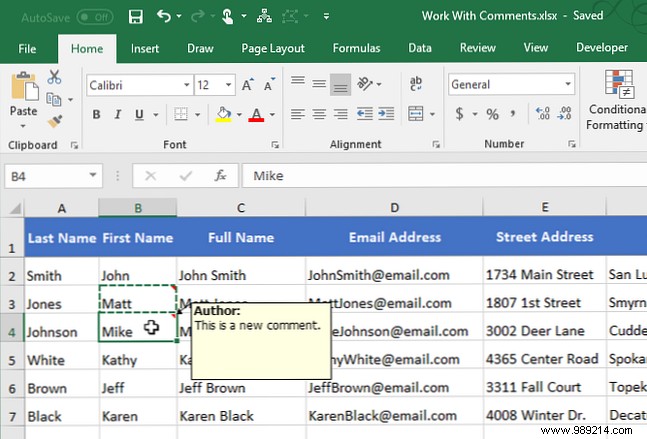
Copy the source cell (Ctrl + C), right-click target, select Paste Special > Comments > OK. Only the comment pastes.
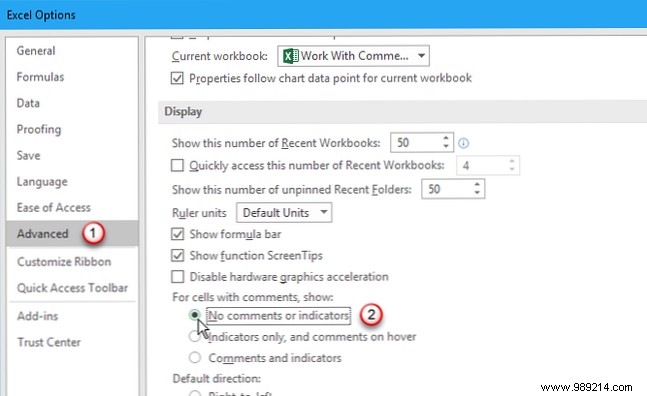
For presentations, remove red triangles: File > Options > Advanced. Under Display, set For cells with comments, show to No comments or indicators.
Use Show All Comments to view (reactivates indicators). Toggling may require app switch to refresh—a known glitch.
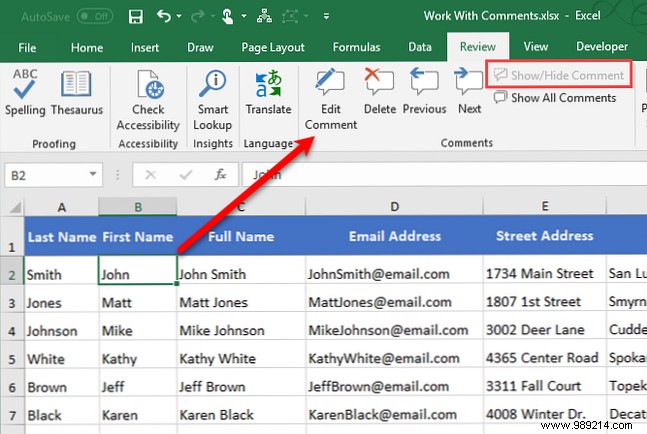
Avoid hovering everywhere—use Next/Previous on Review tab for sequential navigation.
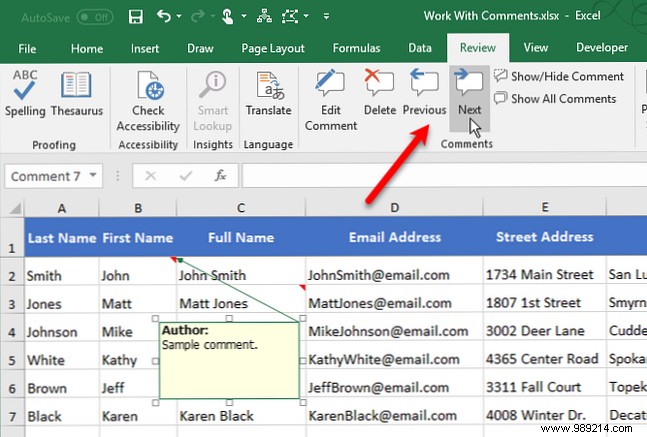
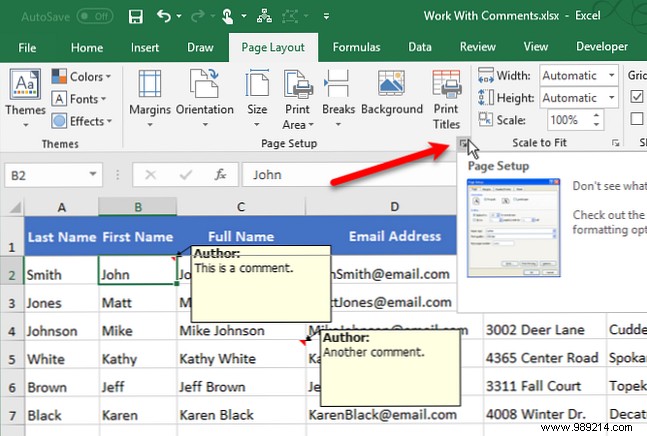
Prefer digital review (see 5 Reasons Not to Print Excel Spreadsheets and Better Alternatives), but for paper: Show desired comments, adjust positions, then Page Layout > Page Setup dialog launcher.
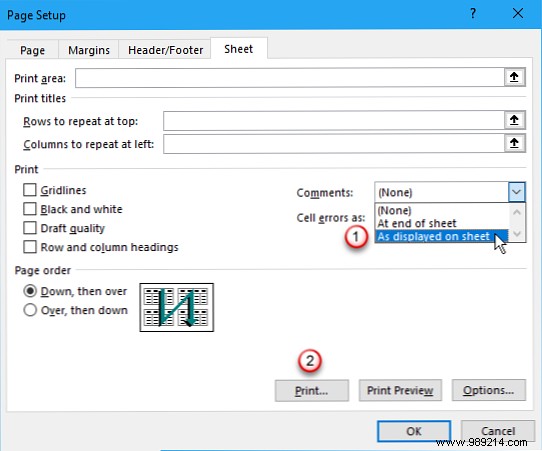
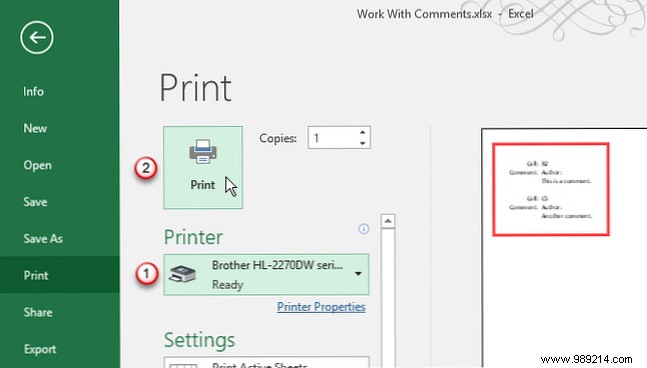
On Sheet tab, Comments: As shown on sheet (may obscure cells) or At end of sheet (listed with references). Print preview confirms.
Enhance collaboration (explore 3 Microsoft Office Online Teamwork Tools) with comments for smoother reviews.
