As a seasoned Microsoft Word user with years of experience training professionals and students, I've seen how the References tab transforms complex documents. While Word excels at everyday tasks, this tab's powerful tools—for creating tables of contents, managing citations, and more—can feel overwhelming at first. This expert guide breaks it down with precise steps to build trust in your documents.
The Table of Contents is essential for long documents, offering readers a clickable overview of sections. Word provides automatic and manual options.
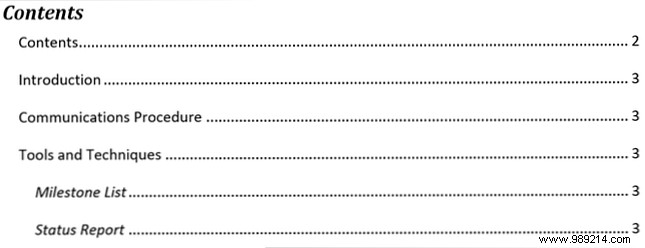
For automatic tables, apply heading styles first: select text in the Home tab's Styles group. Readers can click entries to jump to sections.
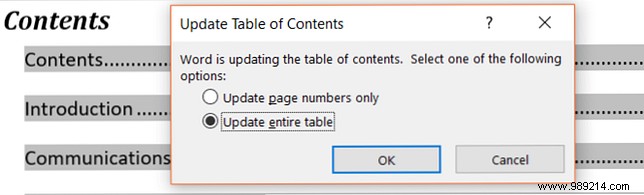
Update automatically by selecting Update Table below the table or right-clicking and choosing Update Field. Opt to refresh page numbers or the entire table.
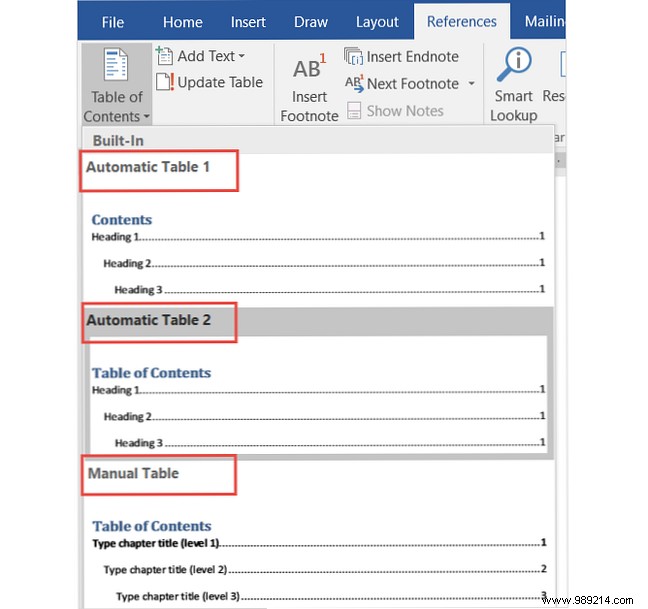
Manual tables offer full control but require typing entries and page numbers yourself.
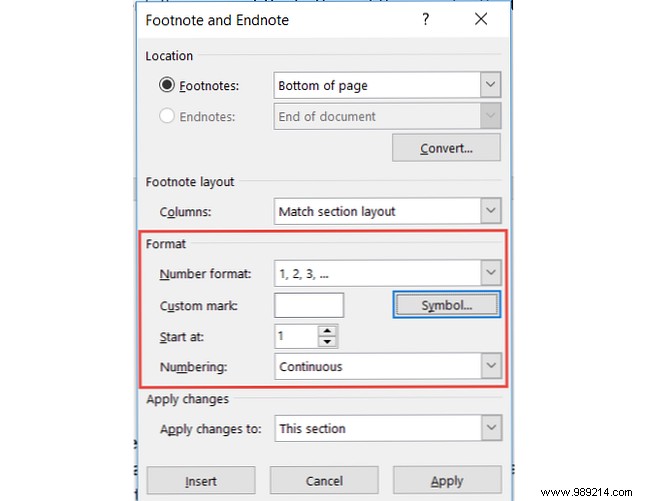
Footnotes appear at page bottoms; endnotes at document end. Both let readers access supplemental info—like sources or explanations—without interrupting flow, ideal for research papers per style guides.
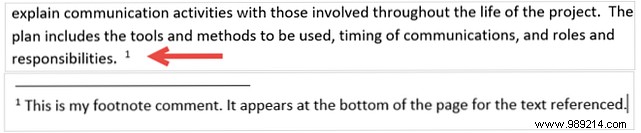
Customize via the Footnotes dropdown's Format Footnotes arrow: select numbers, letters, or symbols. Adjust placement, columns, or apply to sections.
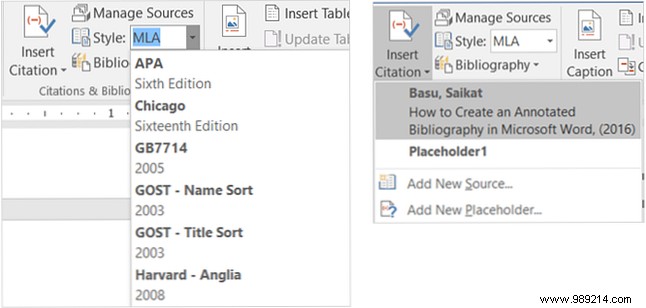
For essays and papers, Word's tools streamline citations and bibliographies. Start by selecting a style (e.g., APA, MLA), then at your text's spot, click the Insert Citation arrow in Citations & Bibliography.
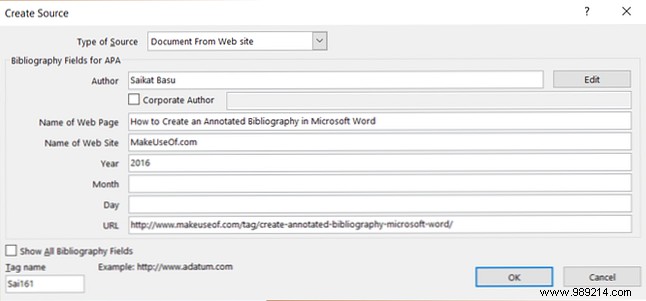
Choose a placeholder or Add New Source, entering details—the form adapts by source type.
Sources save for reuse; manage via Manage Sources.
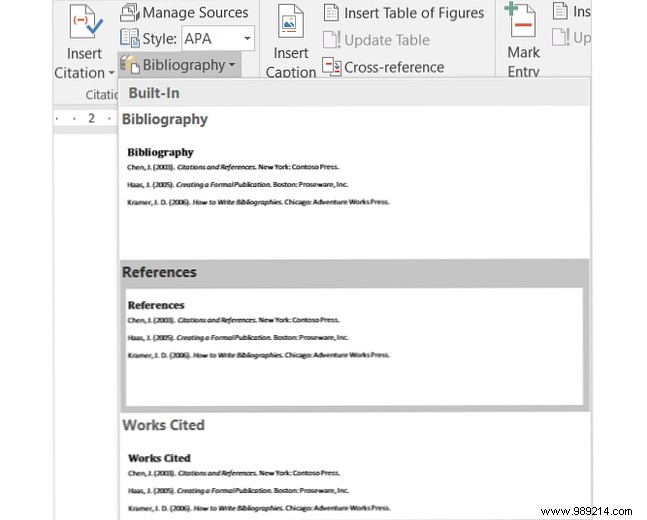
Generate bibliography as Bibliography, References, or Works Cited via the Bibliography arrow.
Captions label tables, figures, and images, enabling a table of figures. Use them in most documents referencing visuals.
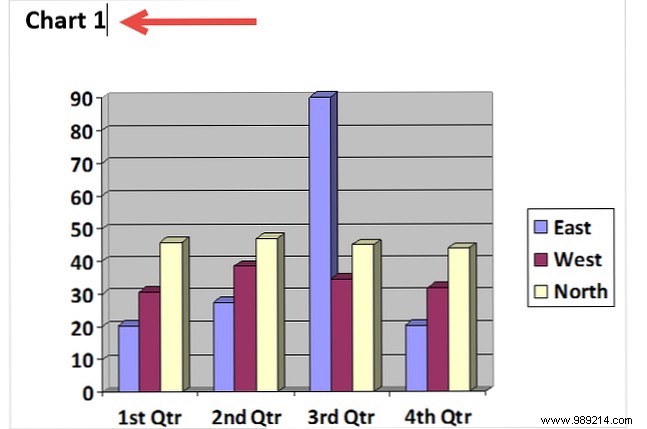
Select an item, click Insert Caption in Captions. Pick label/position; exclude label if needed.
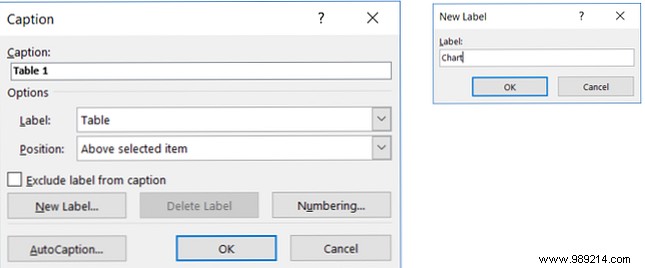
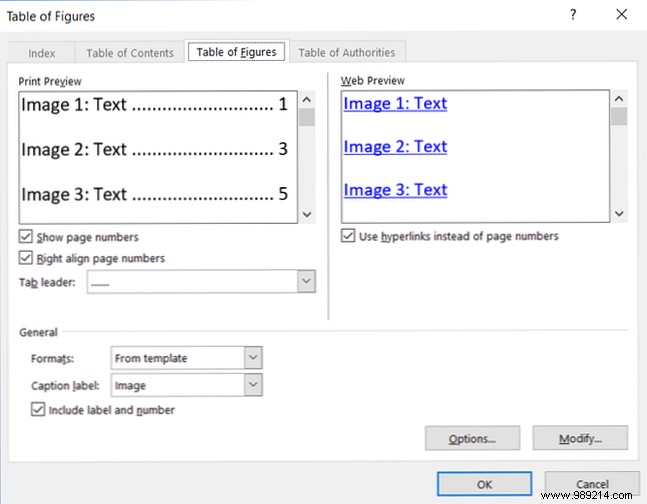
Add custom labels via New Label. Insert Insert Table of Figures with formatting options for pages, hyperlinks, and labels.
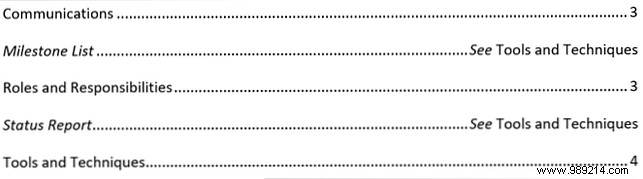
An index lists keywords/topics at document end with page numbers, unlike a front-loaded table of contents.
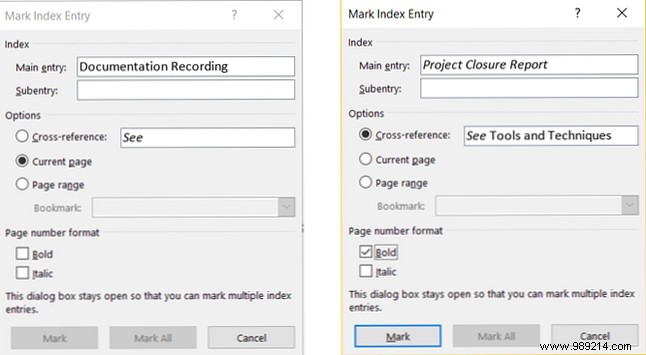
Mark entries: select text, click Mark Entry in Index. Set main/subentry, cross-reference, page format; click Mark > Close.
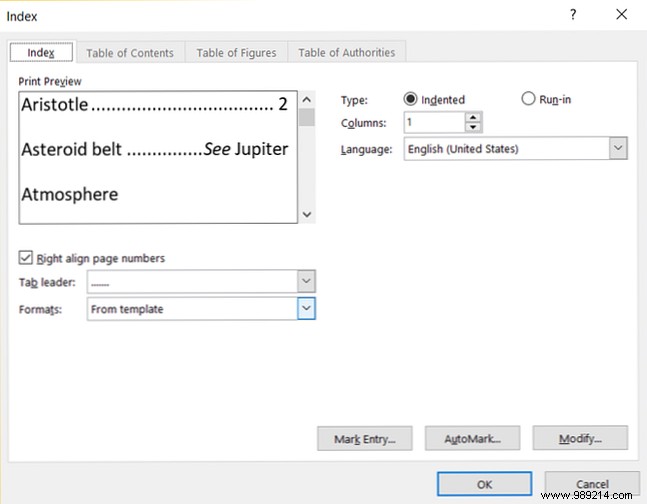
Insert at desired spot via Insert Index; format columns, alignment, indentation.
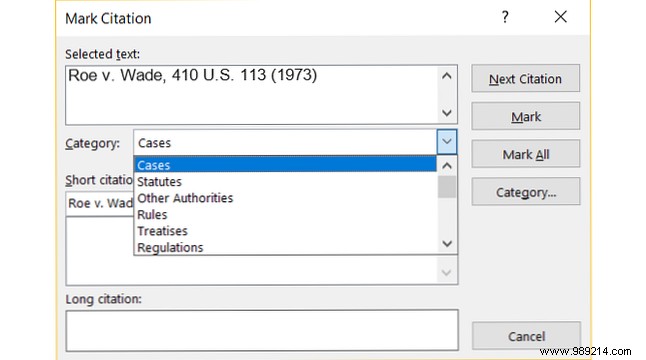
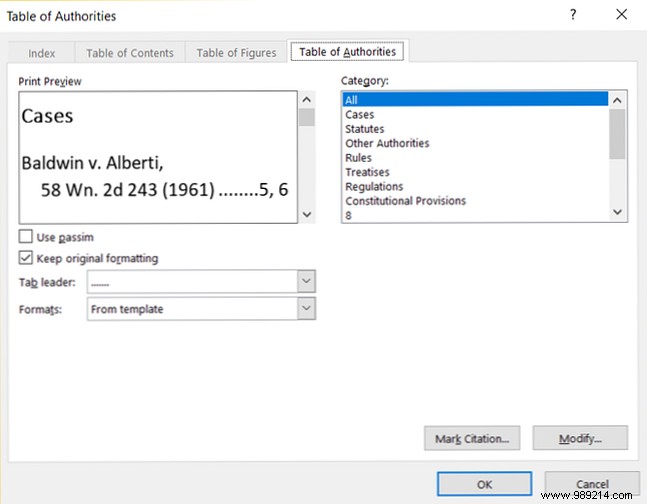
Common in legal docs, it lists references with pages. Mark like index: select text, Mark Citation in Table of Authorities; adjust short/long forms, category; Mark > Close.
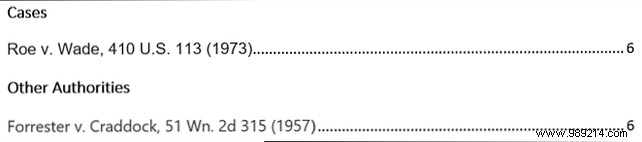
Insert table via Insert Table of Authorities; format and select categories.
Index/authorities marking adds visible field codes (paragraph marks). Toggle with Ctrl + Shift + 8.

Whether in school or work, the References tab elevates reports. These steps make it intuitive—share your tips below!
