Lost a critical Microsoft Office file? Don't panic—these proven methods can help you retrieve your Word, Excel, or PowerPoint documents quickly and reliably.
Nothing disrupts productivity like losing hours of work to a deleted, corrupted, or unsaved file. As someone who's recovered countless Office documents over years of IT support and troubleshooting, I've seen how built-in features and simple techniques often save the day.
Follow these expert-tested steps to restore your files before resorting to advanced tools.
Microsoft Office (including 2016 and later) has a built-in recovery feature for unsaved or unexpectedly closed files. This is the fastest first step.

For example, if you accidentally clicked 'Don't Save' when closing Word, the app retains a temporary copy. Restart Word and check for the Document Recovery panel. If it doesn't appear, go to File > Info > Manage Document > Recover Unsaved Documents.
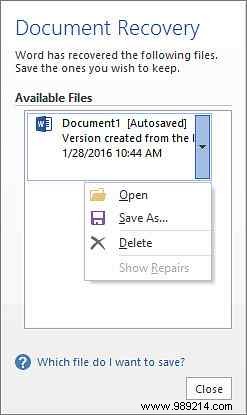

This opens the UnsavedFiles folder with .asd (AutoRecover) files. Identify yours by date, size, or trial opening—rename and save as needed.
Corrupted or deleted files often leave hidden .tmp versions with most content intact.
Search for 'File Explorer Options,' switch to the View tab, and under Advanced settings, select Show hidden files, folders, and drives.
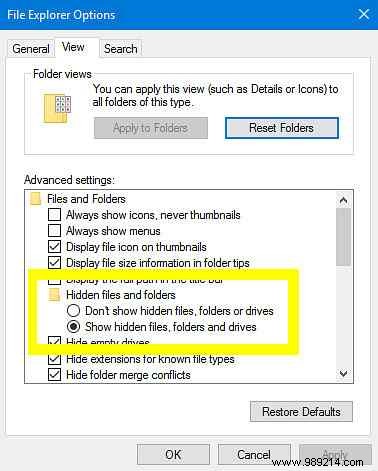
Navigate to your file's original folder, look for files starting with ~ and ending in .tmp. Rename the promising one (matching size/date), open in Office, then re-hide files.
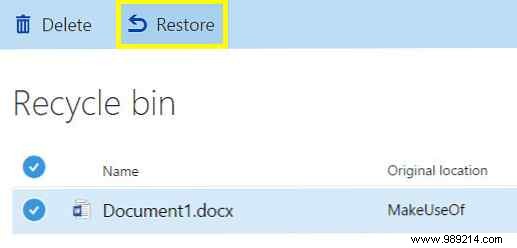
Often overlooked: Manually deleted files (including temps) land here unless emptied.
Ensure hidden files are visible, then restore from Recycle Bin. For OneDrive/Office 365 users, check the web Recycle Bin—personal accounts allow self-restore; business may need admin help.
For stubborn cases, trusted utilities scan drives effectively.
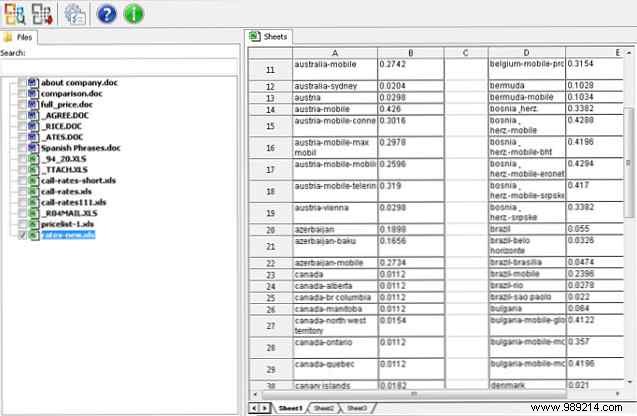
Easy Office Recovery: Scans for Office files, previews results. Ideal for docs, but licenses start at $79.95.
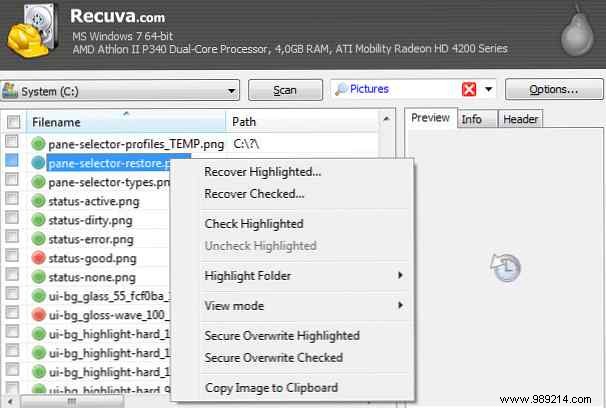
Recuva: Free for basics, recovers any file type with wizard-guided scans. Handles docs, media, and more.
Proactive settings minimize risks.
In any Office app: File > Options > Save. Set AutoRecover to 1-5 minutes and check Save last autosaved version if I close without saving.
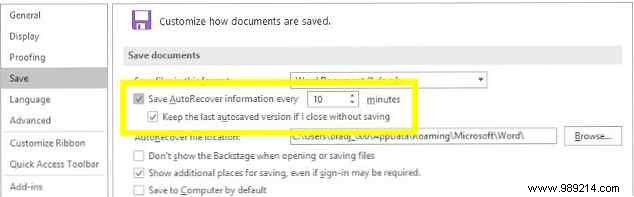
Then Advanced > Save: Enable Always create a backup.

These tweaks provide robust protection. Share your recovery tips or scenarios in the comments!
