PDF files are among the most common formats worldwide, prized for their consistency across devices. However, adapting them directly into PowerPoint presentations isn't always straightforward.
In our years of testing file conversion tools, we've found PDFs often contain valuable graphs, charts, and images perfect for slideshows—far beyond plain text. Whether you're repurposing a report or visual data, this guide draws from hands-on experience to walk you through converting PDF to PowerPoint (.pptx) with reliable methods and pro formatting tips.
Like most conversions, you have two solid options: free web apps or robust desktop software. We've vetted the best based on accuracy, speed, and ease of use.
After evaluating numerous online converters, Smallpdf stands out for its superior accuracy and clean results in our tests. It's completely free, processes files temporarily (deleted after 1 hour), and requires no installation—ideal for quick tasks.
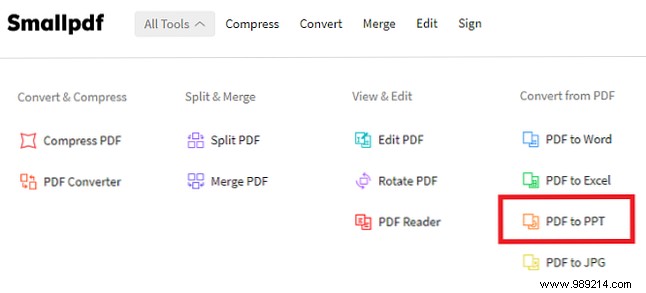
Visit Smallpdf, then navigate to All Tools > Convert PDF > PDF to PPT.
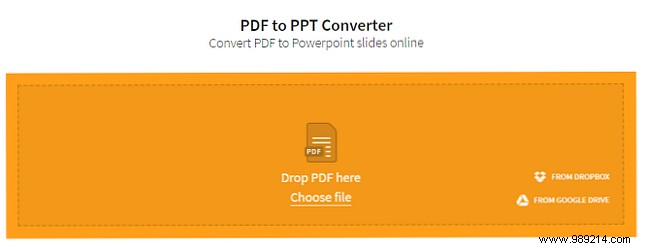
A yellow upload box appears. Drag and drop your file, or select Choose file. Integrate seamlessly with Google Drive (From Google Drive) or Dropbox (From Dropbox).
Note: Cloud integrations require account permission. For privacy, download locally first.
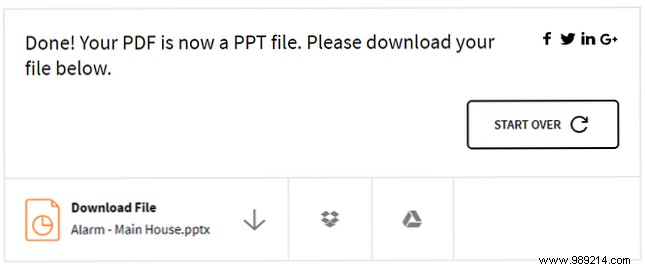
Upload time varies by file size, followed by automatic conversion. Preview and download your PPTX, or save to Drive/Dropbox. Repeat with Start Over.
No truly free desktop apps excel here—pros target high-volume users. Smallpdf's desktop version is emerging but lags behind veterans.
Top contenders: ILovePDF (15-day trial) and Adobe Acrobat Pro DC (7-day trial, then $14.99/month). Acrobat leads with cross-device support, partial-page conversion, and PPT templates—but pricey for occasional use.
For value, Wondershare PDFelement wins at $59.95 lifetime license (free trial). It handles complex layouts reliably.
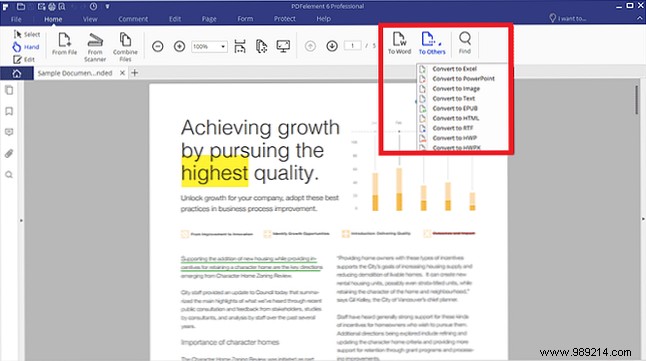
Open your PDF, go to Home tab > To Others on the ribbon. Choose PPT in Save as type dropdown, then Save. Expect a few minutes for larger files.
Alternatives:
Simpler source PDFs yield better results. Avoid locked files; simplify overlapping elements first for cleaner recognition during conversion.
This minimizes errors, as tools parse layers individually—overlaps confuse AI detection.
Expect some manual tweaks post-conversion, especially for intricate designs. PDF-to-PPT shifts layouts unpredictably, so proof for professionalism.
For easier edits, try PDF-to-Word first: How to Convert PDF to Word for Free.
