Microsoft Outlook is a robust email client with extensive features, yet third-party tools—both free and paid—can unlock even greater efficiency by adding missing capabilities or optimizing existing ones. As Outlook experts with years of hands-on experience troubleshooting and enhancing workflows for professionals worldwide, we've tested dozens of add-ons. Here are our top 5 recommendations for the desktop app.
OutlookTools is a free Windows utility offering one-click access to Outlook settings, data folders, and even select Windows tools like Registry Editor and Event Viewer. Developed by the trusted HowTo-Outlook team, it simplifies diagnostics and maintenance.
The intuitive left-side menu grants quick navigation to specialized screens.
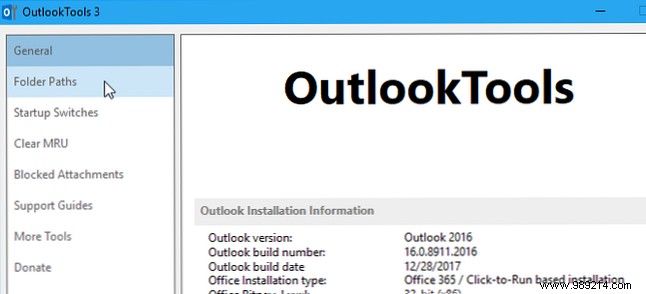
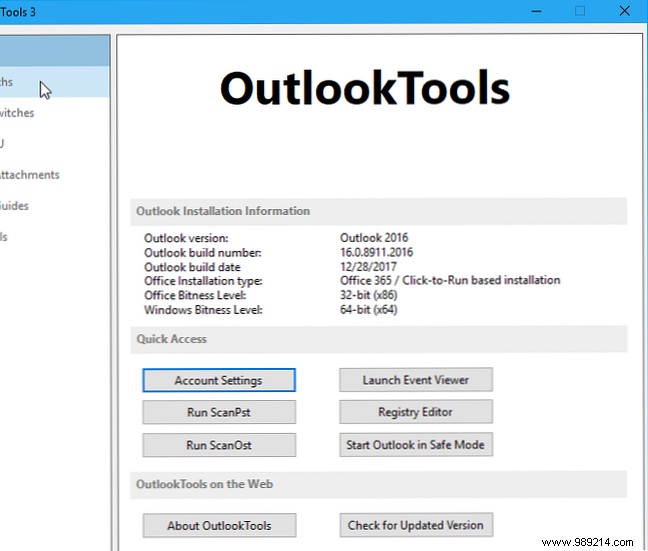
The General screen shows your Outlook version details and Quick Access buttons for essential tasks. For PST or OST issues, use the Run ScanPst button—it works on both file types, unlike the deprecated ScanOst.
Launch Outlook in safe mode directly from here to bypass add-in conflicts.
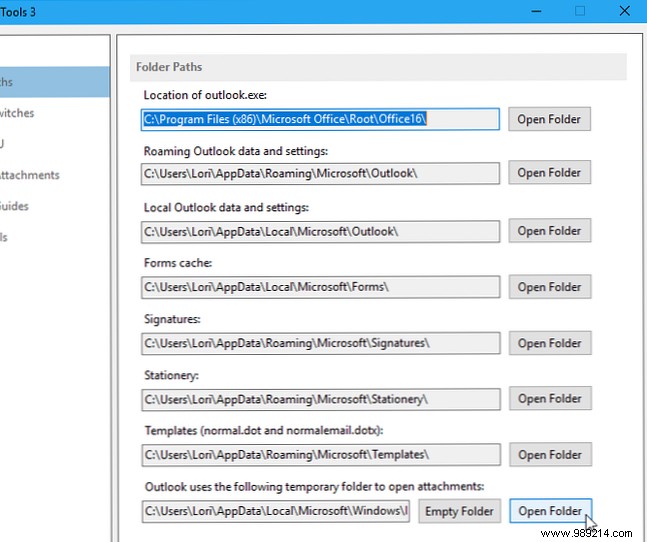
Folder Paths lists key directories for data and settings. Reference them or open directly; the attachments temp folder includes an Empty folder button for quick cleanup.
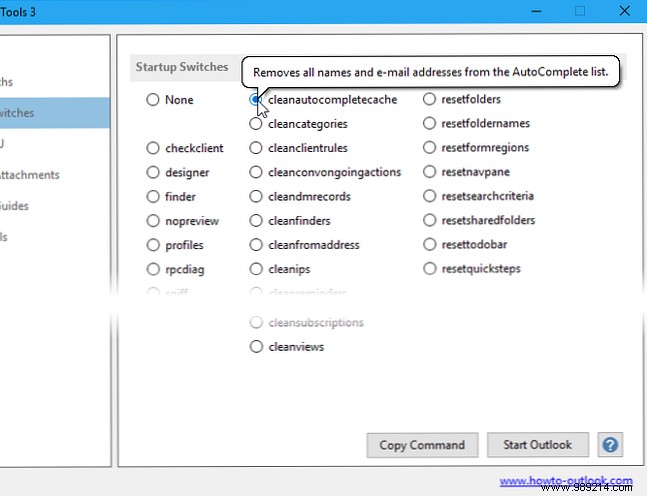
The Start Switches screen details command-line options—hover for descriptions. Select one, then Start Outlook or Copy command for manual use, like clearing the AutoComplete list.
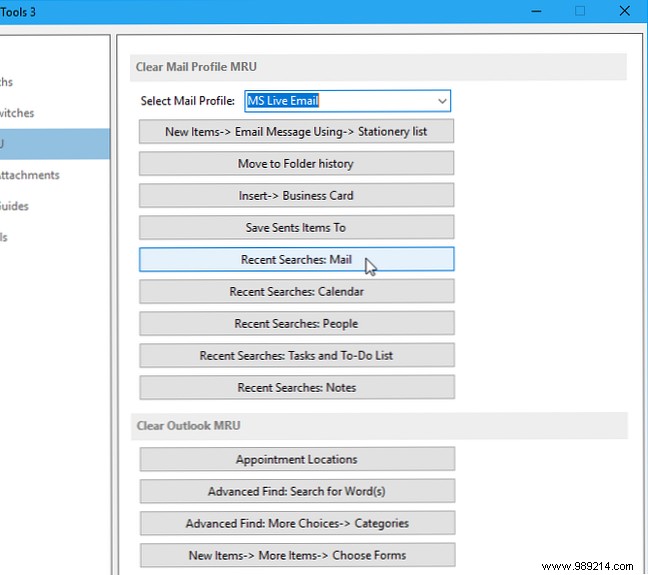
Clear Most Recent Use (MRU) lists by profile on the Clear MRU screen.
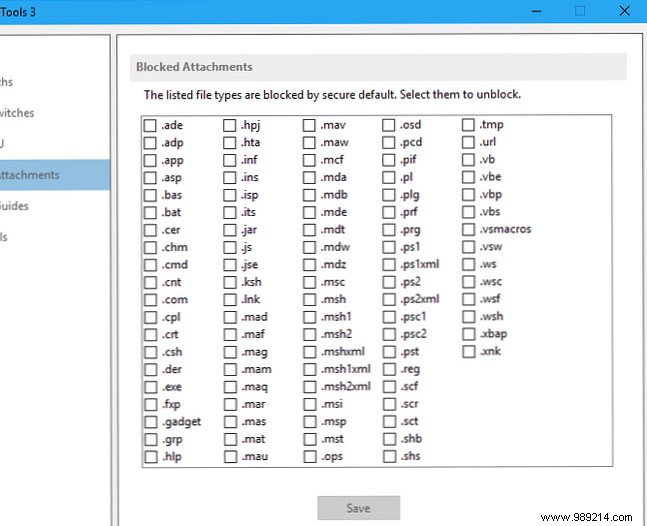
Manage blocked attachments safely—view Outlook's list and unblock trusted types cautiously, per Microsoft's guidelines.
Support guides link to HowTo-Outlook articles; More tools showcases add-ins. Donate to support ongoing updates.
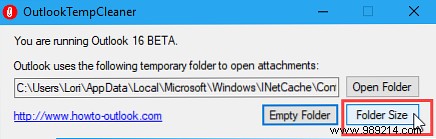
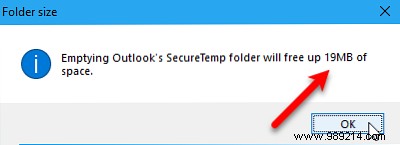
This companion free tool targets Outlook's temp attachments folder, hidden in Temporary Internet Files. It reveals folder size via Folder size and empties it securely.
Email Insights is a lightweight, speedy search tool for Outlook and Gmail, featuring fuzzy matching, autocomplete, and relevance-sorted results to cut search time dramatically.
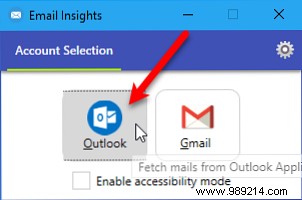
On launch, the Account Selection screen appears—click Overview, then pick your account.
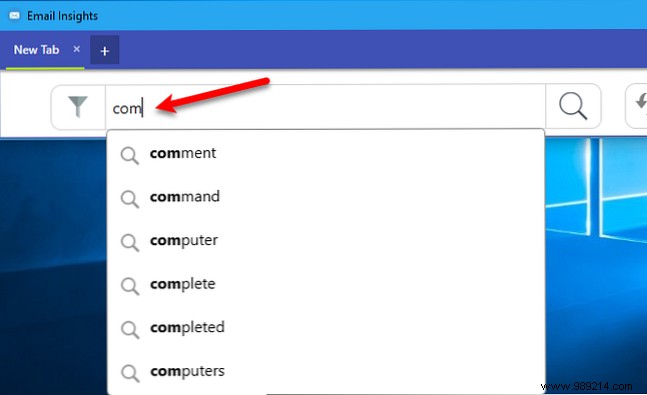
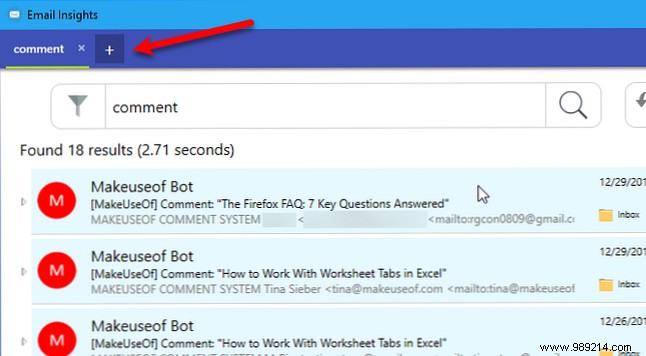
Type queries for instant suggestions; hit Enter or the search icon. Multi-tab support keeps searches organized.
Sync Outlook and Google Calendars bidirectionally with this free tool, preserving subjects, locations, attendees, reminders, and more—only changes update to avoid duplicates.
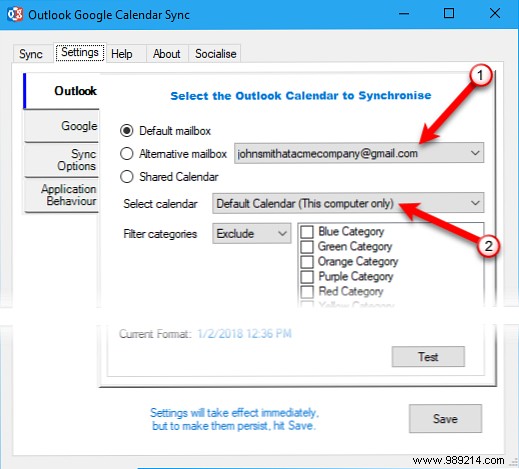
On the Overview tab, select your Outlook mailbox and calendar.
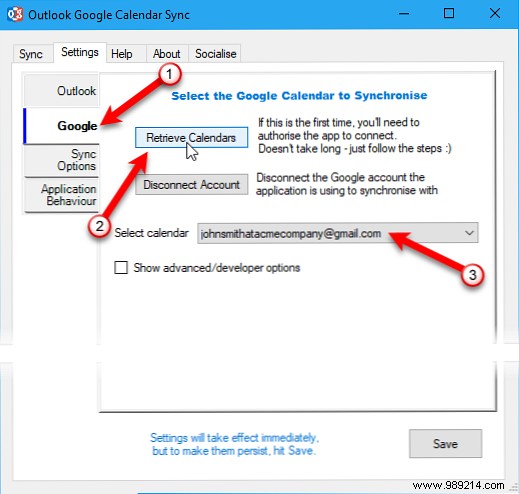
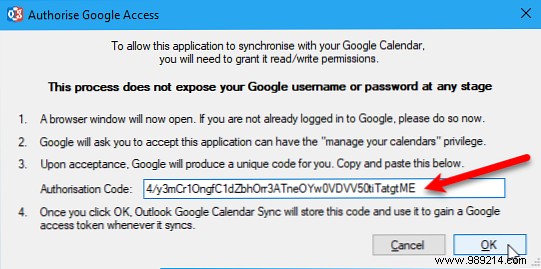
Switch to Google, click Recover calendars, authorize via browser (copy-paste the code), and choose your calendar.
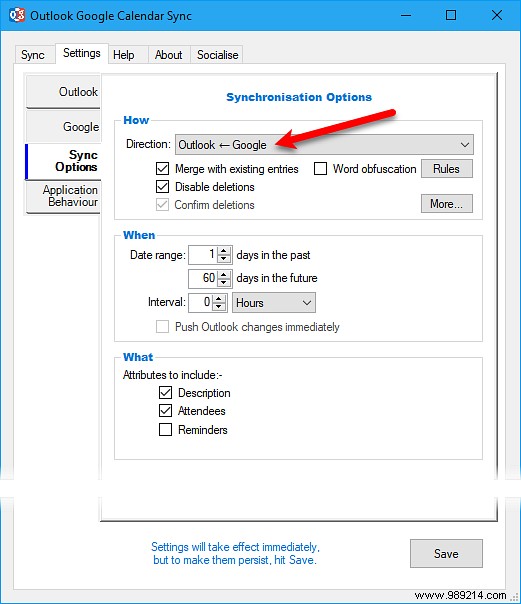
Tailor sync direction, date range, attributes, and behavior in Sync Options, then save.
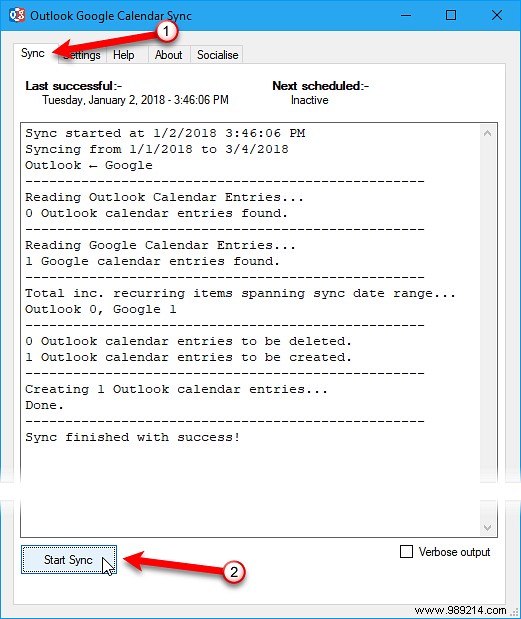
Hit Start Sync on the Sync tab; monitor progress there. Saved settings persist for future runs.
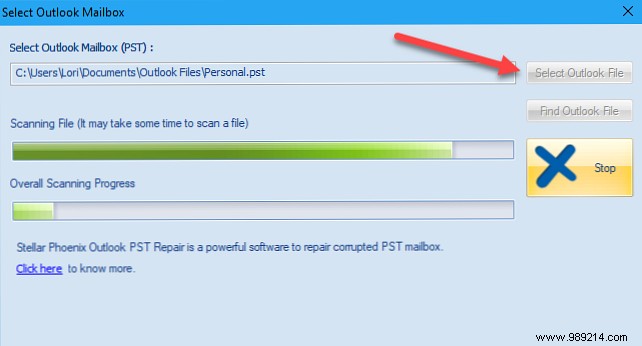
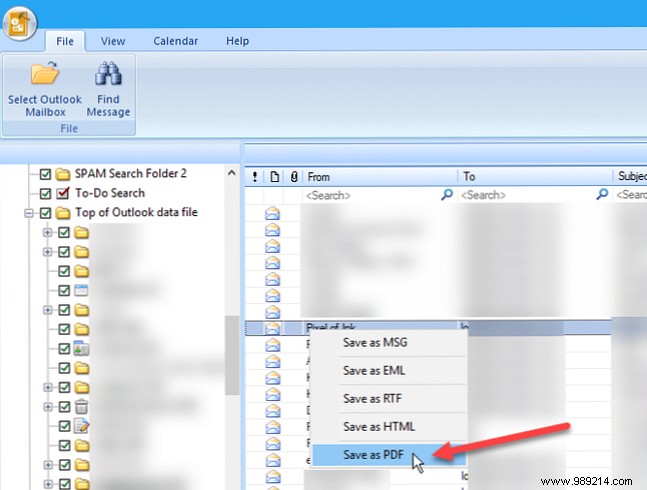
This free viewer scans corrupted PST files, letting you preview and export emails, contacts, calendars, tasks, and journals in various formats—ideal for recovery without full repair.
Select or find your PST (default: C:\Users\%username%\Documents\Outlook Files\), then browse the tree view.
Right-click items to save individually.
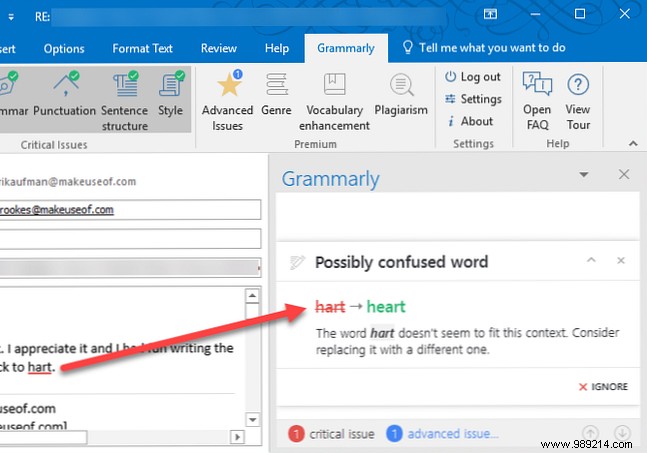
Grammarly's Outlook add-in polishes emails in real-time, catching spelling, grammar, tone, and style issues with explanatory suggestions for clearer communication.
Install from Grammarly's site (login required), enable in Outlook/Word.
Suggestions appear in a right-side panel as you compose.
These tools are game-changers for productivity. Explore more tips and free Outlook alternatives if needed. What are your go-to Outlook tools or hacks?
