Outlook's search tool is essential for quickly finding emails amid a crowded inbox. But when it fails to return results or becomes unresponsive, productivity grinds to a halt. Drawing from years of IT support experience, here are seven reliable fixes to restore Outlook search functionality.
This is often the most effective first step for resolving indexing issues. There are two straightforward methods—both quick and highly successful.
Type control into the Windows search bar and open Control Panel. Navigate to Programs > Programs and Features. Scroll to Microsoft Outlook or Microsoft Office [your version], then click Change at the top.
Select Quick Repair (no internet required) or Online Repair, then hit Repair.

Allow the process to finish, then restart your computer.
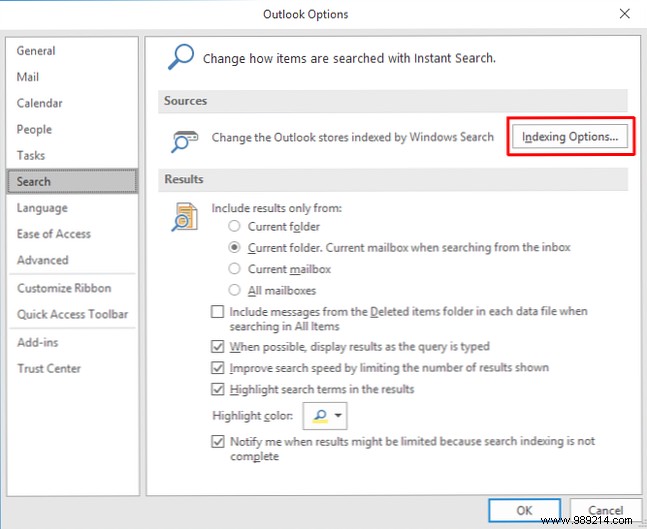
In Outlook, go to File > Options > Search, then click Indexing Options > Advanced.
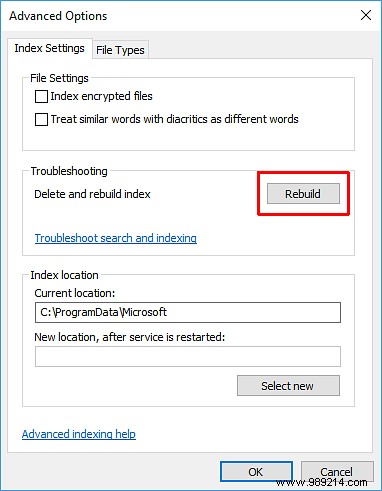
Click Rebuild and OK. Wait for completion, then reboot.
Click the search bar in Outlook, go to Search Tools > Indexing Status. This shows pending items—search works during indexing, but results may be incomplete.
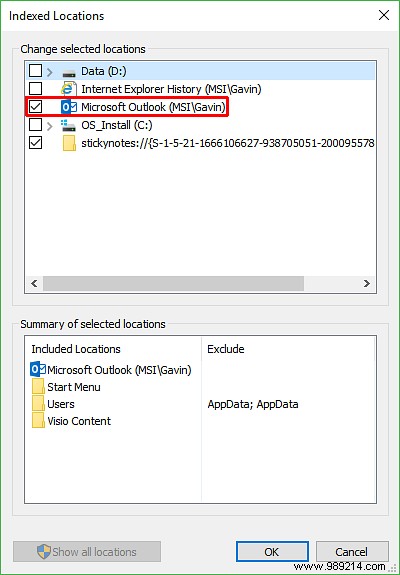
Ensure Outlook is included in indexed locations. In Outlook: File > Options > Search > Indexing Options > Modify. Confirm Microsoft Outlook is checked, then OK and reboot.
Press Windows Key + R, type regedit, and hit Enter. Use Ctrl + F to search for:
HKEY_LOCAL_MACHINE\SOFTWARE\Policies\Microsoft\Windows\Windows SearchRight-click in the right pane, select New > DWORD (32-bit) Value, name it PreventIndexingOutlook, set value to 0, then OK and reboot.
Outdated Office can cause search glitches. In Outlook, go to File > Account (or Office Account), check Product Information > Update Options > Update Now.
If no updates appear (e.g., volume license, Group Policy restrictions, or non-genuine copy), download manually from Microsoft's Office updates page. Microsoft Office 2016 Automatic Updates Explained. Read more.
Corrupted PST files disrupt search. Locate scanpst.exe based on your version:
Your PST is typically at: C:\Users\[Your Username]\AppData\Local\Microsoft\Outlook
Right-click scanpst.exe > Run as administrator. Click Browse, select your PST, Open > Start. Wait for repair, then test search.
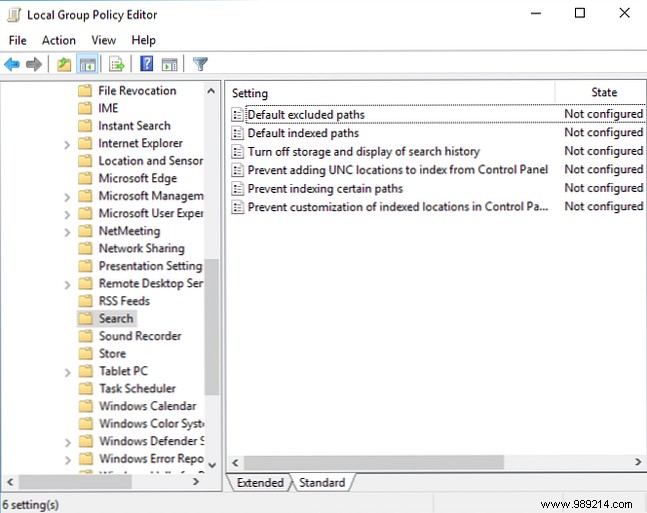
(Windows Pro/Enterprise only.) Search for gpedit.msc. Navigate to User Configuration > Administrative Templates > Search. Check Default Excluded Routes and Do not allow indexing of certain paths for Outlook exclusions. Ensure Not Configured.
Last resort: Uninstall and reinstall Outlook via Programs and Features. Time-intensive but effective for stubborn issues.
These steps resolve most Outlook search problems. In my hands-on experience troubleshooting countless systems, rebuilding the index or repairing the PST file succeeds in 90% of cases. Start here and work down the list.
5 Best Tools for Microsoft Outlook. Read more.
