As an email communication expert with years of experience helping professionals streamline their workflows, I know a well-crafted signature leaves a lasting impression. Just like a handwritten note, your email signature conveys professionalism, personality, and key contact details—essential for business and personal exchanges alike.
Email signatures go beyond basics: include your name, role, phone, website, and even a logo to build trust and drive connections. In Outlook, setting this up is straightforward, flexible, and supports multiple signatures for different scenarios.
To begin, open the Outlook desktop app and navigate to settings via two simple methods:
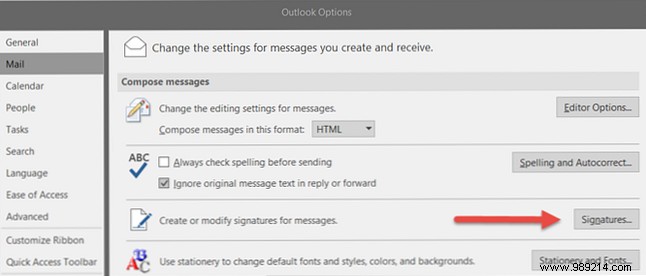
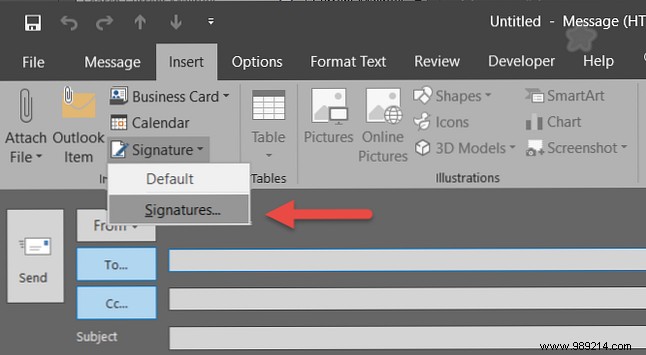
Both lead to the Signatures and Stationery window, your control center for creation and configuration.
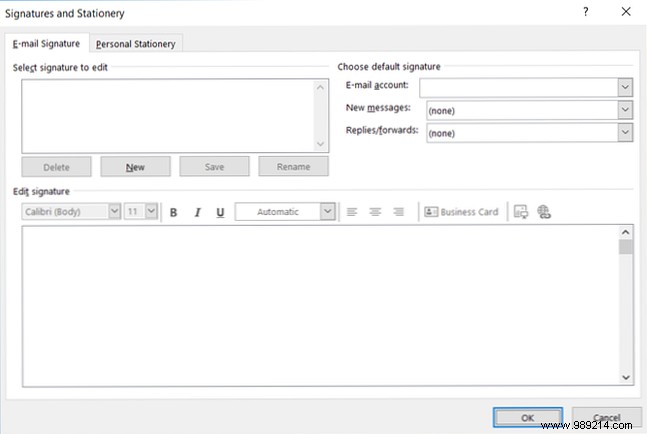
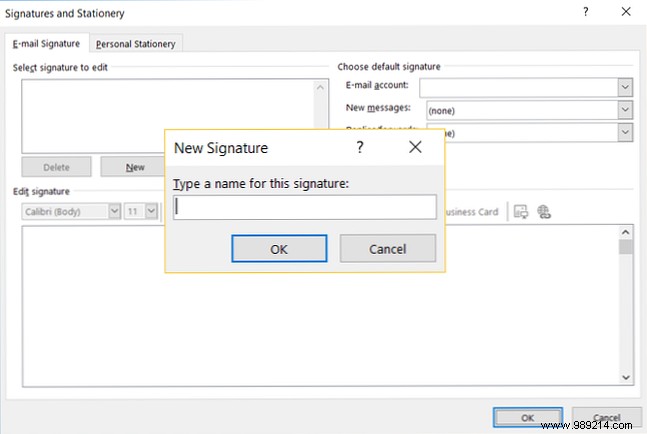
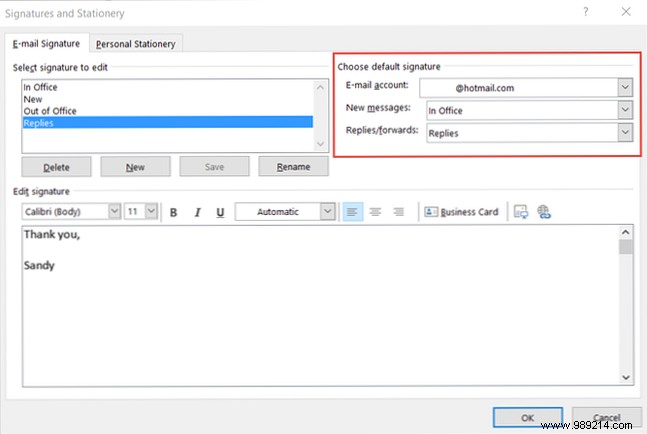
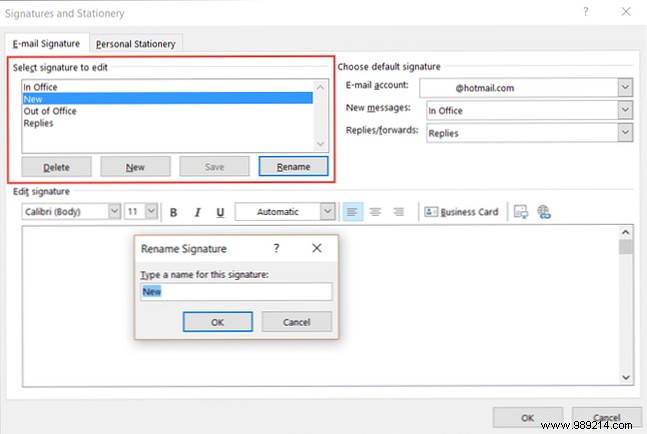
In the E-Mail Signature tab, select your email account from the dropdown (ideal for multiple accounts). Click New and name it descriptively, like "Business" or "Personal Reply," for easy management.
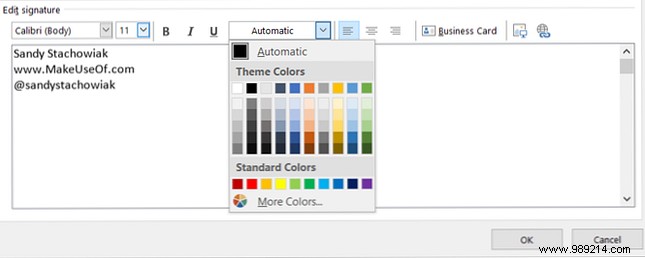
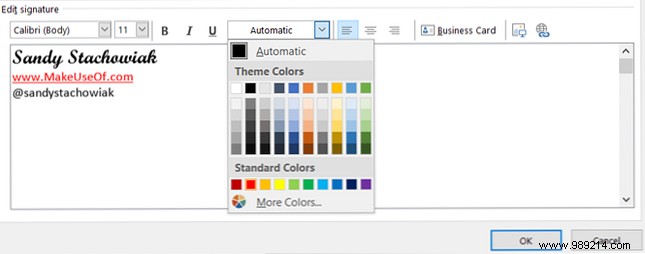
Click into the editor and type your details. Use toolbar tools for fonts, sizes, colors, and bold/italics to match your brand—make your name prominent or add company colors.
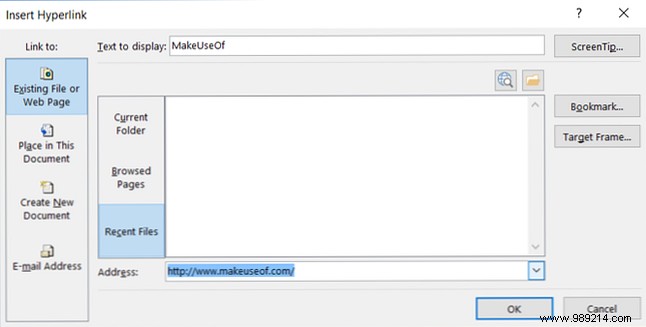
Outlook auto-links URLs: Type "www.example.com" and hit Enter. For custom links, highlight text, click Hyperlink, select Existing File or Web Page, enter the address, and click OK.
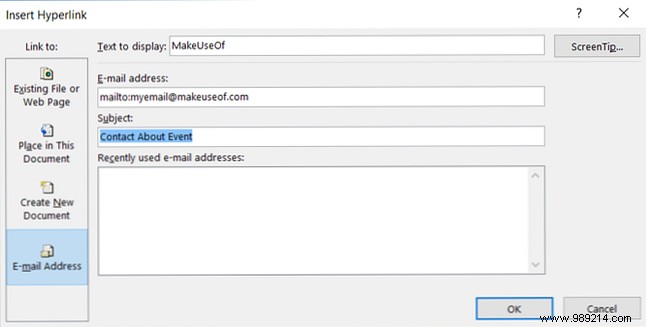
Link email addresses similarly, optionally adding a subject line.
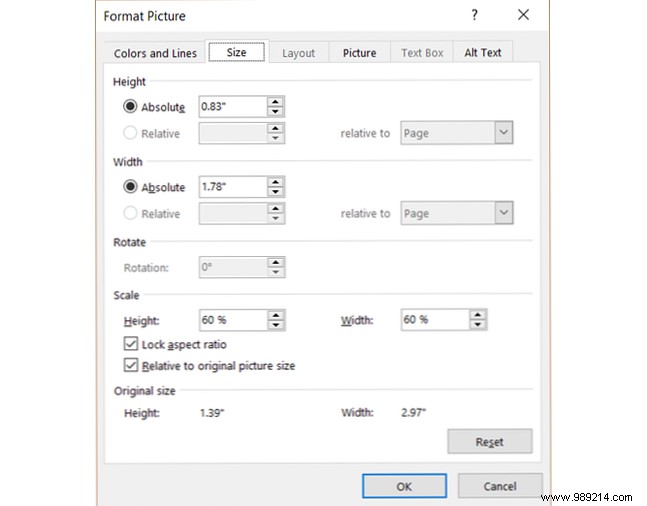
Add images like logos: Position cursor, click Picture, select file, and insert. Double-click to resize, crop, add alt text, or link it to your site.
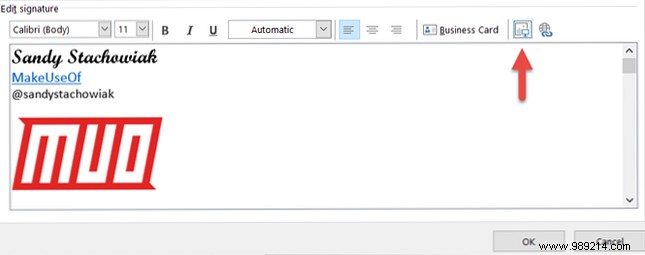
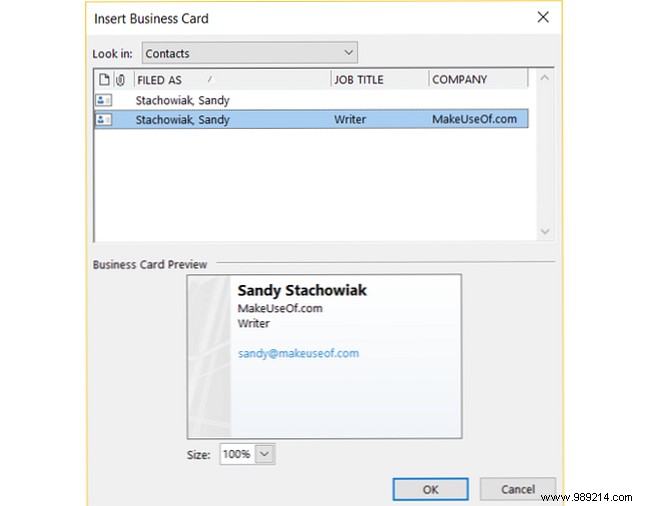
For quick details, insert a Business Card: Cursor to spot, click button, select contact, and confirm.
Assign signatures to New messages and/or Replies/forwards per account. Use detailed ones for new emails and simple ones (e.g., "Best, [Name]") for replies.
In a message window, go to Insert > Signatures dropdown to select a different one—it replaces the default instantly.
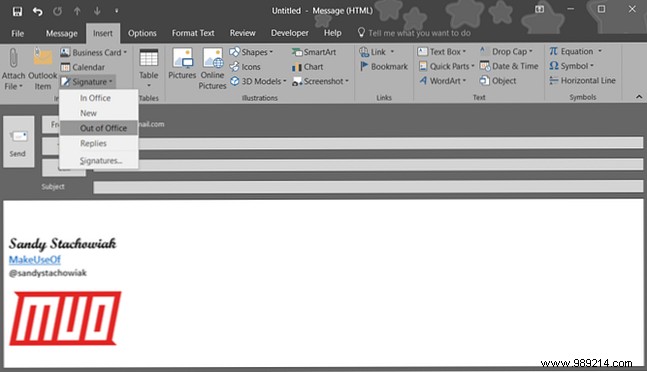
Reopen settings, select signature from Select signature to edit, update in editor, and click Save. Rename via Rename if needed.
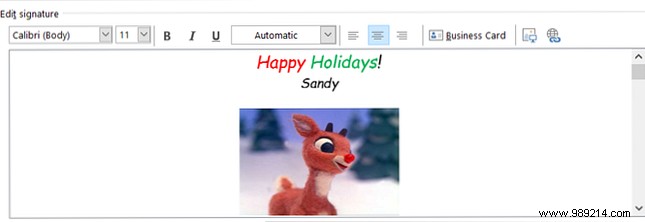
Outlook's tools shine for personal touches. Add holiday images and festive colors for cheer.
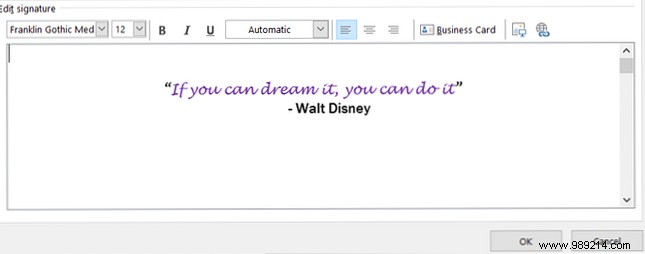
Include motivational quotes with elegant formatting.
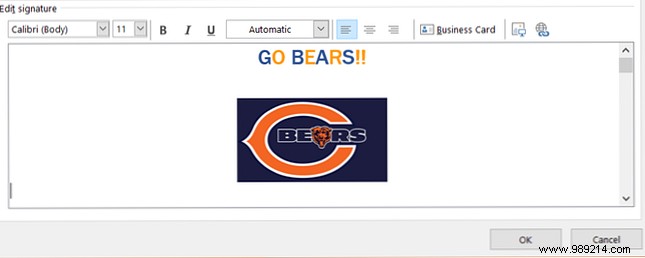
Show team spirit: Insert favorite sports logo, link to official site, use team colors.
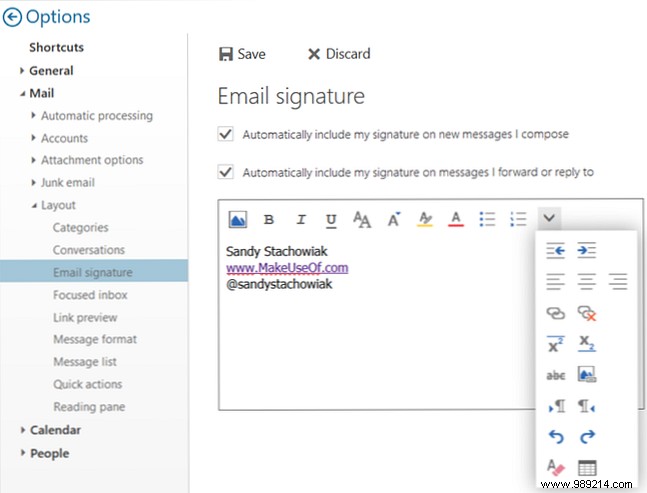
Access signatures via gear icon > View all Outlook settings > Mail > Compose and reply > Email signature. Customize one default with formatting, images, and links.
Business signatures: Keep them clean with contacts and links. Personal: Infuse personality. What's your go-to tip? Share below!
