Prefer accessing your Gmail emails through Microsoft Outlook instead of the web interface? Or want to consolidate all your emails in one desktop client? Adding Gmail to Outlook is straightforward and efficient.
We'll walk you through the process with proven steps we've tested across various Outlook versions.
Note: These instructions assume you already have at least one email account set up in Outlook. If not, Outlook will guide you through creating a new one on first launch.
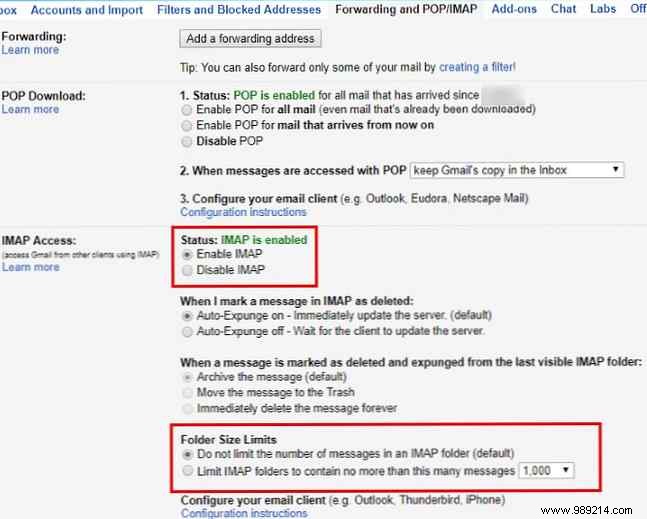
To allow Outlook to access your Gmail, first enable IMAP in your Gmail settings. Sign in to Gmail via a web browser, click the Gear icon in the upper-right corner, and select See all settings.
Navigate to the Forwarding and POP/IMAP tab. For most users, choose IMAP over POP3—IMAP syncs across devices seamlessly, while POP downloads emails locally and can cause duplicates. Select Disable POP if using IMAP.
In the IMAP access section, enable IMAP. If you have large folders, adjust Folder size limits to cap sync at folders with fewer messages.
Gmail may temporarily lock your account if you download over 2.5GB of email in a day to prevent abuse.
With 2FA enabled, generate an app-specific password, as Outlook doesn't support 2FA codes.
Click your profile picture in Gmail, select Manage your Google Account, go to Security > App passwords (verify your password if prompted). Select Email under Select app and Windows Computer under Select device (or use Other for a custom name).
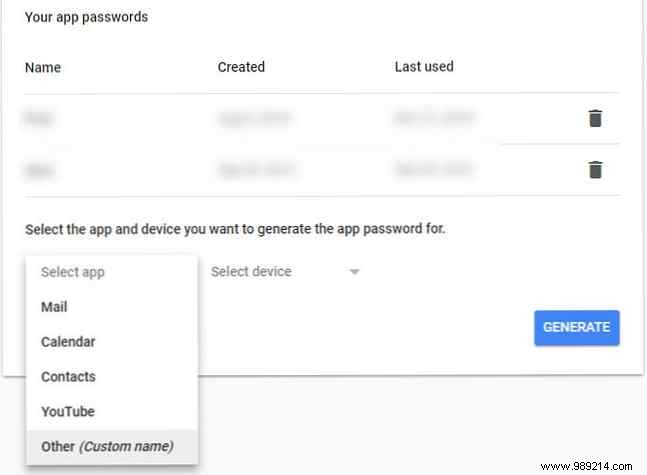
Click Generate and copy the 16-character password for the next step.
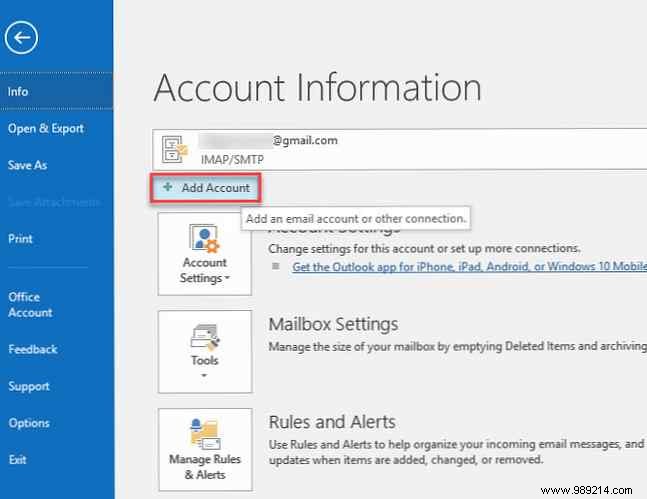
Open Outlook, click File in the top-left, ensure you're on the Info tab, and select Add Account.
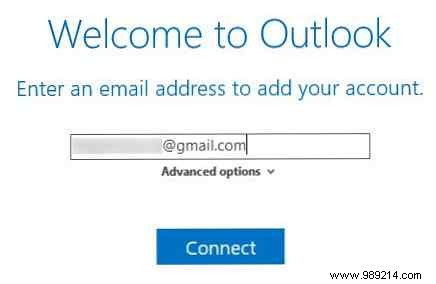
Enter your Gmail address and click Connect. When prompted for your password, use your regular one (or the app password if using 2FA), then click Connect again.
If you encounter an error, double-check your password and try clicking Retry. In our experience, a second attempt often succeeds. As a last resort, check Google's "Less secure app access" (though app passwords are preferred).
Once you see "We're setting up your account," click OK. Optionally uncheck mobile setup prompts.
Modern Outlook auto-configures; older versions may require manual IMAP settings from Google's support page.
Your Gmail now appears in Outlook's left sidebar. Expand folders by clicking arrows. Switch accounts via tabs.
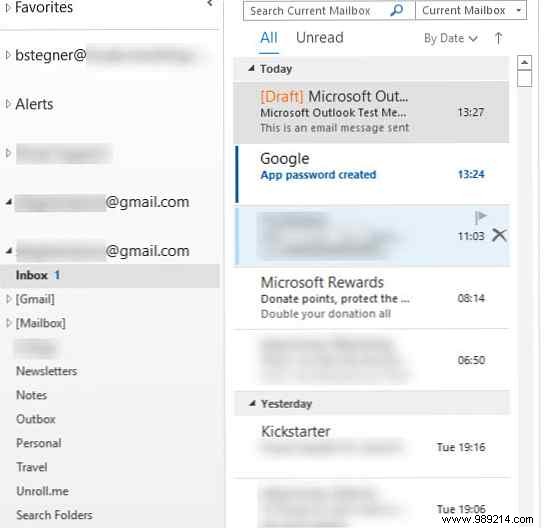
When replying from multiple accounts, select the correct From address to avoid mishaps.
This setup syncs email only. For contacts, export from Gmail and import to Outlook. For calendars, use tools to sync Google Calendar with Outlook.
To set Gmail as default: Go to File > Info > Account Settings > Account Settings. On the Email tab, select your Gmail account and click Set as Default.
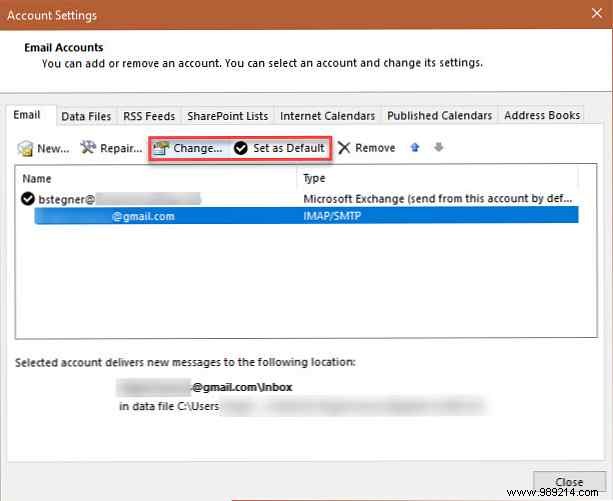
To limit sync: In Account Settings, select Gmail > Change, and adjust Mail to keep offline from All to 1 month.
That's it—Gmail is now integrated into Outlook for unified email management. If it doesn't suit you, explore other desktop options.
