Family Encyclopedia >> Work

How to Insert and Edit Drawings in Google Sheets: A Step-by-Step Guide

Google Sheets is a powerful tool for data analysis, but adding custom drawings can make your spreadsheets even more insightful. Whether you're creating flowcharts, diagrams, or simple annotations, Google Drawings integrates seamlessly to provide visual context for your data.

How to Insert a Drawing into Google Sheets

Custom sketches or drawings can elevate your spreadsheets by supporting key data points, like flowcharts for investment projections or maps for demographics. Here's how to do it:
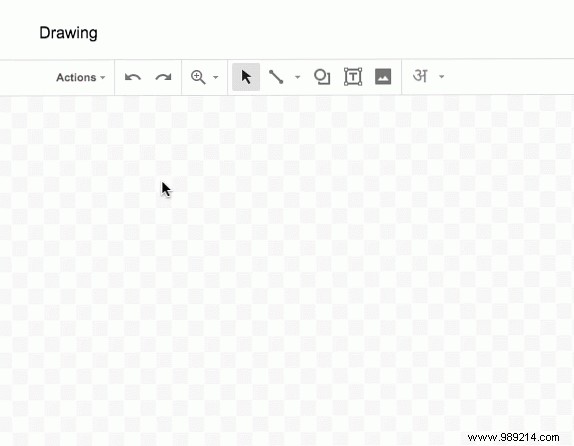
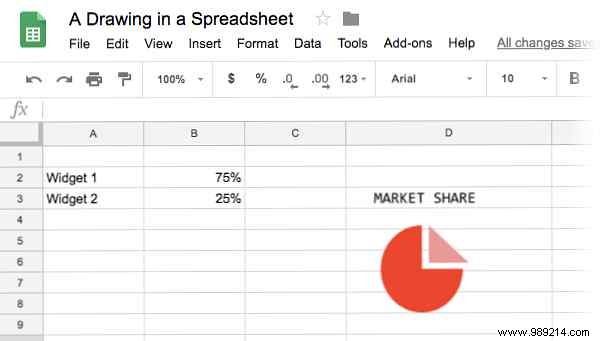
  1. Launch Google Sheets and click Insert > Drawing.
  2. The drawing canvas opens with a range of tools for creating illustrations. You can also upload an image, capture a snapshot, or import from a URL.
    How to Insert and Edit Drawings in Google Sheets: A Step-by-Step Guide
  3. Use the available tools to build your drawing, then click the blue Save and Close button to embed it in your sheet.
  4. Drag the drawing anywhere on the sheet, resize using the corner handles, and enable text wrapping on all sides for flexible placement.
    How to Insert and Edit Drawings in Google Sheets: A Step-by-Step Guide
  5. To edit, simply double-click the embedded drawing to reopen the canvas.

Drawings are separate documents, so sharing permissions apply independently. Collaborators can view the drawing but need edit access to modify it via double-click.

This feature shines for quick additions like straight lines to highlight data—just draw on the canvas and position it precisely.
