Family Encyclopedia >> Work

How to Insert Symbols and Special Characters in Google Sheets

From copyright symbols to checkmarks, special characters come in handy often. Surprisingly, Google Sheets lacks a direct menu for inserting them.
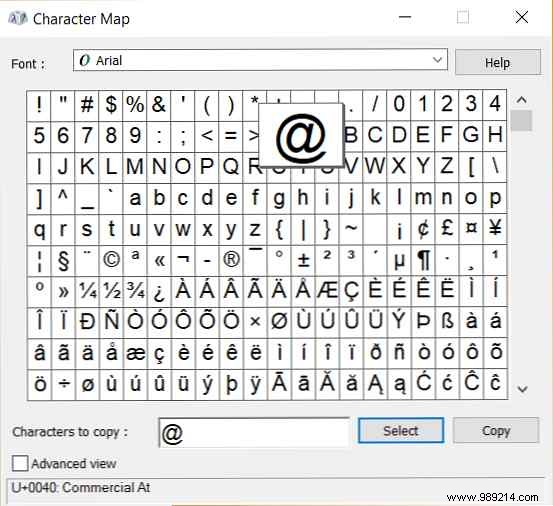
Method 1: Use the Windows Character Map

How to Insert Symbols and Special Characters in Google Sheets

If you're on Windows 10 or any other version, the built-in Character Map lets you copy and paste special characters into Google Sheets effortlessly.
  1. Launch the Character Map app.
  2. Select your preferred font. Double-click the characters you need, then click Copy to add them to the clipboard.
  3. Open your Google Sheets file and paste (Ctrl+V or right-click > Paste) into the target cell.

Method 2: Use Google Docs to Copy into Sheets

How to Insert Symbols and Special Characters in Google Sheets

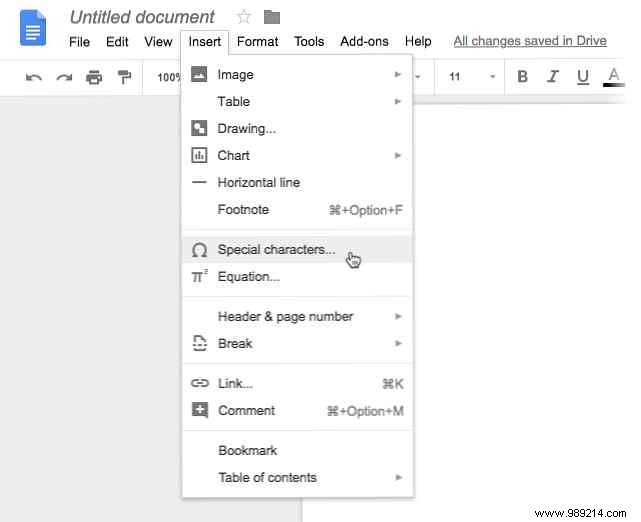
Google Docs has a native special characters tool missing in Sheets. Use it as a quick workaround in Google Drive.

  1. Open your spreadsheet alongside a Google Doc.
  2. In Docs, select Insert > Special characters.
  3. Insert the character in Docs, copy it, and paste into your Sheets cell.

These reliable methods resolve Google Sheets' missing special characters feature, based on years of Google Workspace expertise.
